

Med så mange AI-verktøy som dukker opp hver dag, er det vanskelig å finne ut hvilket som passer for deg. Du vet at du vil utnytte kraften i kunstig intelligens til å automatisere tidkrevende oppgaver, forstå brukerpreferanser, komme med forslag basert på disse preferansene og til og med tilby prediktive designelementer, men du må finne ut hvilket verktøy som er best. Jeg hjelper deg! I dette innlegget gjør jeg valget enklere ved å dele mine personlige erfaringer med å utforske dusinvis av ulike AI-verktøy og se dem i bruk med forskjellige produkter, samt mine anbefalinger av den beste AI-designprogramvaren.
Hva er AI-designprogramvare?
AI-designprogramvare er et avansert teknologiverktøy som integrerer kunstig intelligens og maskinlæringsalgoritmer i visuelle designprosesser. Det gjør det mulig for designere å lage mer presise og personlig tilpassede visualiseringer raskere og mer effektivt. Viktige funksjoner omfatter vanligvis designautomatisering, intelligente anbefalinger, personlig tilpassede brukeropplevelser, justerbare innstillinger for AI-kontroller og integrasjon med andre designverktøy.
Verktøyet kan også tilby ressurser for opplæring av AI-en og funksjoner for dataanalyse som kan brukes til å informere fremtidige design.
Why Trust Our Software Recommendations
6,700+
Reviews
20
Industry experts
16+
Evaluation factors
14
Years
Our team has been testing and reviewing software since 2012. As product managers ourselves, we know how difficult—and important—it is to choose the right software.
For this guide, we evaluated tools using hands-on testing and independent research, scoring tools using our selection criteria.
Our reviews reflect our human editorial judgment, not a sales pitch.
Expert reviewers:
- Andrew LumbySenior TPM
- Cristiano ValimSenior UI/UX Lead


Sammenligningstabell for AI-designprogramvare
Denne sammenligningstabellen oppsummerer prisdetaljene for mine beste utvalg av AI-designprogramvare:
| Tool | Best For | Trial Info | Price | ||
|---|---|---|---|---|---|
| 1 | Best for sketch-to-wireframe conversion | Free plan available | From $39/month (billed annually) | Website | |
| 2 | Best for AI website design | Free plan available | From $17.77/month (billed annually) | Website | |
| 3 | Best for UI design that exports production code | Free plan + 14-day free trial available | From $29/user/month (billed annually) | Website | |
| 4 | Best for open-source design-to-code AI workflows | Free plan + 14-day free trial available | From $7/user/month | Website | |
| 5 | Best for turning PRDs into Figma-ready UI flows | Free plan available | From $14/month | Website | |
| 6 | Best for cross-team design without design skills | Free trial + free plan available | From $144/user/year (billed annually) | Website | |
| 7 | Best for non-designers building UI prototypes fast | Free plan available | From $14/user/month | Website | |
| 8 | Best for IP-safe generative fill editing | Free plan available | From $9.99/month | Website | |
| 9 | Best for AI-generated web design on a live canvas | Free plan available | From $10/month (billed annually) | Website | |
| 10 | Best for native vector and SVG asset generation | Free plan available | From $10/month (billed annually) | Website |


Oversikt over den beste AI-designprogramvaren
Her er min grundige gjennomgang av hvert verktøy. Jeg går gjennom fordeler & ulemper, funksjoner og egenskaper for å fremheve hva som gjør hvert verktøy bra.
 Best for sketch-to-wireframe conversion
- Free plan available
- From $39/month (billed annually)
Visit WebsiteCustomer Rating:4.6/5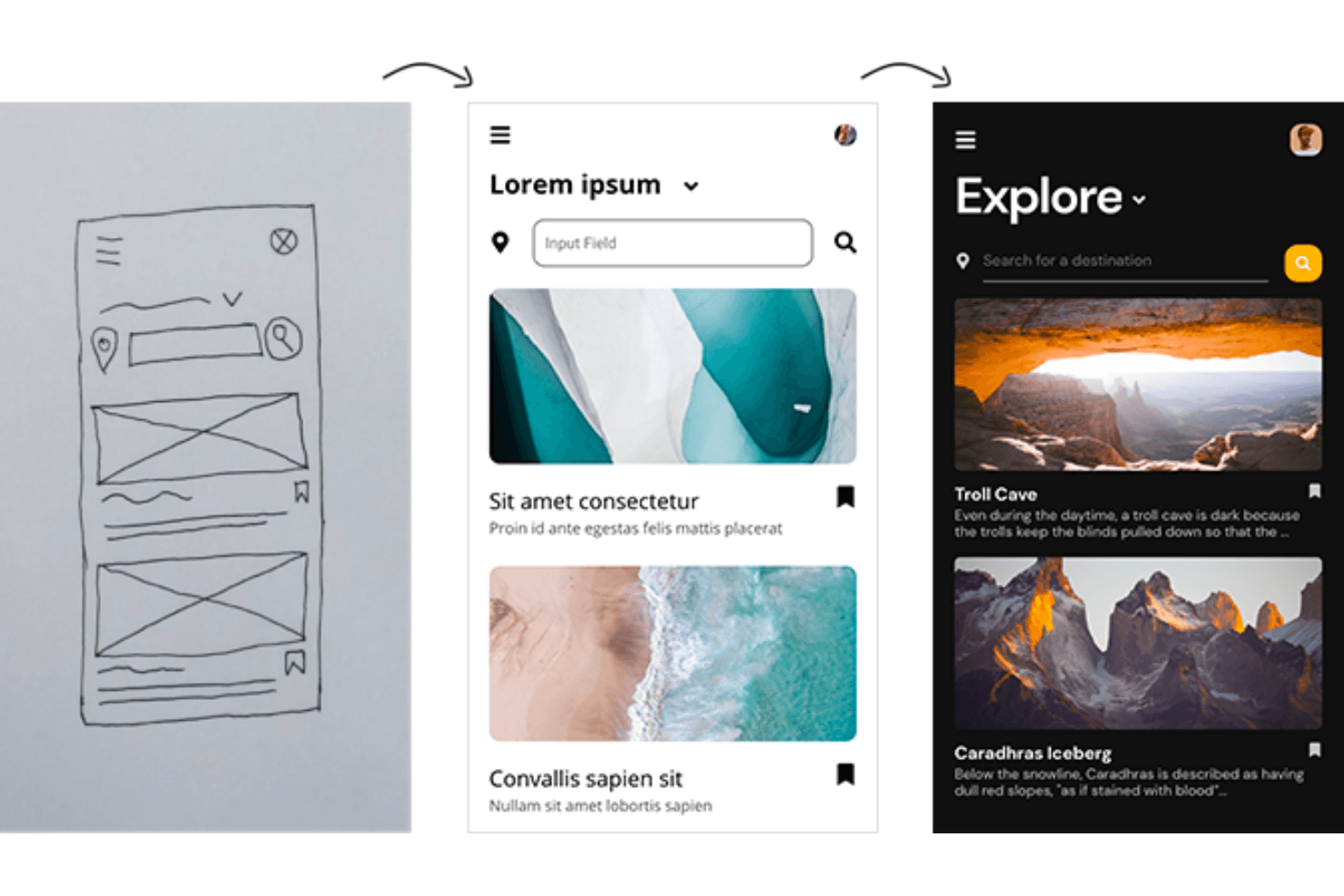
Convert your hand drawings into UI wireframes using Uizard. Uizard is an AI design tool that converts hand-drawn sketches, screenshots, and text prompts into editable, multi-screen, clickable prototypes.
Who Is Uizard Best For?
Uizard is a strong fit for product managers and non-designer founders who need to turn rough sketches or ideas into clickable prototypes without relying on a design team.
Why I Picked Uizard
I've included Uizard in my top picks because its Wireframe Scanner is the most direct path I know from a hand-drawn sketch to a clickable, multi-screen prototype. You photograph a paper sketch or whiteboard layout, and Uizard converts it into editable UI screens in seconds. Autodesigner 2.0 extends that further, letting you refine any generated component by describing the change you want in plain language, like "add three sections and change the font to Roboto."
Uizard Key Features
- Autodesigner 2.0: A chat-style interface inside the editor that generates multi-screen, clickable prototypes from text prompts and lets you refine any component by describing the change you want.
- Screenshot scanner: Converts screenshots of existing apps or websites into editable UI mockups you can then build into a clickable prototype.
- Focus predictor heatmaps: Predicts where users are likely to look on a screen, giving you quick visual feedback on layout before testing with real users.
- React and CSS code handoff: Exports individual components as React or CSS code through Handoff Mode, available on Pro and above.
Uizard Integrations
Uizard doesn't have any native integrations. Its beta Figma plugin imports elements into Uizard, while web embeds and React/CSS component handoff support sharing and development workflows.
Pros and Cons
Pros:
- Generates editable screens from text prompts
- Supports real-time comments and collaborative editing
- Converts sketches into clickable prototypes quickly
Cons:
- AI outputs can feel repetitive or simplistic
- Manual editing lacks professional canvas depth
Learn more about Uizard: 2Best for AI website design
Wix
- Free plan available
- From $17.77/month (billed annually)
Visit WebsiteCustomer Rating:4.4/5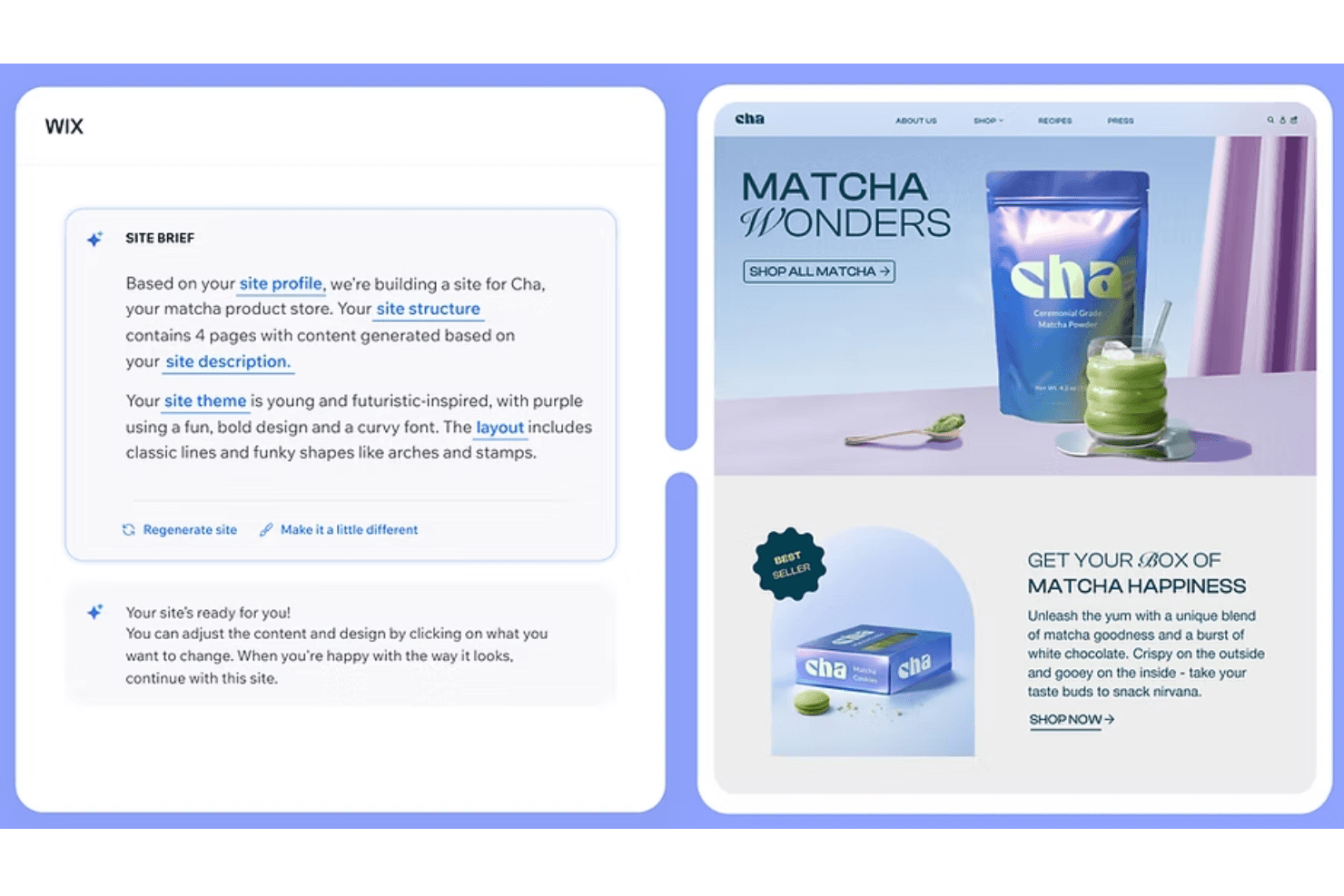
To set up an AI-generated site using Wix, you can write a prompt describing the brand and general design pointers. Wix is an AI website builder that generates complete, on-brand pages from text prompts and pairs that output with a pixel-level editor, brand controls, and collaboration tools for teams.
Who Is Wix Best For?
Wix is a strong fit for marketing teams and non-designers who need to build and launch on-brand websites quickly using AI-generated layouts and content.
Why I Picked Wix
I've included Wix in my top picks because Wix Harmony generates complete, on-brand websites from a plain-language prompt, covering page structure, copy, and images in minutes. I particularly like how Aria, Wix's built-in AI agent, can redesign entire pages or swap color palettes without breaking the underlying code. Switching between AI-generated output and pixel-level manual editing in the same canvas means you're never locked into a draft you can't refine.
Wix Key Features
- Brand panel: Set and manage your site's colors, fonts, and button styles in one place, with changes applying across every page automatically.
- Figma import: Bring Figma frames and styles into Wix Studio as pages, sections, or containers using the Figma to Wix Studio plugin.
- Real-time collaboration: Multiple editors can work on a Studio site at once, with canvas comments, task assignment, and custom roles for each contributor.
- AI code assistant: A built-in, VS Code-based cloud IDE with AI support lets you write and edit JavaScript, React components, and Node back-end functions directly in Studio.
Wix Integrations
Wix integrates with Figma, GitHub, Google Search Console, and Google Workspace. Its App Market offers hundreds of marketplace integrations, while Wix APIs and Headless support custom connections.
Pros and Cons
Pros:
- Supports real-time design collaboration in Studio
- Enables pixel-level editing after AI generation
- Generates complete on-brand websites from prompts
Cons:
- Cannot export standalone design files
- Focuses on websites, not product interfaces
Learn more about Wix: Best for UI design that exports production code
- Free plan + 14-day free trial available
- From $29/user/month (billed annually)
Visit WebsiteCustomer Rating:4.2/5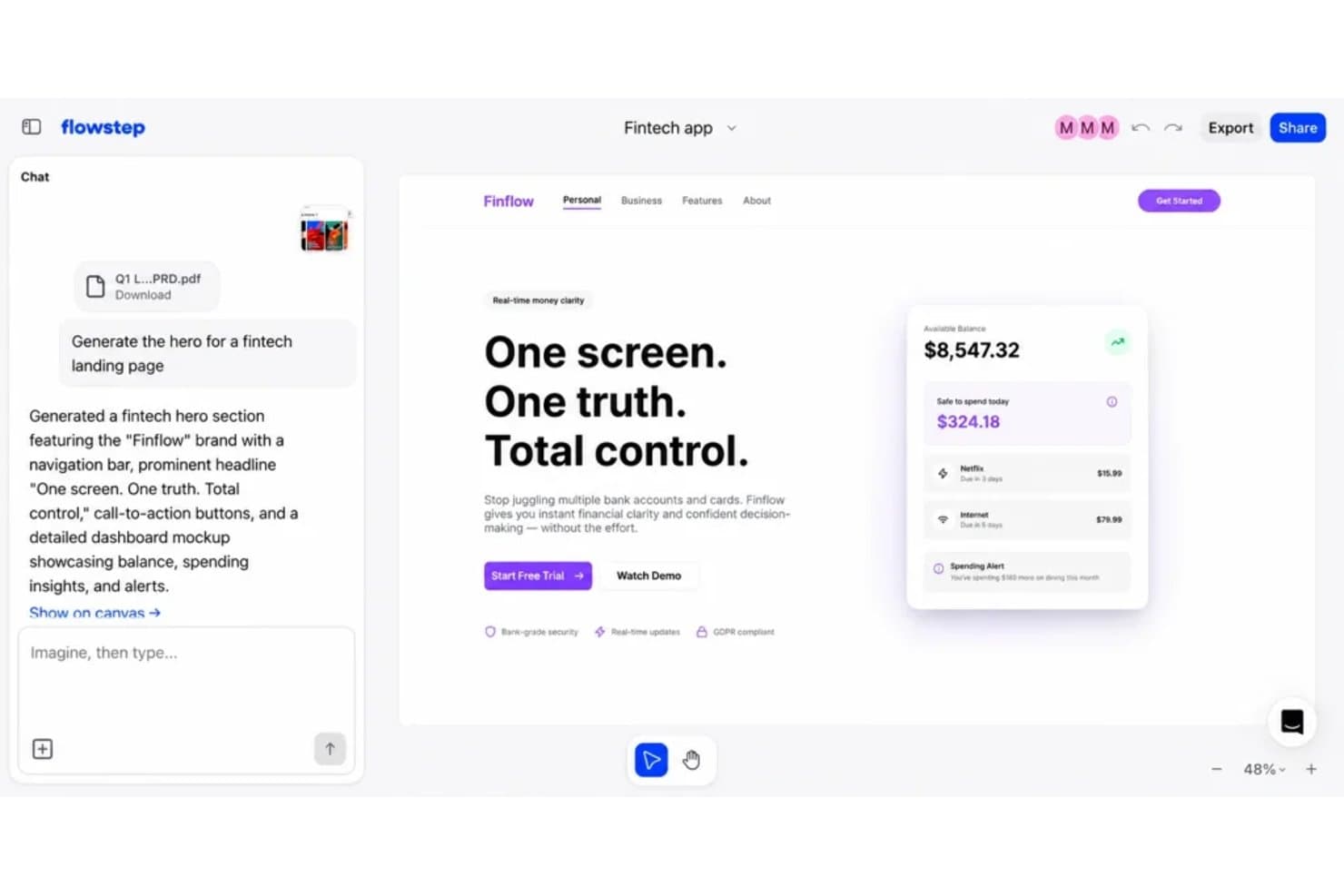
Flowstep lets users generate UI designs from text prompts instantly. UXPin is a UI design and prototyping platform that uses AI to generate coded React components from text prompts, uploaded wireframes, or screenshots, with tools for design system management, high-fidelity prototyping, and developer handoff.
Who Is UXPin Best For?
UXPin suits product teams and technically-minded UI designers who need AI-generated designs that export as real, production-ready React code.
Why I Picked UXPin
UXPin earns its spot on my shortlist because it's the only AI design tool I know that generates real React components instead of vector shapes you still have to hand off to a developer. I love how Forge lets you upload a wireframe or screenshot and rebuilds the layout as production-ready JSX, which means my team skips the usual "now a developer re-creates this from scratch" step. The Wire feature takes it further, producing a fully runnable React app with routing, form validation, and conditional logic.
UXPin Key Features
- AI usability feedback: UX Review scores your designs on clarity, hierarchy, consistency, and accessibility, giving you specific notes to act on.
- Design System Guidelines: Plain-text rules you write once are saved per project, and Forge follows them automatically on every subsequent AI generation.
- Conditional logic and variables: Prototypes support states, expressions, and dynamic content so they behave like real, working apps during stakeholder reviews.
- Stakeholder approval workflows: Unlimited viewers and commenters can review and approve prototypes without needing a UXPin account.
UXPin Integrations
UXPin offers integrations with Figma, Sketch, Storybook, Git, Jira, FullStory, Slack, npm, CodeSandbox, and StackBlitz. Storybook and Jira require Growth or higher, while Git integration is available on Enterprise.
Pros and Cons
Pros:
- Supports high-fidelity prototypes with conditional logic
- Rebuilds screenshots into editable coded layouts
- Exports generated interfaces as production-ready React code
Cons:
- AI output focuses narrowly on UI screens
- Advanced workflows require considerable technical knowledge
Learn more about UXPin: Best for open-source design-to-code AI workflows
- Free plan + 14-day free trial available
- From $7/user/month
Visit WebsiteCustomer Rating:4.5/5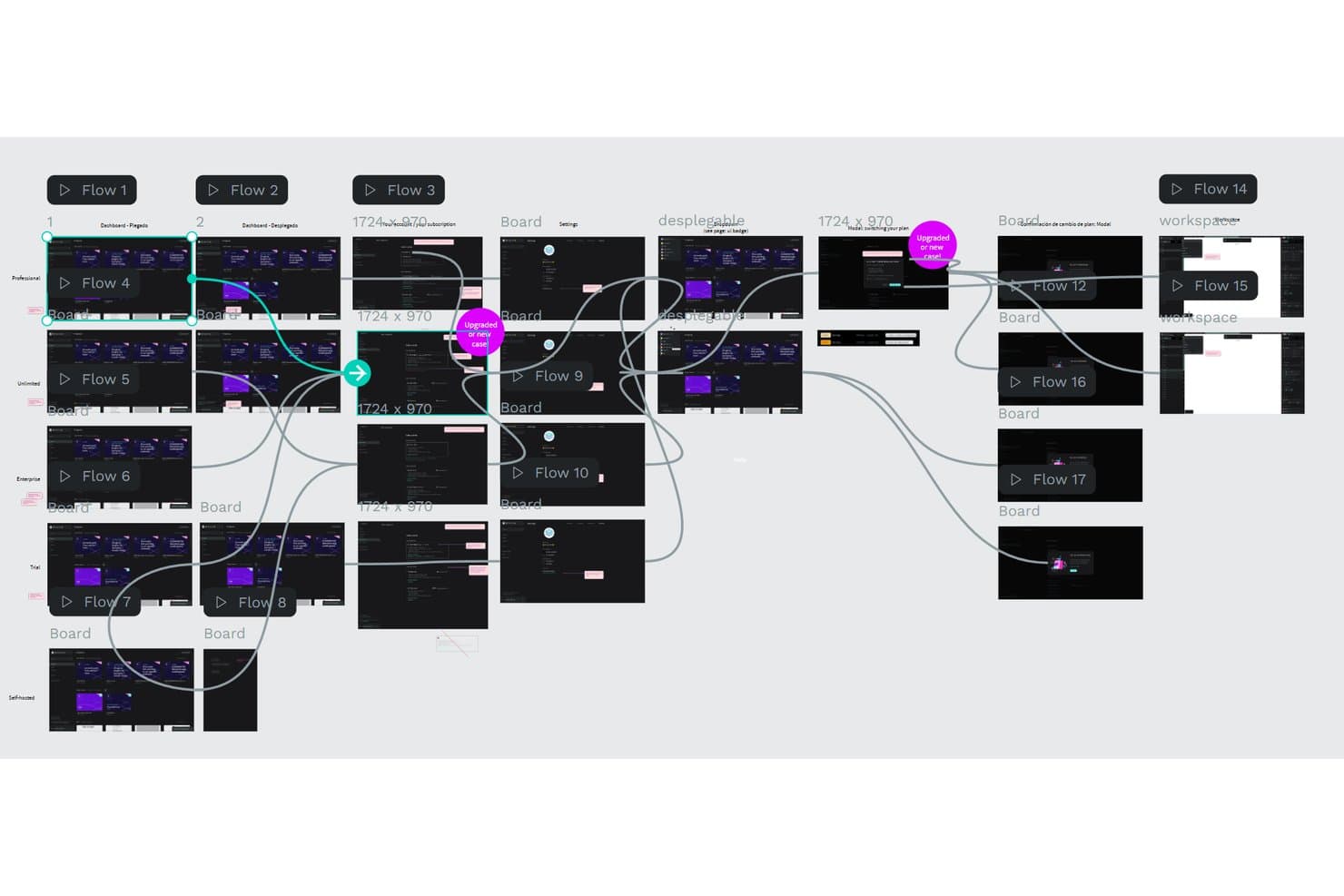
Penpot lets users map complex multi-flow prototypes visually. Penpot is an open-source design and prototyping tool that combines vector editing, component libraries, design tokens, real-time collaboration, and AI-driven design-to-code workflows via its MCP Server.
Who Is Penpot Best For?
Penpot is a strong fit for UX/UI designers and technical product teams who want full ownership of their design files and an AI workflow that connects directly to their codebase.
Why I Picked Penpot
I've included Penpot in my top picks because its MCP Server turns the design canvas into a programmable space where any AI agent, whether that's Claude, Cursor, or OpenAI Codex, can read and edit your actual Penpot files. I particularly like that it works with your existing design system as context, so an agent can generate new screens, swap a color palette, or create spacing and typography tokens without breaking consistency. It's also fully open source and self-hostable, which matters when your team can't send design files to third-party clouds.
Penpot Key Features
- Real-time multiplayer editing: Multiple team members can edit the same file simultaneously, with live cursor presence and in-canvas comments.
- W3C design tokens: Native support for color, typography, and spacing tokens built to the W3C standard, synced across shared team libraries.
- CSS Grid and Flex layout: Responsive layout tools that map directly to production code, making developer handoff more precise.
- Inspect tab with code output: Generates CSS, SVG, and HTML from any design element, letting developers copy production-ready code without leaving Penpot.
Penpot Integrations
Penpot integrates with Claude Desktop, Claude Code, Cursor, OpenAI Codex, and VS Code extensions through its MCP Server. Its REST API, webhooks, and plugin API support custom connections, while plugins connect with GitHub, GitLab, Azure DevOps, Bitbucket, Miro, and Storybook workflows.
Pros and Cons
Pros:
- Real-time prototyping and collaboration
- Precise token and component governance
- Open-source design-to-code workflows
Cons:
- AI setup requires technical comfort
- No native prompt-to-design generation
Learn more about Penpot: Best for turning PRDs into Figma-ready UI flows
- Free plan available
- From $14/month
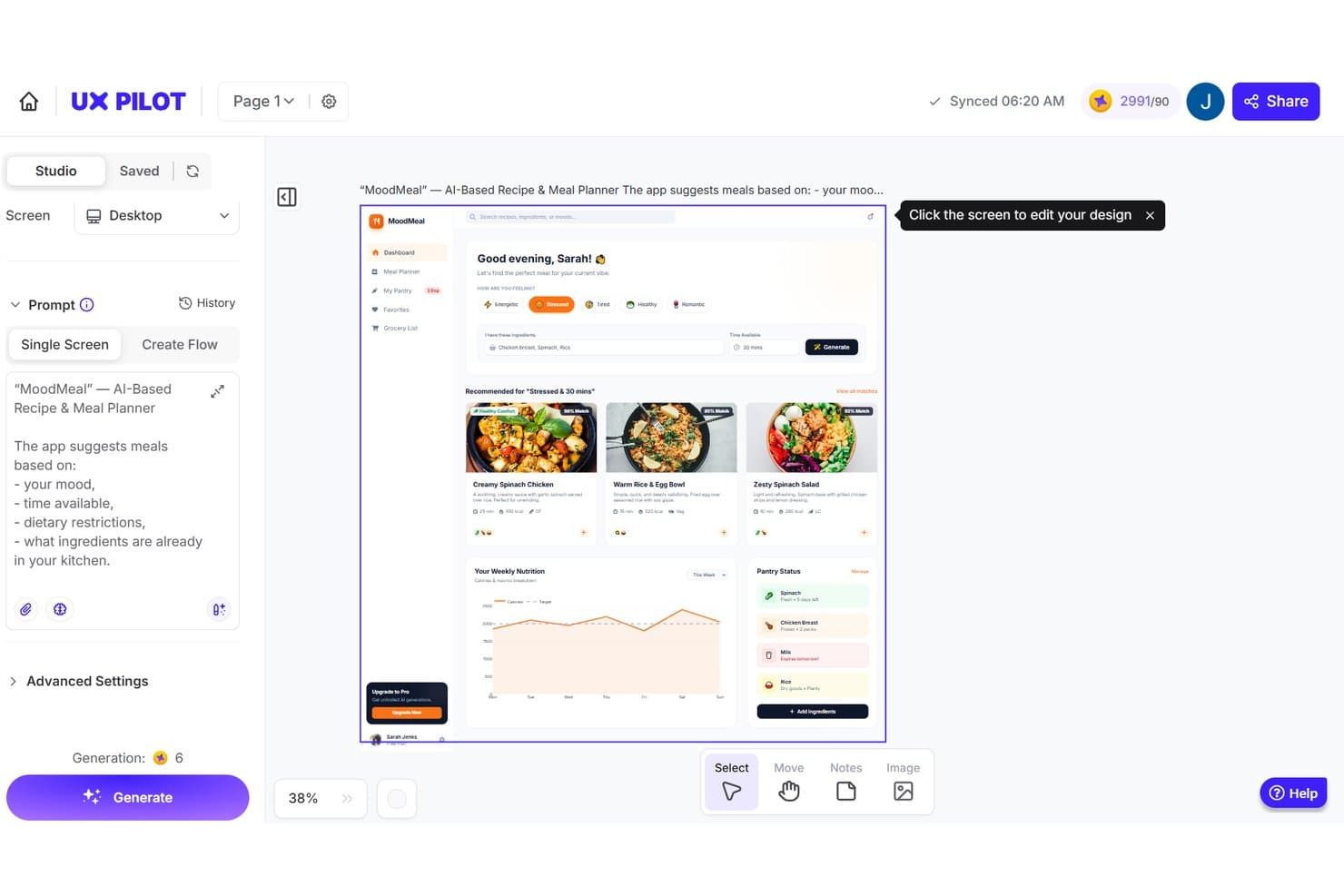
UX Pilot generates AI-based meal planner UI designs from text prompts. UX Pilot is a Figma-native AI design tool that generates wireframes, high-fidelity UI screens, and multi-screen flows from text prompts, PRDs, sketches, and screenshots.
Who Is UX Pilot Best For?
UX Pilot is a strong fit for UX/UI designers and product managers who work inside Figma and need to move quickly from ideas or PRDs to testable, multi-screen flows.
Why I Picked UX Pilot
I picked UX Pilot as one of the best because it's one of the few tools that actually bridges the gap between a PRD and a testable Figma prototype. I love that Autoflow takes a product description and generates a full map of connected, editable screens in one go, which means PMs can hand off something real to engineering before sprint planning even starts. The Import Components feature brings in your existing Figma tokens and components, so the generated screens aren't starting from scratch stylistically.
UX Pilot Key Features
- Variations: Generate up to four alternative layouts for any screen, each with a different structure, visual hierarchy, or chart style.
- React Focus Mode: Build, edit, and export working React prototypes using a visual editor, chat-based edits, or a live code editor.
- AI usability feedback: Run predictive attention heatmaps and automated design checks for contrast and spacing directly within the tool.
- Nodey: A free AI agent that runs inside Figma and creates native, editable layers while preserving your auto-layout and design tokens.
UX Pilot Integrations
UX Pilot integrates with Figma, GitHub, Jira, Notion, Linear, ChatGPT, and Claude. It also offers an enterprise API for custom integrations, with two-way Figma sync and GitHub syncing for code exports.
Pros and Cons
Pros:
- Predictive heatmaps flag usability issues early
- Editable layers preserve imported design tokens
- PRD prompts become connected screen flows
Cons:
- Failed generations can still consume credits
- Generations sometimes stall or distort layouts
Learn more about UX Pilot: Best for cross-team design without design skills
- Free trial + free plan available
- From $144/user/year (billed annually)
Visit WebsiteCustomer Rating:4.7/5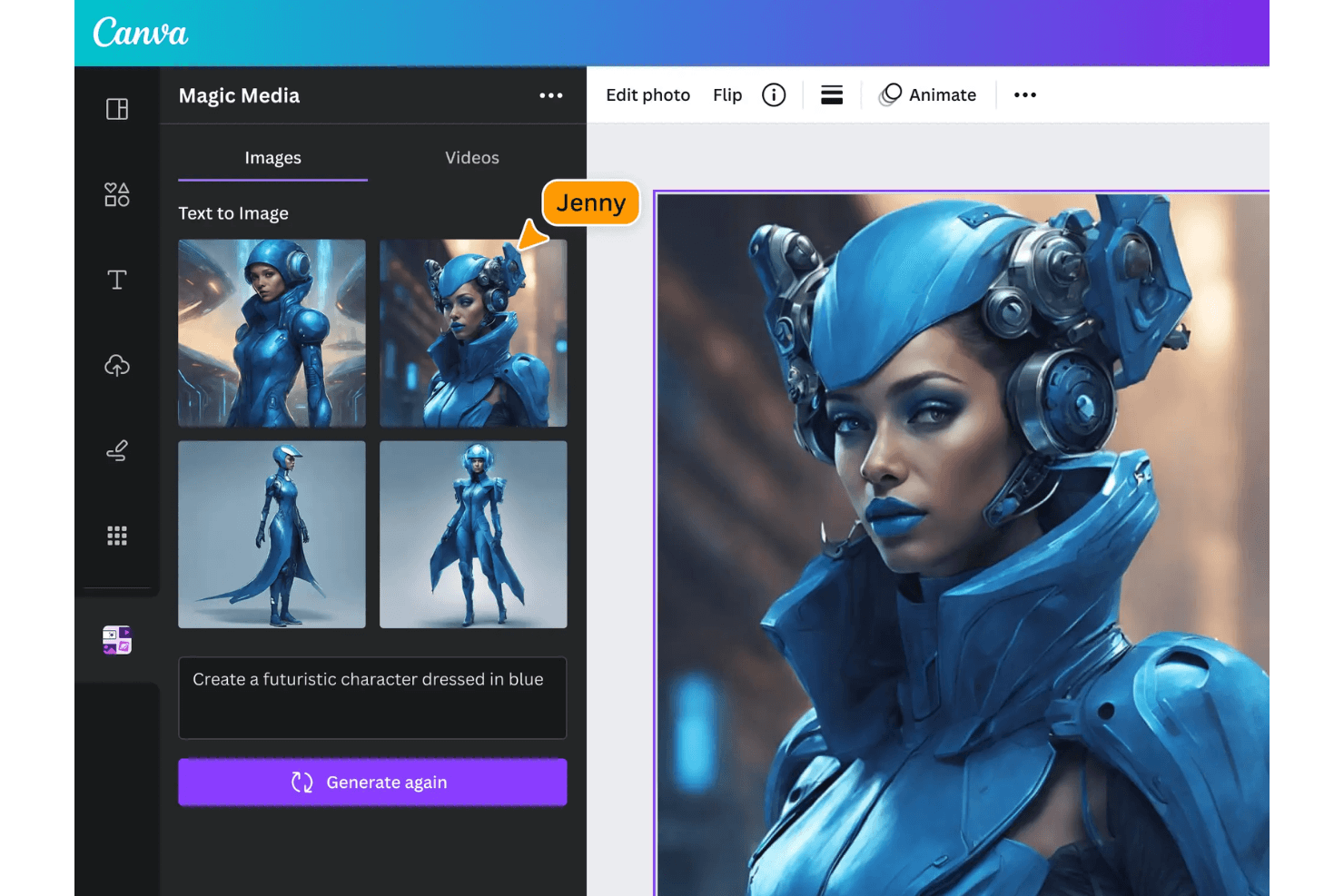
Canva lets you create and edit AI-generated visual designs. Canva is an AI design platform that combines a drag-and-drop canvas, a massive template and asset library, generative AI tools, brand management controls, and real-time collaboration into one workspace.
Who Is Canva Best For?
Canva fits cross-functional teams where marketers, product managers, and non-designers need to produce on-brand visuals without relying on a dedicated design resource.
Why I Picked Canva
I've included Canva in my top picks because it's the tool I'd hand to a product manager or marketer who needs to produce real, on-brand design output without a designer in the room. Brand Kits paired with Brand Controls lock in colors, fonts, and templates across the whole team, so nothing goes off-brand even when non-designers are building assets. Canva AI 2.0 takes it further by generating fully layered, editable designs from a prompt, meaning your team can move from idea to polished visual without a single handoff.
Canva Key Features
- Magic Resize: Automatically adapts any design to multiple formats and dimensions in one click, eliminating manual reformatting across platforms.
- Real-time collaboration: Multiple team members can edit, comment, and assign tasks within the same design simultaneously, on every plan including Free.
- Magic Layers: Converts flat images into individual, editable layers so you can isolate and modify specific design elements without rebuilding from scratch.
- Version history: Tracks up to 1,000 saved versions per design, showing which team member made each change, so you can restore earlier iterations confidently.
Canva Integrations
Canva integrates with ChatGPT, Claude, Gemini, Microsoft Copilot, Slack, Google Drive, Notion, Linear, HubSpot, and Atlassian Rovo through its AI Connector and connectors. It also offers a REST API for custom apps on Enterprise plans and third-party Figma import.
Pros and Cons
Pros:
- Real-time collaboration keeps product teams aligned
- Massive template library accelerates visual exploration
- Editable AI layouts retain layered structure
Cons:
- Large projects can feel slow or clunky
- Limited precision for interface prototyping
Learn more about Canva: Best for non-designers building UI prototypes fast
- Free plan available
- From $14/user/month
Visit WebsiteCustomer Rating:4.8/5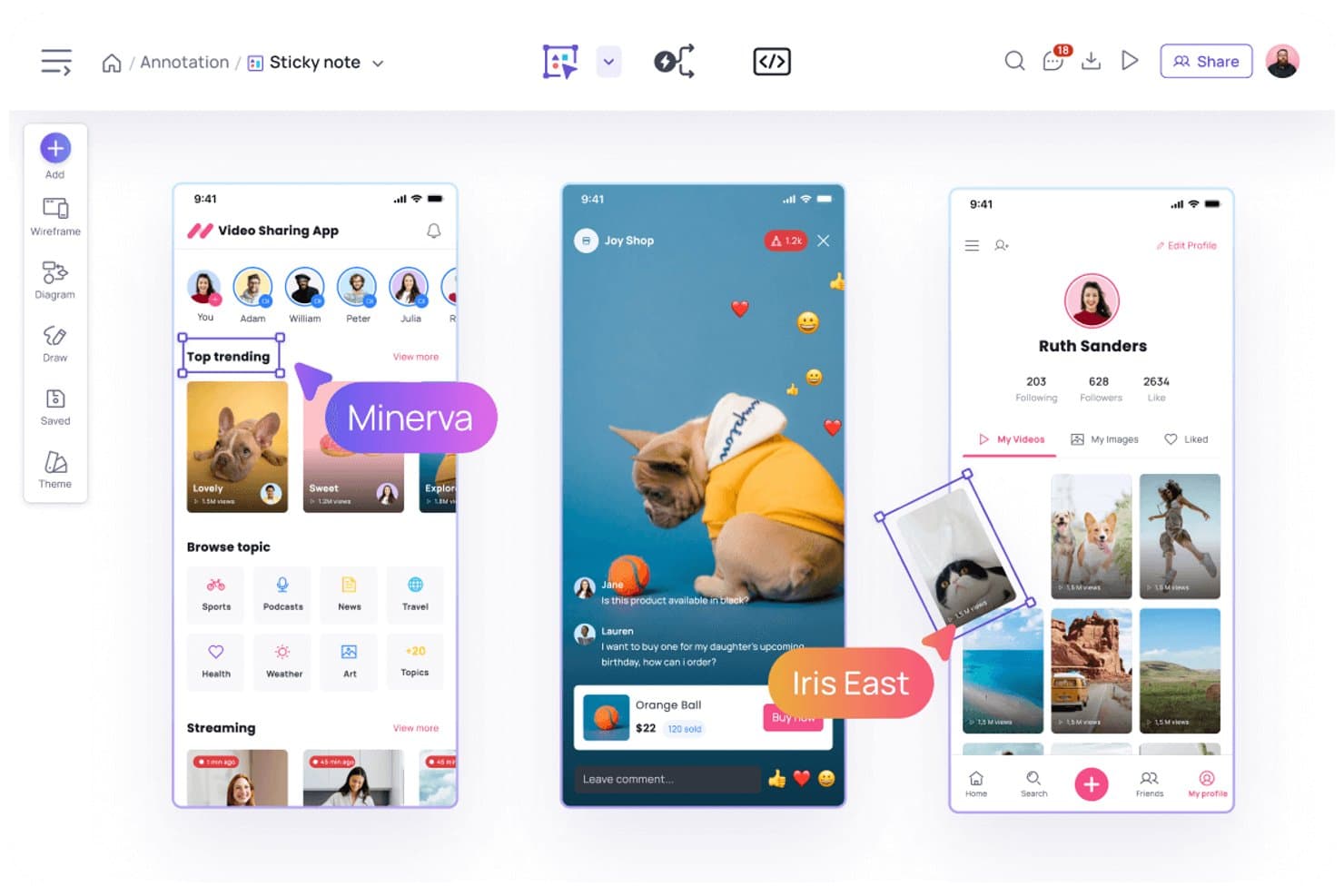
Visily lets users annotate designs with sticky notes and comments. Visily is an AI-powered UI design tool that lets you generate wireframes, prototypes, and hi-fi screens from text prompts, screenshots, and diagrams.
Who Is Visily Best For?
Visily is a strong fit for product managers and startup founders who need to turn ideas into shareable UI prototypes without relying on a dedicated designer.
Why I Picked Visily
I picked Visily as one of the best because it genuinely removes the design bottleneck for product managers who need to move fast. Screenshot-to-wireframe lets you capture any live UI and get an editable screen instantly, while Diagram-to-Design turns a flowchart from your discovery session into actual UI screens. I also love that Plan Mode builds a structured, multi-screen design plan before generating anything, so the output reflects real product thinking rather than a generic layout.
Visily Key Features
- Real-time co-editing: Multiple team members can work on the same board simultaneously, with cursor chat and comments for in-context feedback.
- Export to code: Pro and Business plans export designs as React, Vue, or HTML code, downloadable as a ZIP file for developer handoff.
- Workspace Library: Store shared themes, custom fonts, and images at the workspace level so every board stays visually consistent.
- Auto-prototyping: Visily automatically links screens into interactive prototypes, letting you preview flows without manual connection setup.
Visily Integrations
Visily supports integrations with Figma, Jira, Notion, Slack, and Google Docs, plus a browser extension for Chrome, Edge, and Firefox. Pro and Business plans include an MCP server for coding tools such as Claude Code, Cursor, and ChatGPT.
Pros and Cons
Pros:
- Supports fast collaboration across product teams
- Auto-links prototypes without consuming AI credits
- Generates screens from text, diagrams, and screenshots
Cons:
- Complex layouts restrict detailed design control
- AI edits often regenerate entire screens
Learn more about Visily: Best for IP-safe generative fill editing
- Free plan available
- From $9.99/month
Visit WebsiteCustomer Rating:4.4/5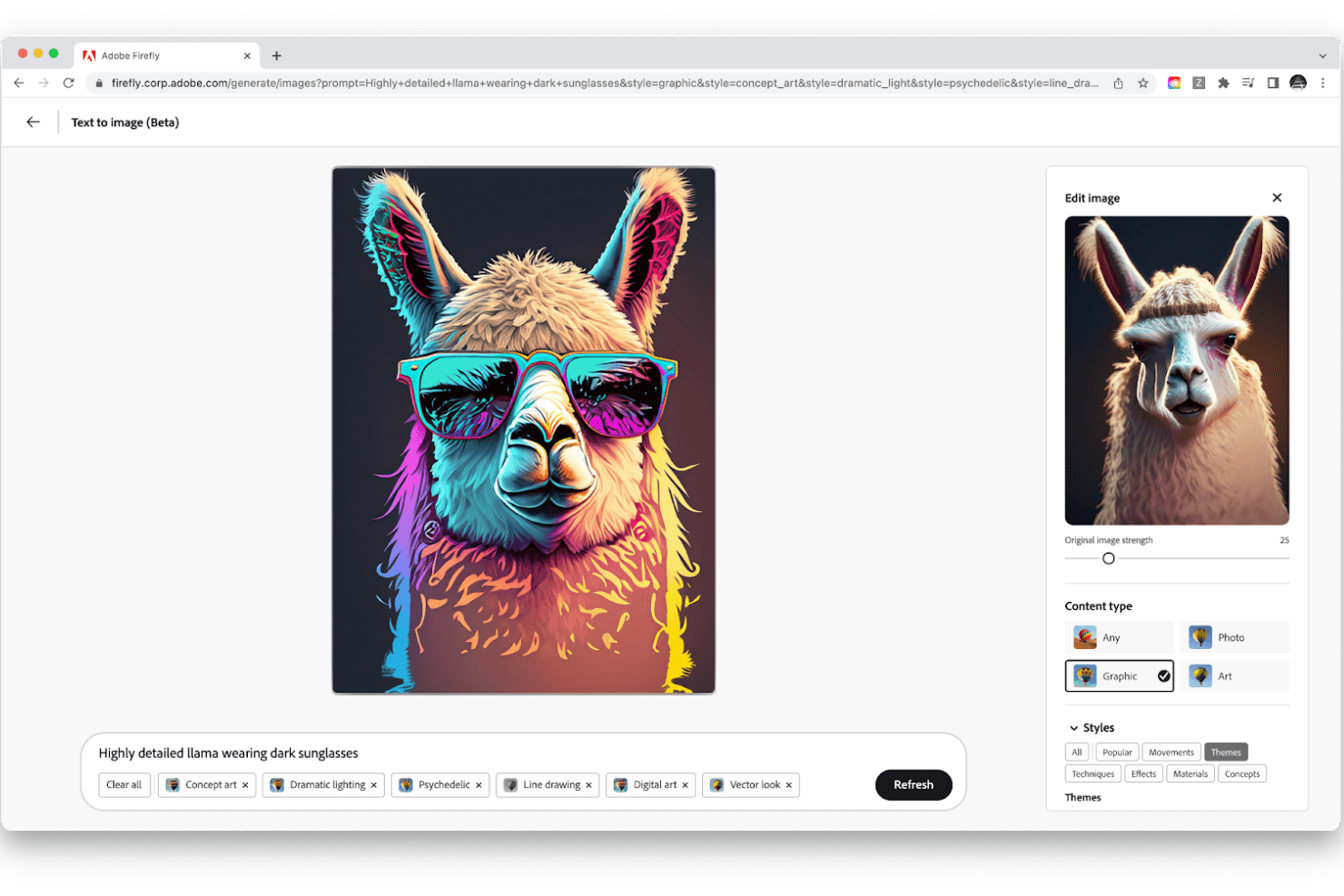
Adobe Firefly converts your text prompts into images. Adobe Firefly is an enterprise AI design suite that brings together generative image, video, vector, and audio creation with deep Creative Cloud integration across Photoshop, Illustrator, and Adobe Express.
Who Is Adobe Firefly Best For?
Adobe Firefly is a strong fit for graphic designers and marketing teams already working inside Creative Cloud who need IP-safe generative editing at scale.
Why I Picked Adobe Firefly
I've included Adobe Firefly in my top picks because its IP-safe approach to generative editing is genuinely hard to replicate elsewhere. Firefly's training data comes exclusively from licensed and public-domain content, and every output carries Content Credentials so you can trace exactly what was generated and how. In practice, that means I can use Generative Fill in Photoshop to remove objects, expand images, or paint in new scene elements from a text prompt without worrying about downstream copyright exposure.
Adobe Firefly Key Features
- Firefly Boards: An AI-first canvas for building mood boards and storyboards, with one-click style presets and multi-model support from partners like Google, Runway, and Luma.
- Firefly Custom Models: Fine-tuned AI models trained on your own brand assets that generate on-brand outputs across images, vectors, and templates.
- Creative Production batch workflows: A drag-and-drop canvas with 30+ workflow templates that automates large-scale asset resizing, format conversion, and localization across regions.
- Firefly Graph for Enterprise: A node-based workflow builder with 300+ nodes that lets you chain Photoshop, Illustrator, and Premiere actions alongside third-party AI models into reusable pipelines.
Adobe Firefly Integrations
Adobe Firefly integrates with Photoshop, Illustrator, Premiere, Adobe Express, Adobe Stock, Workfront, Frame.io, and Adobe Experience Manager Assets. It also connects with Microsoft Teams, Slack, Gmail, Jira, and Zapier, while Firefly Services provides 30+ REST APIs for custom integrations.
Pros and Cons
Pros:
- Batch generation accelerates repetitive asset production
- Licensed training data supports commercially safer outputs
- Photoshop editing turns generated concepts into assets
Cons:
- Credit limits can interrupt generative work
- No wireframing or design-to-code workflows
Learn more about Adobe Firefly: Best for AI-generated web design on a live canvas
- Free plan available
- From $10/month (billed annually)
Visit WebsiteCustomer Rating:4.4/5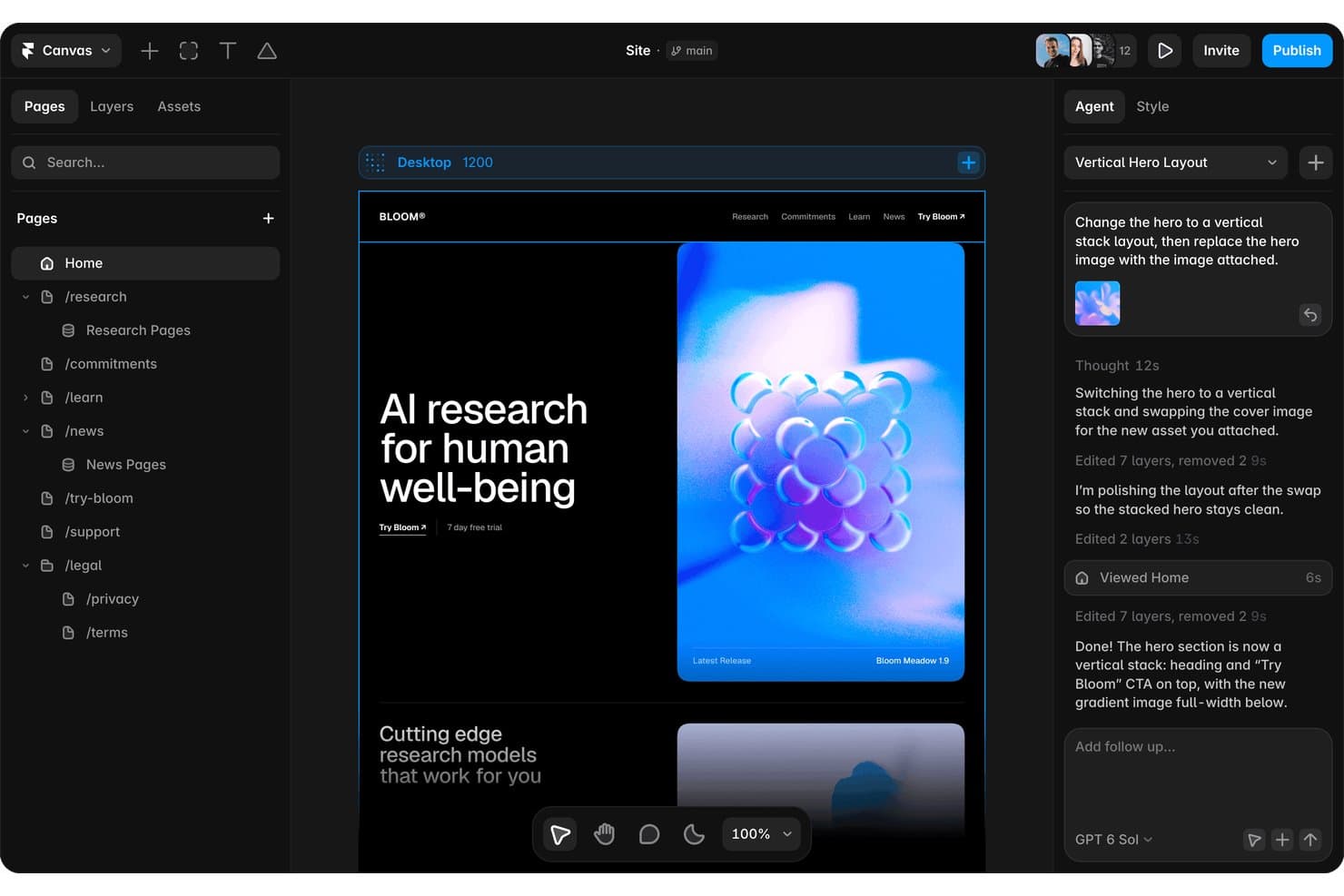
Framer's AI agent redesigns hero layouts from a simple chat prompt. Framer is an AI-powered website design platform that combines a live visual canvas, an AI design agent, real-time collaboration, and built-in hosting, CMS, and publishing tools.
Who Is Framer Best For?
Framer is a strong fit for web designers and marketing teams who want to go from idea to a live, polished site without a lengthy handoff process.
Why I Picked Framer
Framer earns its spot on my shortlist because its AI design agent works directly on a live canvas, generating editable layouts, copy, and section variations from a prompt or screenshot in 40–100 seconds. I love that you can drop in a Figma screenshot and watch it reconstruct your design as real, manipulable layers rather than a locked image. The branching system also lets AI-generated changes land on their own preview URL, so my team can review and merge without touching the main site.
Framer Key Features
- Real-time multiplayer editing: Multiple team members can edit the same project simultaneously, with live cursors showing each person's location on the canvas.
- Branching with preview URLs: Each branch gets its own staging URL, letting you review and sign off on changes before merging them to the main site.
- Figma import with editable layers: You can paste Figma designs directly into Framer and retain layer structure for continued editing on the canvas.
- AI site review and linting: Before you publish, Framer flags contrast issues, missing alt text, typos, SEO gaps, and inconsistent styles across your design.
Framer Integrations
Framer offers integrations with Figma, Slack, GitHub, Notion, Google Sheets, Airtable, and external agents including Claude Code, Cursor, and Codex. Its plugin API supports custom integrations, with marketplace plugins for Unsplash, Rive, and Phosphor.
Pros and Cons
Pros:
- Supports branching for safer design reviews
- Preserves design layers from Figma imports
- Generates editable site layouts from prompts
Cons:
- Cannot export raw code or assets
- Produces website designs rather than app interfaces
 10Best for native vector and SVG asset generation
Recraft
- Free plan available
- From $10/month (billed annually)
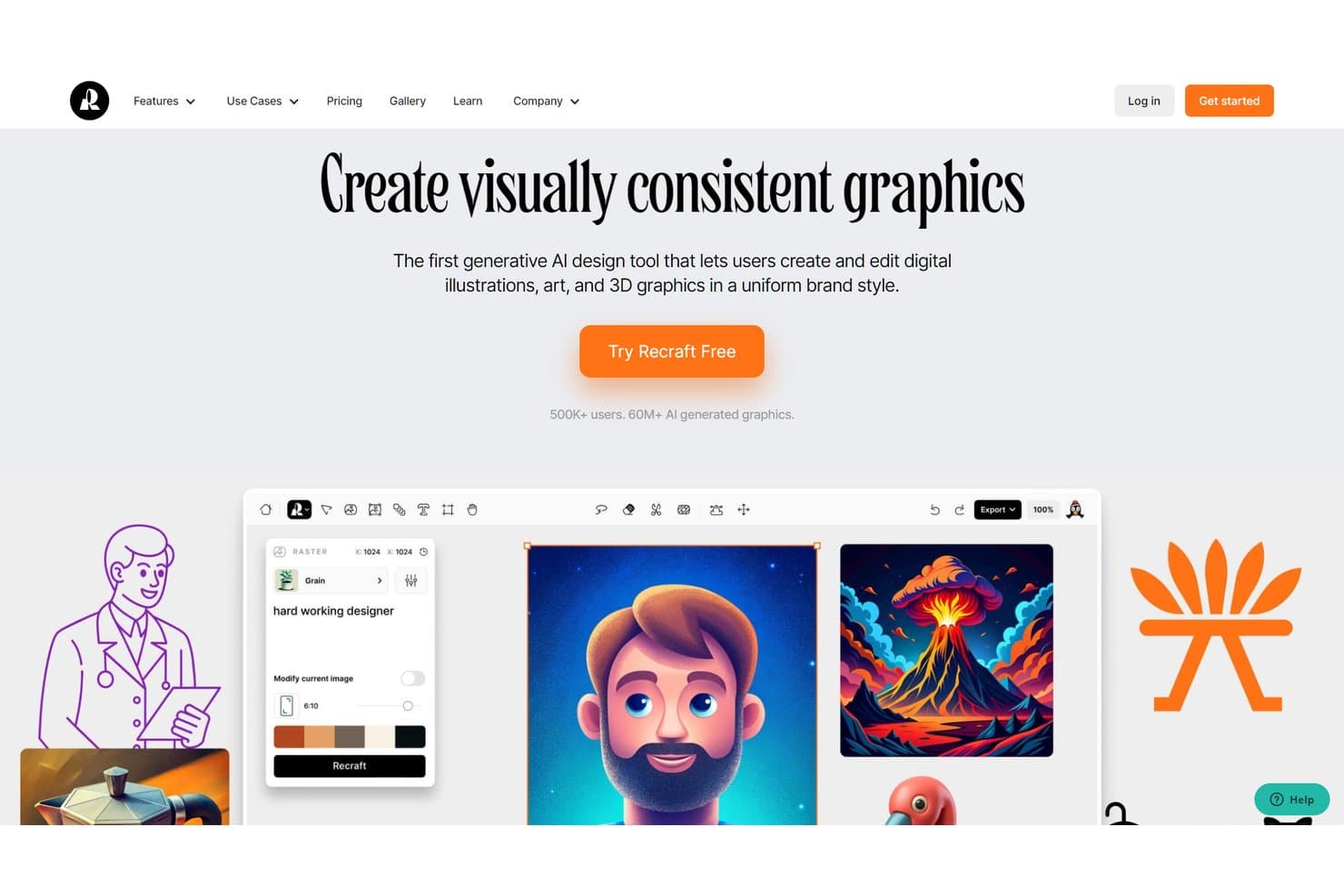
Recraft lets users create AI-generated graphics in a consistent brand style. Recraft is an AI image and vector generation platform that lets you create, edit, and export raster images, SVGs, illustrations, icons, mockups, and video assets from a single infinite canvas.
Who Is Recraft Best For?
Recraft is a strong fit for graphic designers and marketing teams who need to produce high-quality vector assets, icons, and mockups without bouncing between multiple tools.
Why I Picked Recraft
I've included Recraft in my top picks because it's the only tool on my list that generates true, editable SVGs natively, not rasterized images dressed up as vectors. When I need a full icon set or a scalable illustration, Recraft's Vector model outputs real SVG paths with editable strokes and fills. Its Design Agent takes it further, producing a coherent asset kit, including logos, app icons, and social visuals, from a single brief.
Recraft Key Features
- Custom style creation: Upload 1–10 reference images to build a reusable style that applies your visual identity across generated assets.
- Figma plugin: Generate raster images and editable SVGs directly onto your Figma canvas, with vectorize, background removal, and upscale built in.
- Mockup generator: Produce print- and web-ready mockups across apparel, packaging, digital screens, and product categories from a single prompt.
- Multi-format export: Export assets as PNG, JPG, TIFF, PDF, SVG, or Lottie, with CMYK and 300 DPI support for print-ready production.
Recraft Integrations
Recraft offers integrations with Figma, Framer, Google Docs, Google Slides, and Chrome. It also provides an API for custom integrations and an MCP server for Claude, Cursor, and other MCP clients.
Pros and Cons
Pros:
- Produces polished mockups and icon sets
- Creates cohesive brand asset kits
- Generates editable SVG assets natively
Cons:
- Shared projects lack real-time co-editing
- Doesn’t generate wireframes or UI layouts
Learn more about Recraft:
Andre alternativer innen AI-designprogramvare
Her er andre verktøy som ikke kom med på listen over de beste, men som likevel er verdt å vurdere:
- 11Relume AIBest for brief-to-website design-to-code handoff
- 12MiroBest for cross-functional AI prototyping on one canvas
- 13FigmaBest for AI-driven design-to-code handoff
- 14ClaudeBest for PM-led prototyping with code handoff
- 15LookaBest AI design tool with a brand kit offering
- 16Builder.ioBest for Figma-to-code with live data prototypes
- 17v0Best for prototyping real UI with your design system
How I Evaluate AI Design Software
To make this list, a tool’s AI needs to handle real product design work, like generating layouts from prompts or creating visual assets. From there, I evaluate three things. Core functionality carries the most weight, like editing designs and applying brand elements. Then I look at standout features, like design-to-code conversion, and what a tool offers beyond its feature set, like data privacy and IP ownership.
Core Functionality (Table Stakes For This List)
When I'm selecting tools for my list, I score each one on a scale from 0 (does not offer the functionality) to 5 (excels in this area) for each core functionality listed below. I then convert the total into a percentage to help assess each tool's overall fit, with extra weight on any functionalities I’ve deemed essential.
- AI-Generated Design (Essential): I look for prompt-based layouts, wireframes, or visual assets that reflect a product brief and offer useful variations for review.
- Editable Design Canvas (Essential): I assess whether teams can refine layers, copy, components, and spacing after generation, then prepare concepts for testing or handoff.
- Templates & Assets: I check templates, UI kits, icons, and reusable components for common product flows, campaign formats, and team use cases.
- Multi-Format Export: I evaluate exports for web, mobile, presentation, and developer handoff, including file formats, sizing, and responsive variants.
- Brand Consistency Controls: Saved colors, fonts, logos, and reusable styles should carry across concepts without forcing manual reformatting.
- Collaboration & Sharing: I look for comments, sharing, permissions, and concurrent editing that support reviews with product, design, engineering, and marketing.
Once I have a list of tools that meet the criteria, I consider what sets each platform apart.
Differentiating Factors (What Sets Vendors Apart)
Here's how I compare and contrast different vendors:
Standout Features
Design-to-code conversion is the first thing I evaluate. I check whether a tool outputs clean React or HTML/CSS that engineers can actually use, not just visual mockups that need rebuilding. Multimodal input support matters just as much—I look for tools that let you drop in a whiteboard sketch or screenshot and get a structured layout back, which speeds up early discovery. I also consider AI-powered usability feedback, where a tool flags contrast ratios or tap-target issues before you run a single test.
Beyond Features
I evaluate how each tool handles data privacy and IP ownership, especially whether your prompts and generated designs are used to train the underlying model. That matters when you're designing unreleased product concepts. I also check how well a tool fits into existing workflows—if it doesn't connect to where your team already works, like Figma, Jira, or GitHub, adoption stalls. Finally, I look at how accessible the tool is for non-designers, since product managers often need to generate concepts without waiting for dedicated design support.
Brukervennlighet
Jeg har prioritert AI-designverktøy med et intuitivt og brukervennlig grensesnitt. Jeg har også angitt om bestemte verktøy tilbyr et dra-og-slipp-grensesnitt som gjør designarbeidet enklere.
Programvareintegrasjoner
De fleste verktøyene på denne listen har ikke innebygde integrasjoner. For dem som tilbyr integrasjoner, har jeg nevnt de ulike mulighetene. Ideelt sett bør disse verktøyene kobles til designverktøyet ditt og gjøre det enklere å arbeide med resultatet.
Priser
I likhet med andre SaaS-produkter følger AI-designverktøy en månedlig eller årlig prismodell med løpende betaling. Jeg har nevnt prisen for hvert verktøy, samt om det finnes en gratis prøveperiode. Jeg opplyser også om programvaren har en gratisversjon, og inkluderer annen relevant informasjon.
Vanlige spørsmål om AI-designprogramvare
Finn svar på vanlige spørsmål andre stiller om dette emnet.
Hvilken kunststil kan AI generere?
AI-verktøy kan generere mange forskjellige typer kunstverk. Disse verktøyene genererer vanligvis kunstverk basert på det du skriver inn som instruksjon, og trener modellene sine på enorme mengder visuelle data som er tilgjengelige der ute. Derfor kan AI generere nesten enhver stil du kan tenke deg. Noen populære kunststiler er abstrakt kunst, realisme, manga, surrealisme og kubisme.
Hva er det beste gratis AI-designverktøyet?
Selv om det finnes helt gratis AI-verktøy som TinyWow, tilbyr de beste AI-verktøyene vanligvis en gratis prøveperiode eller kreditter slik at du kan teste dem. Verktøy som Midjourney og Leonardo.ai er utmerkede AI-baserte designverktøy som lar deg generere et begrenset antall bilder som en del av gratisabonnementene deres.
Genererer ChatGPT bilder?
For øyeblikket kan ikke ChatGPT tegne bilder eller generere bilder. OpenAI (selskapet bak ChatGPT) lanserte imidlertid DALL-E2, som er et verktøy for å generere bilder fra tekst.