

AI-verktøy for utforming av trådskisser bruker kunstig intelligens til å hjelpe deg med å lage, redigere og forbedre digitale trådskisser raskere og med mindre manuelt arbeid. Hvis du ser etter de beste AI-verktøyene for utforming av trådskisser, ønsker du sannsynligvis å fremskynde designprosessen, redusere repetitive oppgaver og forbedre samarbeidet i teamet – uten å ofre kvalitet eller kontroll.
Med så mange tilgjengelige alternativer er det lett å gå seg vill i funksjonslister og markedsføringspåstander. Denne veiledningen skjærer gjennom støyen og hjelper deg med å sammenligne de beste løsningene raskt, slik at du kan velge riktig verktøy for arbeidsflyten, teamet og prosjektmålene dine.
Hvorfor du kan stole på våre programvareanbefalinger
6,700+
Reviews
20
Industry experts
16+
Evaluation factors
14
Years
Teamet vårt har testet og anmeldt programvare siden 2012. Vi er selv produktledere, så vi vet hvor vanskelig og hvor viktig det er å velge riktig programvare.
I denne guiden har vi vurdert verktøyene gjennom praktisk testing og uavhengig research og gitt dem poeng ut fra våre utvelgelseskriterier.
Anmeldelsene våre bygger på vår egen redaksjonelle vurdering. De er ikke et salgsargument.
Ekspertanmeldere:
- Andrew LumbySenior TPM
- Cristiano ValimSenior UI/UX Lead


Sammenligningstabell for AI-verktøy til utforming av trådskisser
Denne sammenligningstabellen oppsummerer prisopplysningene for mine beste utvalgte AI-verktøy for utforming av trådskisser:
| Tool | Best For | Trial Info | Price | ||
|---|---|---|---|---|---|
| 1 | Best for real-time collaborative editing | Free plan + 14-day free trial available | From $8/user/month (billed annually) | Website | |
| 2 | Best for drag-and-drop components | Free plan available | From $10/user/month (billed annually) | Website | |
| 3 | Best for sketching ideas before going digital | Free plan available | From $39/month (billed annually) | Website | |
| 4 | Best for combining AI with a manual design canvas | Free plan available | From $14/user/month | Website | |
| 5 | Best for AI wireframes tied to your design system | Free plan + 14-day free trial available | From $29/user/month (billed annually) | Website | |
| 6 | Best for open-source, self-hosted AI design workflows | Free plan + 14-day free trial available | From $7/user/month | Website | |
| 7 | Best for ideation with built-in UI kits | Free plan available | From $9/user/month (billed annually) | Website | |
| 8 | Best for generating multiple variants from prompts | Free plan available | From $12/month (billed annually) | Website | |
| 9 | Best for Figma and React component exports | Free plan available | From $14/month | Website | |
| 10 | Best for wireframing from AI coding tool handoff | 14-day free trial available | From $12/month (billed annually) | Website |


Anmeldelser av AI-verktøy for utforming av trådskisser
Nedenfor finner du mine detaljerte sammendrag av de beste AI-verktøyene for utforming av trådskisser som kom med på kortlisten min. Anmeldelsene mine gir et detaljert innblikk i funksjonene, de beste bruksområdene og integrasjonene til hvert verktøy, slik at du kan finne det beste for deg.
 1Best for real-time collaborative editing
Miro
- Free plan + 14-day free trial available
- From $8/user/month (billed annually)
Visit WebsiteCustomer Rating:4.8/5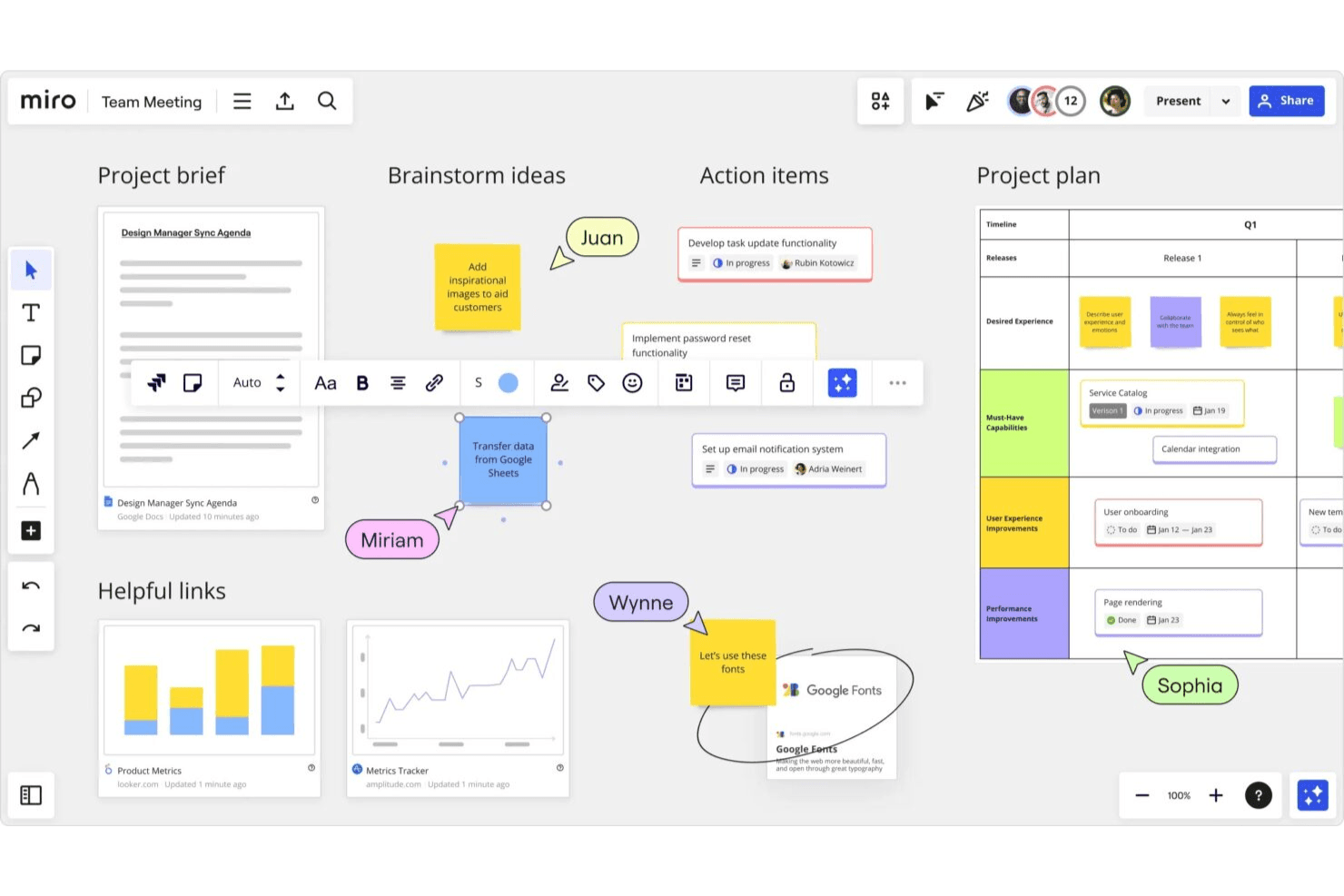
Miro enables teams to turn ideas into structured wireframes fast. Miro is a collaborative whiteboarding and visual workspace platform that combines AI wireframe generation, drag-and-drop editing, a 4,700+ shape component library, and clickable prototype creation from text prompts, sketches, or screenshots.
Who Is Miro Best For?
Miro is a strong fit for cross-functional product teams—especially product managers and designers—who need to wireframe, collaborate, and iterate together in real time.
Why I Picked Miro
Miro earns its spot as one of the best on my shortlist because real-time collaboration is genuinely baked into every stage of the wireframing process, not bolted on after the fact. I love that multiple teammates can co-edit a prototype live, drop comments directly on screens, and run voting sessions without ever leaving the canvas. What makes it especially useful is that your wireframes sit alongside sticky notes, PRDs, and research findings on the same board, so the AI can pull from that context when generating screens.
Miro Key Features
- Screenshot-to-prototype conversion: Drop any screenshot onto the board and Miro rebuilds its text, buttons, and layout as fully editable prototype elements.
- PRD and doc-to-wireframe generation: Generate prototype screens directly from PRDs, sticky notes, Confluence docs, or Notion pages already on your board.
- MCP server code handoff: Coding agents like Cursor and Claude Code can read your prototype screens alongside briefs and user stories to generate working code.
- AI usability review: Miro reviews your prototype and flags usability gaps before you move into real user testing.
Miro Integrations
Miro supports 250+ integrations, including Figma, Adobe XD, Confluence, Notion, Jira, Asana, and Linear. Its MCP server supports prototype-to-code handoff with coding agents.
Pros and Cons
Pros:
- Converts screenshots into editable screens
- Supports live co-editing and voting
- Turns PRDs into editable prototypes
Cons:
- AI credits limit repeated screen generation
- Prototype fidelity trails dedicated design tools
 Best for drag-and-drop components
- Free plan available
- From $10/user/month (billed annually)
Visit WebsiteCustomer Rating:4.6/5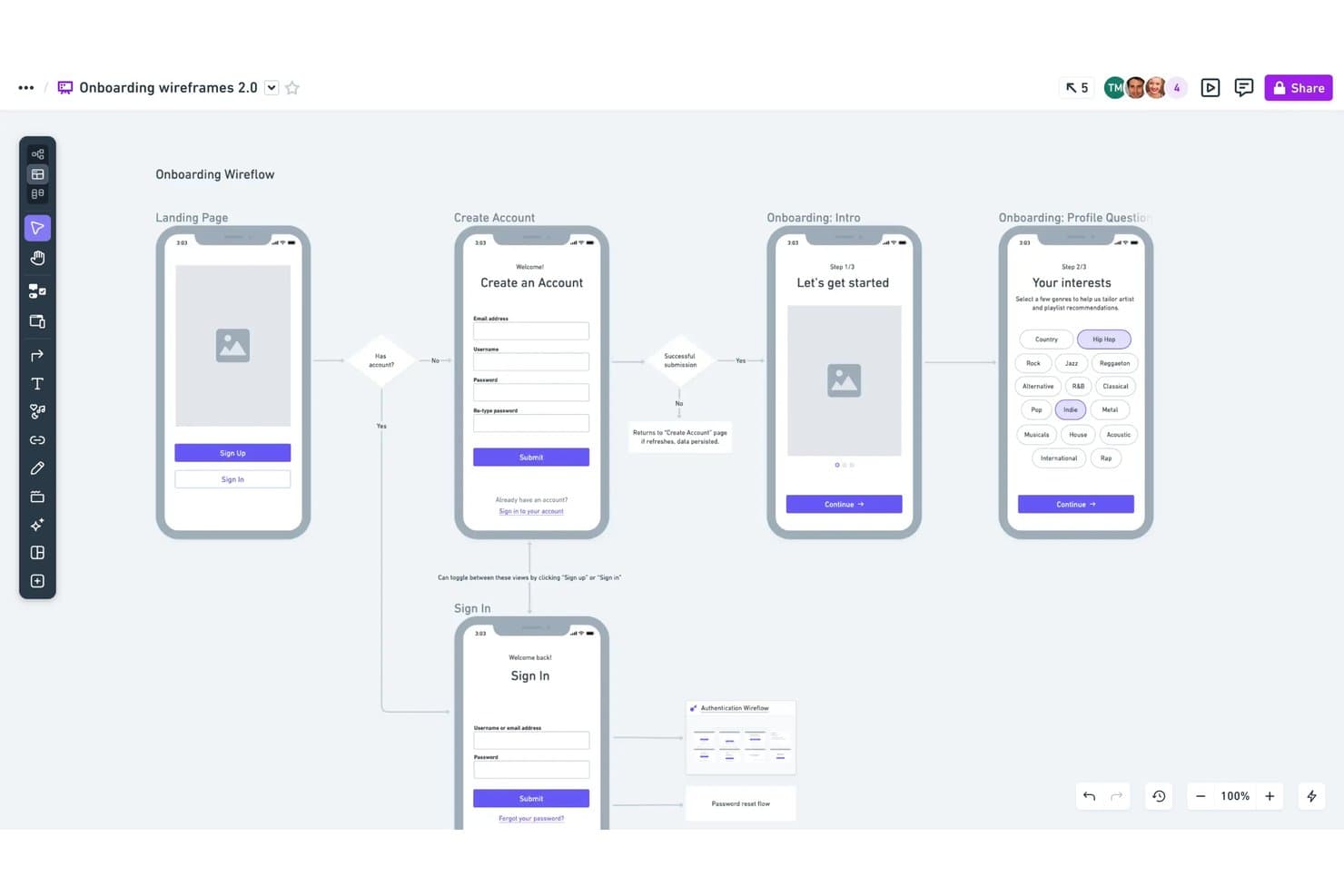
Whimsical lets users map onboarding flows with linked wireframe screens. Whimsical is an AI wireframing tool that combines text-to-wireframe generation, a drag-and-drop component editor, and real-time collaboration with support for flowcharts, mind maps, and docs in a single workspace.
Who Is Whimsical Best For?
Whimsical suits product managers and UX designers who want a fast, low-fidelity wireframing workspace where drag-and-drop components, flowcharts, and docs all live in one place.
Why I Picked Whimsical
Whimsical earns its spot on my shortlist because its drag-and-drop component system is genuinely one of the best I've seen for low-fidelity wireframing. Every component comes with adjustable properties and states, so I can switch a button from default to hover or toggle a phone frame between iOS and Android without leaving the canvas. I also like that the Claude-powered AI generates editable wireflows, not just static screens, so I can prompt a full user journey and then reshape individual frames by hand.
Whimsical Key Features
- Text-to-wireflow generation: Describe a full user journey in a prompt and Whimsical's Claude-powered AI builds connected multi-screen wireflows you can edit directly on the canvas.
- Configurable device frames: Choose from browser, phone, tablet, and smartwatch frames with toggleable iOS and Android variants to match your target platform.
- One-workspace multi-artifact support: Create wireframes, flowcharts, mind maps, and docs in a single shared board without switching tools.
- MCP and coding-agent integration: Connect Whimsical to Claude Code, Cursor, or Codex to generate wireframes from external agents and turn them into working prototypes.
Whimsical Integrations
Whimsical integrates with Claude, ChatGPT, Claude Code, Cursor, Codex, Grok, GitHub, Linear, Jira, Notion, and Figma. Its MCP support connects AI coding agents to Whimsical for generating wireframes and building prototypes.
Pros and Cons
Pros:
- Real-time collaboration across every plan
- Adjustable component states and properties
- Editable AI-generated wireflows
Cons:
- Screenshot conversion requires external tools
- Deliberately limited to low-fidelity output
Learn more about Whimsical: Best for sketching ideas before going digital
- Free plan available
- From $39/month (billed annually)
Visit WebsiteCustomer Rating:4.6/5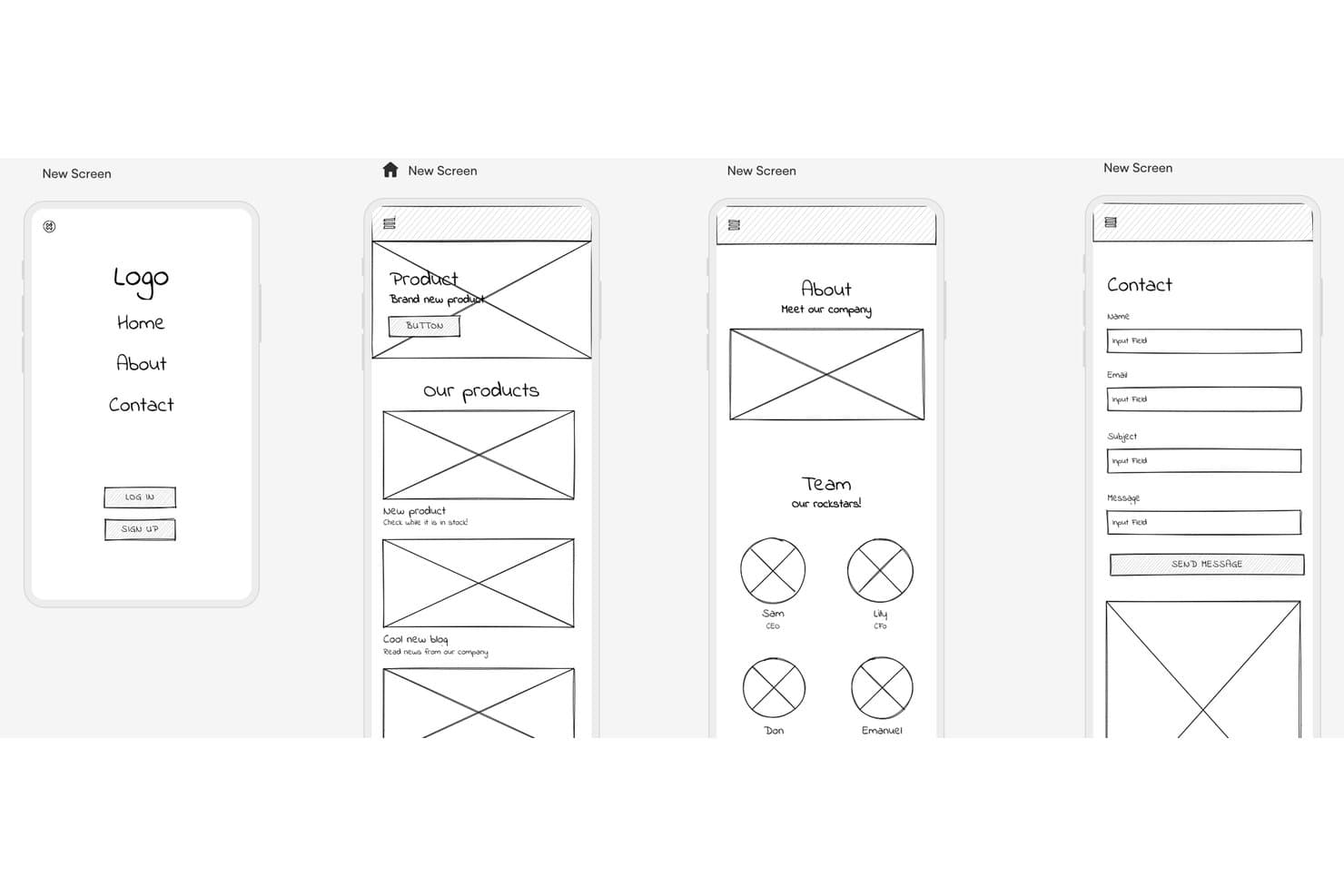
Uizard lets users wireframe multi-screen mobile apps quickly. Uizard is an AI wireframing tool that generates multi-screen prototypes from text prompts, hand-drawn sketches, and screenshots, with a built-in component library, one-click wireframe mode, and real-time collaboration.
Who Is Uizard Best For?
Uizard is a great fit for product managers and startup founders who need to turn rough ideas into shareable prototypes fast, without a design background.
Why I Picked Uizard
I've included Uizard in my top picks because its Wireframe Scanner is genuinely one of a kind: you photograph a paper sketch or whiteboard drawing, and Uizard converts it into an editable digital mockup in seconds. I love that Wireframe Mode lets you toggle between a polished mockup and a bare-bones wireframe with one click, so you can stay in rough-concept territory as long as you need. Autodesigner 2.0 also lets you generate multi-screen prototypes from a text prompt, which keeps the momentum going from first idea to shareable flow.
Uizard Key Features
- Autodesigner 2.0: A chat-style AI generator that builds multi-screen editable prototypes from text prompts on paid plans.
- Screenshot Scanner: Converts screenshots of existing apps or websites into editable mockups for quick remixing.
- Clickable prototypes: Links screens together with interactions so you can share a working flow without leaving the tool.
- Real-time collaboration: Lets multiple users edit simultaneously, with commenting and unlimited free viewers on every plan.
Uizard Integrations
Uizard has a Figma Community plugin for importing designs, plus image-based screen imports from Adobe and Sketch. Native integrations and a public API aren’t clearly documented.
Pros and Cons
Pros:
- Switches between polished mockups and wireframes
- Generates multi-screen prototypes from text prompts
- Converts paper sketches into editable wireframes
Cons:
- Exports lack layers and full-project code
- Screenshot conversions can deviate noticeably
Learn more about Uizard: Best for combining AI with a manual design canvas
- Free plan available
- From $14/user/month
Visit WebsiteCustomer Rating:4.8/5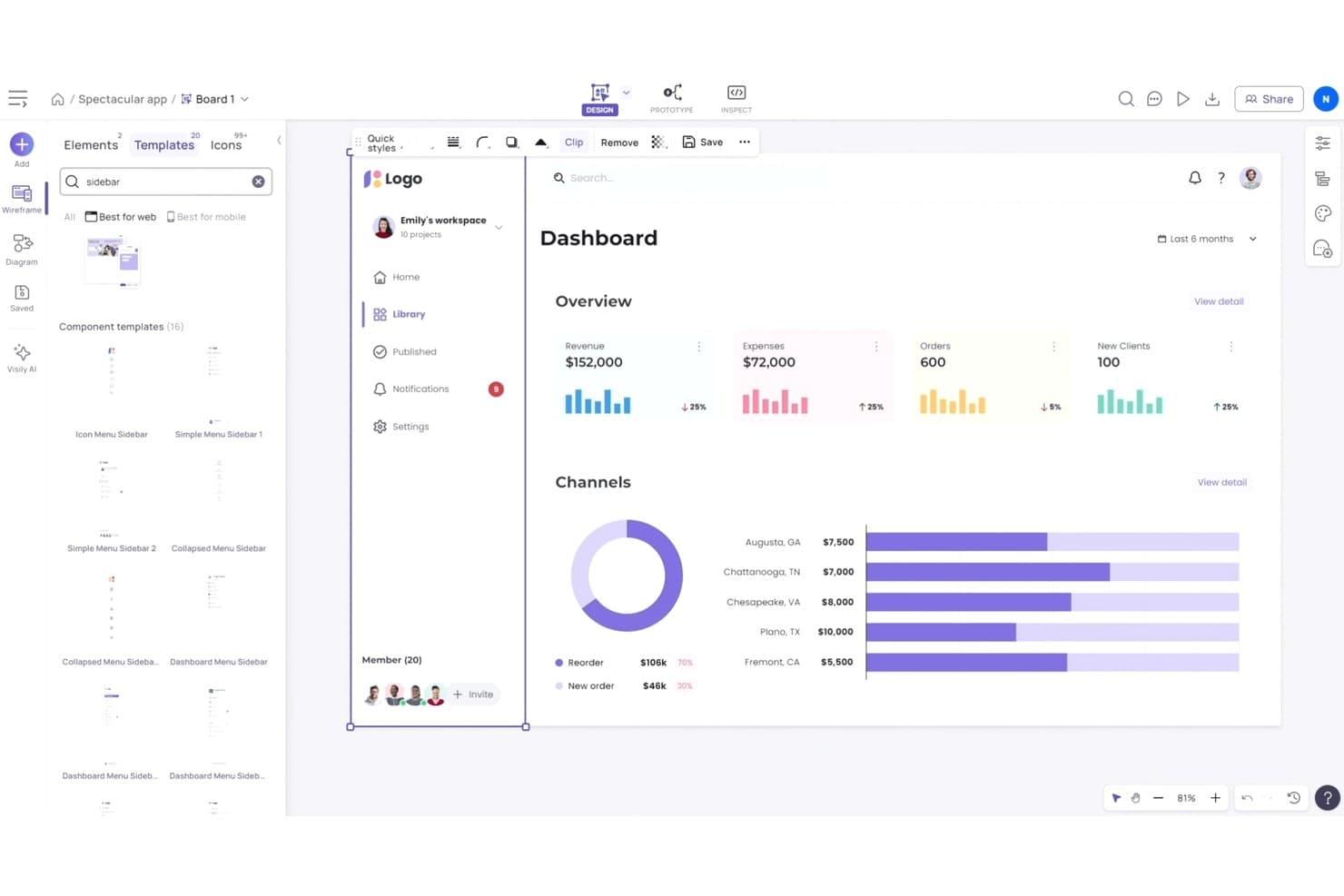
Visily lets users browse and apply sidebar templates to wireframes. Visily is an AI wireframing tool that generates editable screens from text prompts, screenshots, sketches, and diagrams, paired with a free-form drag-and-drop canvas, a 1,500+ template library, and built-in prototyping and code export.
Who Is Visily Best For?
Visily is a strong fit for product managers and startup founders who need to move quickly from written requirements to shareable screens without relying on a dedicated designer.
Why I Picked Visily
I've included Visily in my top picks because it's the only tool where AI generation and hands-on canvas editing feel like equals rather than one bolting onto the other. I love that you can paste a screenshot of a competitor's app and get a fully editable wireframe in minutes, then jump straight into manual drag-and-drop to reshape it without spending a single AI credit. Plan Mode is also genuinely useful: it surfaces follow-up questions and proposes a structured screen plan before generating anything, which keeps requirements grounded before pixels appear.
Visily Key Features
- AI Chat Assistant: Generates UI screens, components, and diagrams from text prompts, image references, and canvas context within a shared design group that keeps styles consistent across screens.
- Sketch-to-wireframe conversion: Upload a hand-drawn sketch and Visily converts it into a fully editable digital wireframe you can refine on the canvas.
- AI Auto-Prototype: Automatically detects logical connections between screens and elements to build a clickable, previewable prototype without spending AI credits.
- Export to code: Exports designs as React, Vue, or HTML—with an AI layout mode that produces responsive code and a static mode that's free to use.
Visily Integrations
Visily connects with Figma through its plugin, captures webpages through a Chrome extension, and supports MCP connections to Cursor, Claude Code, Codex, and Lovable. It also exports designs to React, Vue, and HTML.
Pros and Cons
Pros:
- Builds clickable prototypes without extra credits
- Balances AI generation with manual control
- Converts screenshots into editable wireframes
Cons:
- Manual positioning replaces automatic layout controls
- AI edits regenerate entire screens
Learn more about Visily: Best for AI wireframes tied to your design system
- Free plan + 14-day free trial available
- From $29/user/month (billed annually)
Visit WebsiteCustomer Rating:4.2/5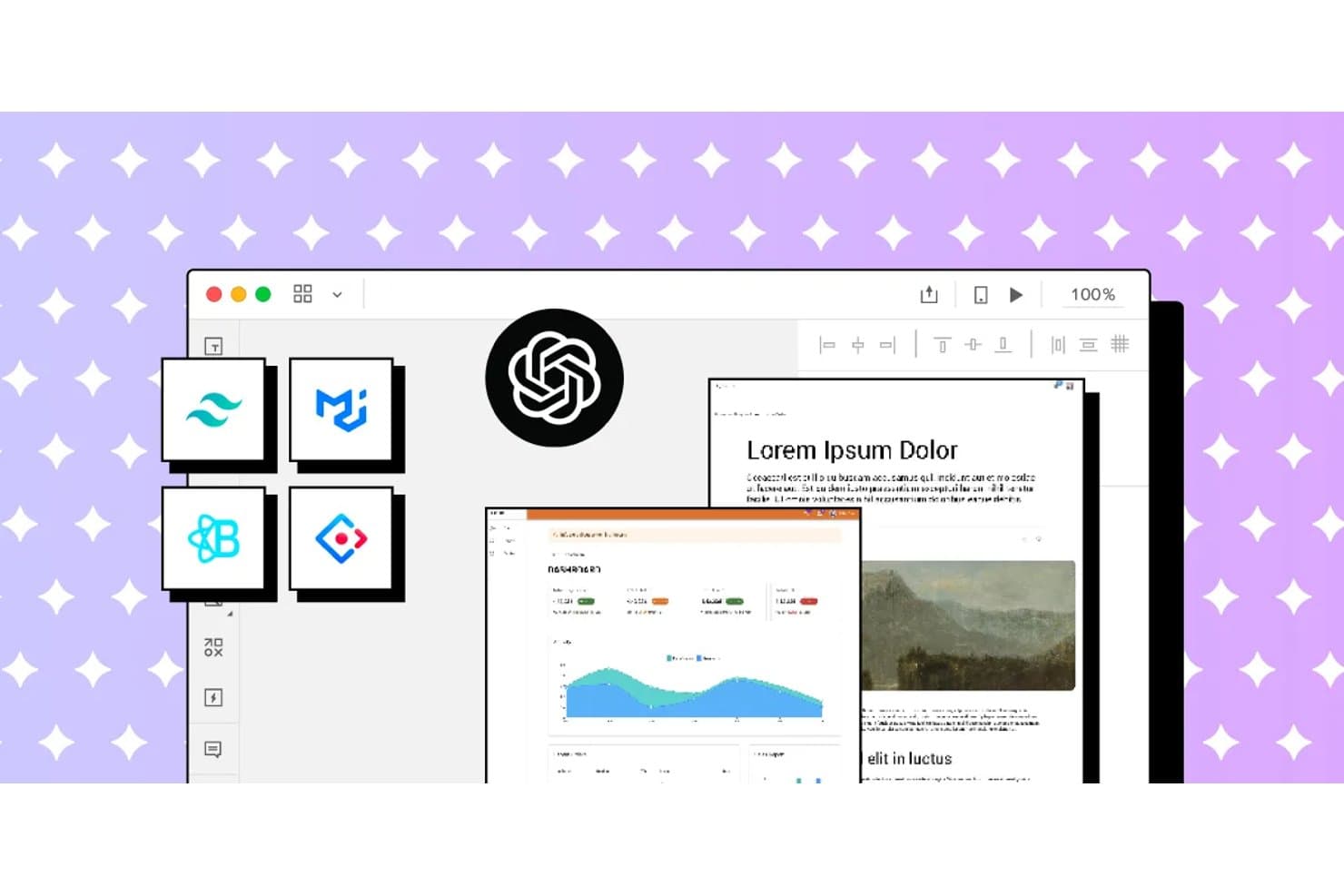
UXPin integrates AI and design system tools for rapid wireframing. UXPin is a browser-based AI wireframing and prototyping tool that generates UI from text prompts, sketches, and URLs using real, code-backed React components drawn from your existing design system.
Who Is UXPin Best For?
UXPin is a strong fit for UX designers and front-end developers who need AI-generated wireframes that stay in sync with a production React component library.
Why I Picked UXPin
I picked UXPin as one of the best because it's the only AI wireframing tool I've seen that generates UI from real, code-backed React components rather than static shapes. When you prompt Forge with a layout idea or upload a sketch, it builds screens using your actual design system, whether that's MUI, shadcn/ui, or a custom library synced via Storybook. The JSX it produces goes straight to developers without translation, and Wire can export the whole thing as a runnable Vite + React app.
UXPin Key Features
- URL-to-UI generation: Paste any live URL and Forge reconstructs its layout using your design system's components.
- UX Review scoring: Forge scores selected screens for clarity, hierarchy, consistency, and accessibility, with written observations.
- Advanced prototyping logic: Add variables, expressions, conditional logic, and external data sources like JSON or Google Sheets to any prototype.
- Spec mode for handoff: Developers inspect elements to copy dimensions, colors, auto-generated CSS, and JSX directly from the canvas.
UXPin Integrations
UXPin integrates with Storybook, Git, Figma, Sketch, Slack, Jira, FullStory, npm, CodeSandbox, and StackBlitz. Storybook and Git support depends on the plan, while Figma connects through UXPin’s plugin.
Pros and Cons
Pros:
- Supports interactive logic beyond static wireframes
- Preserves design-system rules during AI generation
- Generates screens with production React components
Cons:
- Higher-fidelity output complicates early rough concepts
- AI struggles with large multi-screen prompts
Learn more about UXPin: Best for open-source, self-hosted AI design workflows
- Free plan + 14-day free trial available
- From $7/user/month
Visit WebsiteCustomer Rating:4.5/5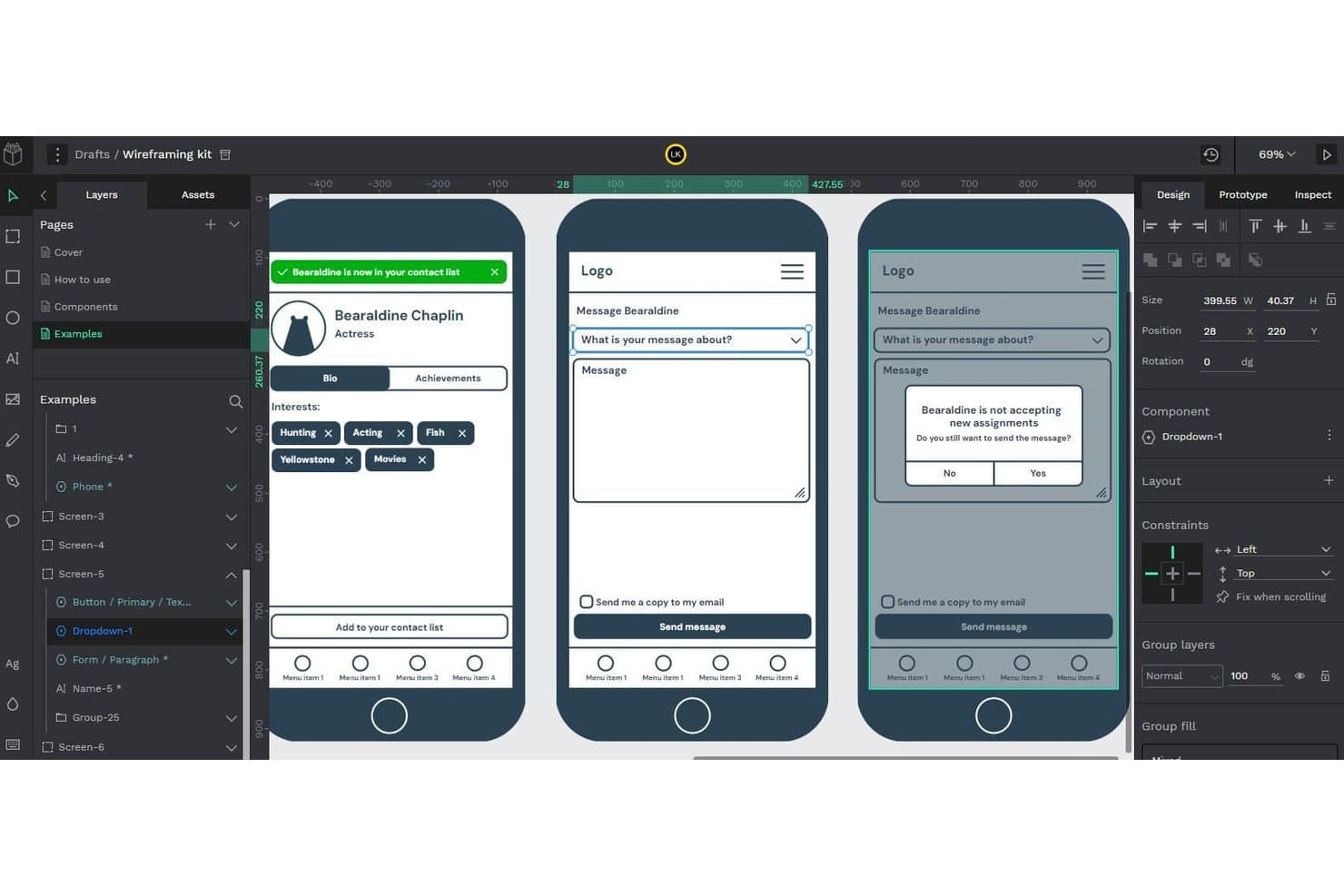
Penpot lets users build and preview interactive wireframe flows. Penpot is an open-source, browser-based design and prototyping tool that supports wireframing, component libraries, real-time collaboration, and AI-assisted design workflows via its MCP Server integration.
Who Is Penpot Best For?
Penpot is a strong fit for design and engineering teams that need full control over their tools, data, and AI workflows through self-hosting.
Why I Picked Penpot
I've included Penpot in my top picks because it's the only open-source tool on this list that lets you connect your own LLM to a live design file via the Penpot MCP Server, keeping AI traffic within infrastructure you control. I particularly like that the MCP Server can generate new screens directly from your existing design system, so outputs inherit your real tokens and components. For teams where data sovereignty isn't negotiable, that self-hosted AI workflow is genuinely hard to replicate with a closed platform.
Penpot Key Features
- Flex and CSS grid layout: Design responsive frames using web-standard CSS Flex and Grid, so your layouts map directly to how developers will build them.
- Real-time multiplayer editing: Multiple team members can work in the same file simultaneously, with comments available in both design and view mode.
- Native design tokens (W3C DTCG format): Create, apply, and export design tokens as JSON, with full support for themes and variants across your design system.
- Inspect mode with CSS export: View measurements, copy CSS snippets, and export assets from a read-only view built for developer handoff.
Penpot Integrations
Penpot integrates with Claude Desktop, Claude Code, Cursor, VS Code, OpenAI Codex, and GitHub Copilot through its MCP Server, plus Figma and Storybook through documented workflows. It also provides REST API, webhooks, and an open Plugins API for custom integrations.
Pros and Cons
Pros:
- CSS-based layouts improve developer handoff
- Design-system tokens guide generated screens
- Self-hosted AI workflows protect design data
Cons:
- MCP workflow remains experimental and constrained
- AI wireframing requires external agent setup
Learn more about Penpot: Best for ideation with built-in UI kits
- Free plan available
- From $9/user/month (billed annually)
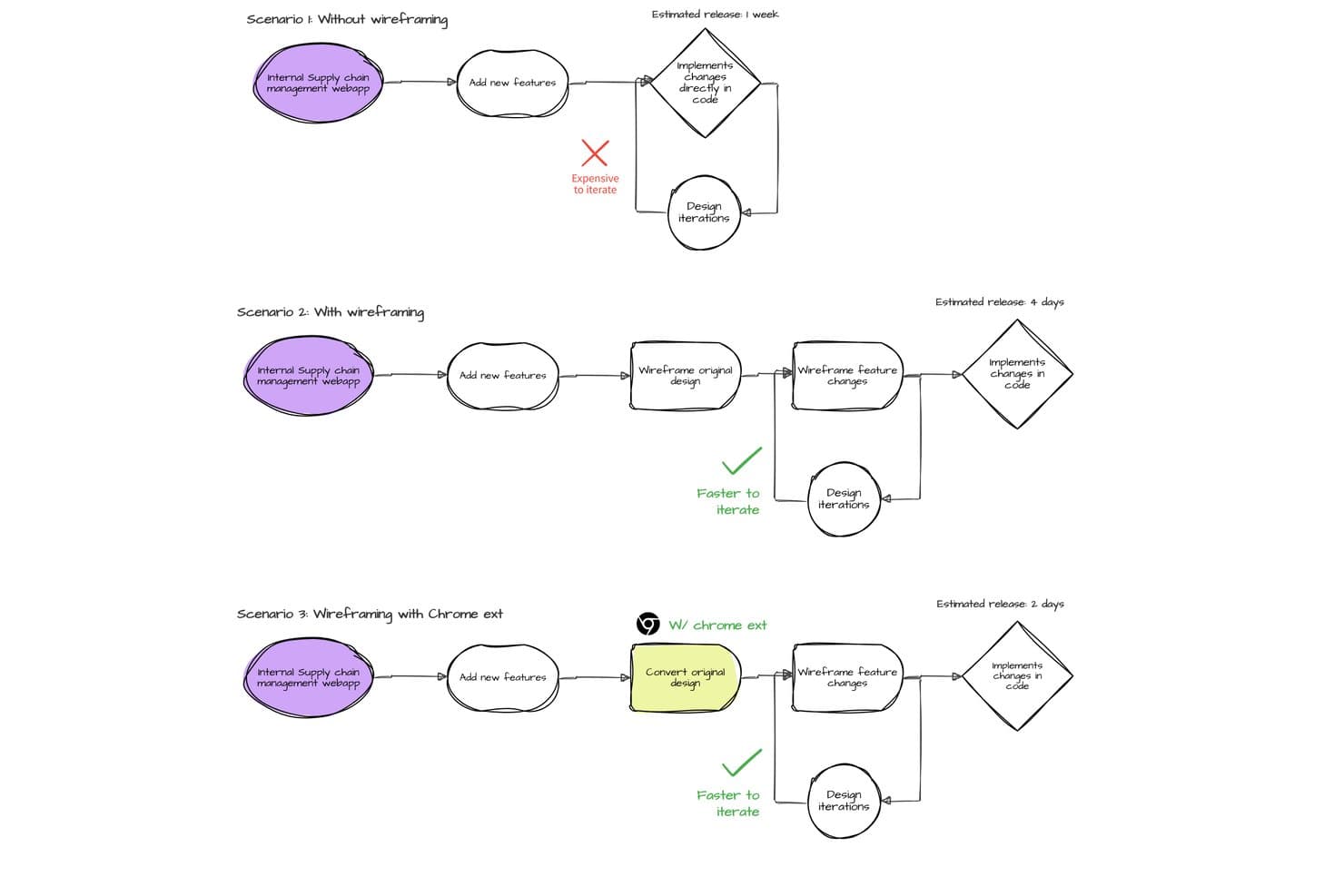
MockFlow compares wireframing workflows to show faster iteration and release times. MockFlow is an AI wireframing tool that lets you generate editable wireframes from text prompts, screenshots, URLs, and hand-drawn sketches, with an extensive built-in UI kit library spanning web, mobile, desktop, and enterprise design systems.
Who Is MockFlow Best For?
MockFlow is a strong fit for product managers and startup founders who need to go from rough idea to structured wireframe fast, without depending on a dedicated designer.
Why I Picked MockFlow
MockFlow earns its spot on my shortlist because of its sheer depth of built-in UI kits, covering everything from iOS and Android to enterprise design systems like Salesforce Lightning and SAP UI. I love that you can sketch a rough idea, generate a multi-screen wireframe with Mida, and then instantly switch the style from sketchy lo-fi to hi-fi without rebuilding anything. The Concept Builders feature is a standout for ideation: AI collaborators like "Onboarding Flow Designer" remember context across a session, making early-stage exploration feel structured rather than scattered.
MockFlow Key Features
- Screenshot and URL to wireframe: Upload a screenshot or paste a live URL and MockFlow converts it into an editable wireframe you can build on immediately.
- Multi-screen AI generation: Describe a flow and Mida produces multiple linked screens at once, with one design system applied consistently across all of them.
- Real-time co-editing with comments: Team members can edit boards simultaneously, leave pinned comments with video replies, and apply design suggestions in one click.
- Code export in multiple frameworks: Build mode outputs production-ready code in React, Tailwind, TypeScript, Bootstrap, and more, with AI prompt export for tools like Claude Code and Cursor.
MockFlow Integrations
MockFlow offers 20+ connectors on Max, including Slack, Jira, Confluence, Trello, Notion, GitHub, Linear, Google Drive, Google Docs, and Microsoft Teams. It also supports Figma, Cursor, VS Code, MCP servers, and an API for custom integrations.
Pros and Cons
Pros:
- Editable Figma and code handoff preserve structure
- Extensive enterprise and mobile UI kits
- Text prompts generate linked multi-screen flows
Cons:
- Complex prototypes lack advanced transitions
- Precise multi-selection and resizing feel awkward
Learn more about MockFlow: Best for generating multiple variants from prompts
- Free plan available
- From $12/month (billed annually)
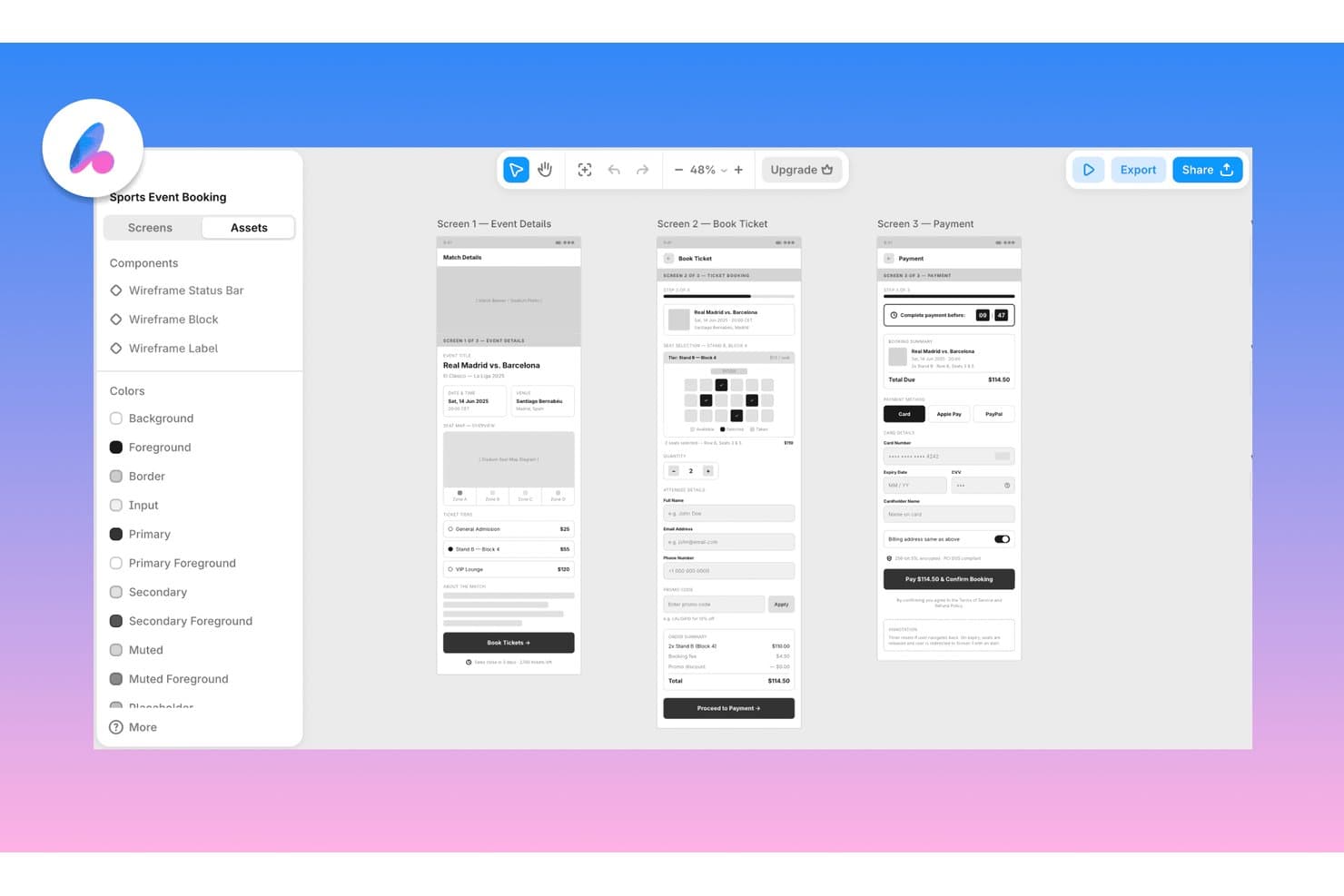
Banani lets users wireframe multi-screen app flows with AI assistance. Banani is a browser-based AI wireframing tool that generates multi-screen flows and design variants from text prompts, PRDs, sketches, screenshots, and Figma links, with export to Figma, HTML/CSS, and AI coding agents.
Who Is Banani Best For?
Banani is a strong fit for product managers and founders who need to go from idea to multi-screen design fast, without relying on a dedicated designer.
Why I Picked Banani
I've included Banani in my top picks because it's the only tool I've used that generates multiple distinct layout variants from a single prompt, giving you real design directions to compare rather than one output to accept or reject. Feed it a PRD and the AI agent autonomously plans and builds every screen in the flow, keeping components and tokens consistent across the lot. I also like that it accepts sketches and screenshots as inputs, so you can get from a napkin idea to a reviewable multi-screen prototype in minutes.
Banani Key Features
- Fidelity switching: Toggle between low-, mid-, and high-fidelity output, or convert a desktop layout to mobile, without leaving the tool.
- Design system generator: Build a complete set of styles, tokens, and components from a prompt or reference, then export directly to Figma or code.
- MCP export to coding agents: Push your designs to AI coding agents like Claude Code, Cursor, and Codex through a model context protocol connection.
- Sketch and screenshot input: Upload a hand-drawn sketch or screenshot and the AI converts it into an editable wireframe you can expand into a full flow.
Banani Integrations
Banani integrates with Figma and AI coding agents Claude Code, Cursor, and Codex through MCP. Enterprise plans support custom integrations, but no public API is documented.
Pros and Cons
Pros:
- Converts sketches into editable wireframes
- Turns PRDs into connected screen flows
- Generates multiple layout variants
Cons:
- Live collaboration features remain unclear
- Traditional component library is absent
Learn more about Banani:
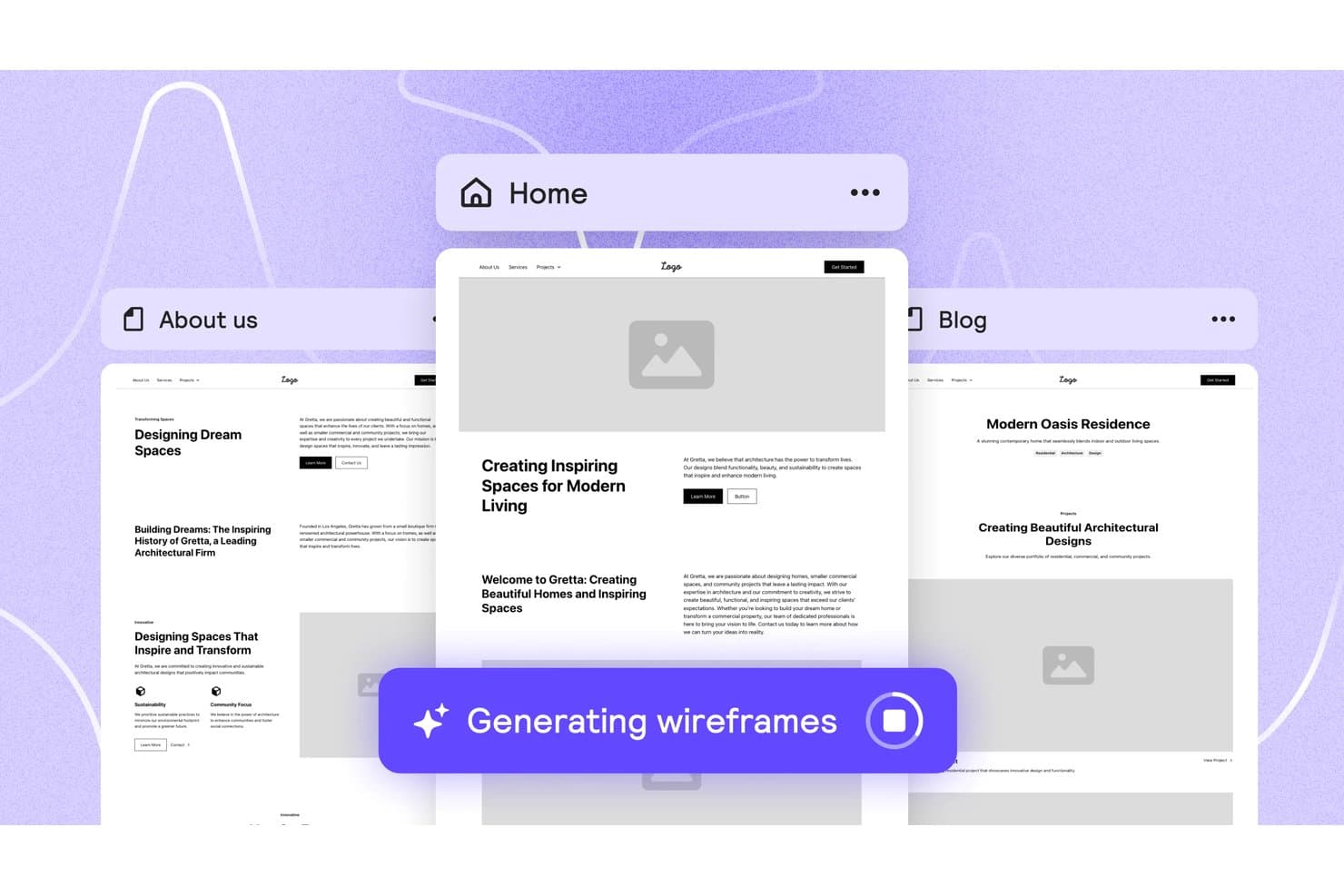
Relume auto-generates multi-page wireframes from a single prompt. Relume is an AI wireframing and website-building tool that generates sitemaps, multi-page wireframes, and styled design concepts from a text brief, with exports to Figma, Webflow, and React.
Who Is Relume Best For?
Relume is a strong fit for designers and front-end developers who want to move from a text brief to export-ready Figma or React components without starting from scratch.
Why I Picked Relume
I picked Relume as one of the best because its Figma and React export pipeline is genuinely built for handoff, not just output. When I generate a wireframe, the Figma plugin imports it as editable auto-layout with variables and variants intact, and the React export uses Tailwind CSS and shadcn/ui, so it drops cleanly into Next.js or Astro without cleanup. I also love that the same project exports to both formats from one place, which cuts a real step out of the design-to-dev workflow.
Relume Key Features
- Brief-to-sitemap generation: Relume takes a text brief, uploaded files, or URLs and turns them into a multi-page sitemap with sections mapped out before wireframing begins.
- Style guide builder: After wireframing, you can apply colors, typography, spacing, and button styles across every page in one step to produce a styled design concept.
- Component shuffling and variant swapping: You can swap a section's component for an alternative variant or shuffle it entirely while keeping the existing copy in place.
- Relume Library MCP: Paid plans include an MCP server that lets AI editors like Cursor, Windsurf, and VS Code pull React components directly from the Relume library.
Relume Integrations
Relume integrates with Figma, Webflow, React, HTML, and Claude Design, plus MCP connectivity for Cursor, Claude, Windsurf, and VS Code. No public API is documented.
Pros and Cons
Pros:
- Styled concepts support faster stakeholder validation
- Curated components keep layouts consistent
- Briefs become multi-page wireframes quickly
Cons:
- Component-bound editing limits freeform changes
- No sketch or screenshot conversion
Learn more about Relume: Best for wireframing from AI coding tool handoff
- 14-day free trial available
- From $12/month (billed annually)
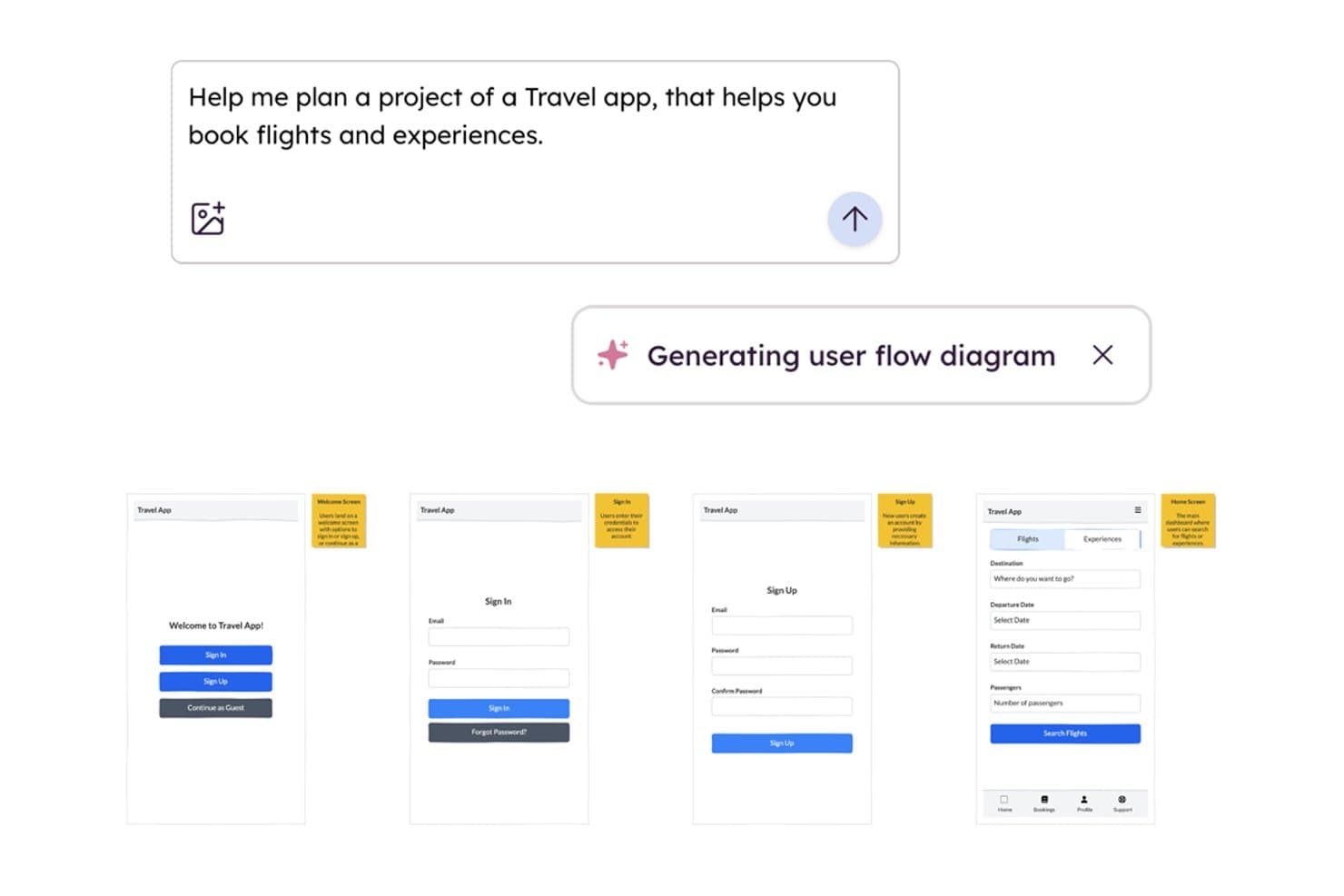
Balsamiq AI generates wireframe user flows from a text prompt. Balsamiq is a low-fidelity AI wireframing tool that converts screenshots, sketches, text prompts, and front-end code into editable wireframes, with built-in collaboration, clickable HTML prototypes, and an MCP server for handoff to AI coding tools.
Who Is Balsamiq AI Best For?
Balsamiq AI is a strong fit for product managers and startup founders who need to move fast from idea to testable concept without a design background.
Why I Picked Balsamiq AI
I picked Balsamiq AI because its MCP server makes it the clearest path from wireframe to AI-assisted development I've seen. Once your screens are ready, tools like Cursor or Claude can read the boards directly, generate user stories, write QA plans, and flag missing states like error or empty screens. I also like the code-to-wireframe feature: paste in React or HTML and get an editable wireframe back, which makes it easy to reverse-engineer existing front-ends before iterating.
Balsamiq AI Key Features
- Screenshot-to-wireframe conversion: Upload a screenshot of any app or website and Balsamiq AI converts it into a set of editable wireframe elements in roughly 30 seconds.
- Alternates: Create and manage multiple layout variations of a single wireframe to compare ideas or gather stakeholder feedback without duplicating entire boards.
- Clickable HTML prototype generation: Select your wireframe screens and generate a functional HTML prototype where buttons, sliders, and navigation work as expected.
- AI credit pooling: Monthly AI credits are shared across your entire workspace, so teams can distribute usage flexibly rather than each editor working from a fixed individual quota.
Balsamiq AI Integrations
Balsamiq AI offers native integrations with Jira and Confluence, plus Slack sharing. Its MCP server connects boards to Claude, ChatGPT, Cursor, VS Code, and Codex for AI-assisted development handoff.
Pros and Cons
Pros:
- Generates clickable prototypes from low-fidelity screens
- Reverse-engineers front-end code into wireframes
- Converts screenshots and sketches into wireframes
Cons:
- No direct Figma or Sketch export
- Deliberately stops short of high-fidelity design
Learn more about Balsamiq AI:
Andre AI-verktøy for utforming av trådskisser
Her er noen flere alternativer innen AI-verktøy for utforming av trådskisser som ikke kom med på kortlisten min, men som likevel er verdt å ta en titt på:
- 11Mockitt DesignBest for turning PRDs into multi-screen prototypes
- 12FramerBest for wireframe-to-live-site in one canvas
- 13MockplusBest for team wireframing without design skills
- 14UXMagicBest for sketching to screen with PRD input
- 15Figma MakeBest for prompt-to-prototype in the Figma ecosystem
- 16Jeda.aiBest for wireframing from docs and PRD uploads
How I Evaluate AI Wireframing Tools
To make this list, a tool’s AI needs to handle real wireframe work, like generating layouts from prompts and converting sketches into wireframes. From there, I evaluate three things. Core functionality carries the most weight, like editing layouts with drag-and-drop and adding UI components. Then I consider standout features like design-system awareness, and fit with your team’s existing tools.
Core Functionality (Table Stakes For This List)
When I'm selecting tools for my list, I score each one on a scale from 0 (does not offer the functionality) to 5 (excels in this area) for each core functionality listed below. I then convert the total into a percentage to help assess each tool's overall fit, with extra weight on any functionalities I’ve deemed essential.
- AI Wireframe Generation (Essential): I assess how prompts, sketches, or screenshots become relevant screen layouts, such as a sign-up flow, and how much restructuring they need.
- Drag-and-Drop Editing (Essential): I look for controls to move, resize, and arrange elements while refining a mobile checkout or dashboard without rebuilding it.
- UI Component Library: I consider whether the library covers practical patterns like forms, navigation, and cards for the web and mobile layouts teams create.
- Fidelity Options: I evaluate how easily teams can move from a rough layout to a styled, near-prototype screen without reconstructing it.
- Export and Handoff: I check which formats teams can share or export, and whether the handoff preserves useful structure for design or development.
- Team Collaboration: I look for ways teammates can review, comment on, and co-edit a concept during a product discovery session.
Once I have a list of tools that meet the criteria, I consider what sets each platform apart.
Differentiating Factors (What Sets Vendors Apart)
Here's how I compare and contrast different vendors:
Standout Features
I look for design-system awareness—whether a tool can ingest your existing component library so generated layouts actually match your brand patterns instead of starting from scratch. PRD-to-wireframe import is another separator. Tools like Uizard and Visily let you feed in a requirements doc and get structured screens back, which cuts the translation step PMs usually handle manually. I also evaluate AI style variation generation, where one prompt produces multiple layout options your team can compare side by side during discovery.
Beyond Features
I evaluate how quickly a tool moves from prompt to something a stakeholder can react to—teams running discovery sprints can't wait days for a polished mockup. Integration with your existing toolchain matters just as much; a Figma or Jira connection means generated wireframes feed into real workflows instead of living on an island. I also check how each vendor handles uploaded designs and prompts, since teams prototyping pre-launch products need clear data-privacy commitments before putting sensitive concepts into a cloud-based AI tool.
Slik velger du AI-verktøy for utforming av trådskisser
Det er lett å bli overveldet av lange funksjonslister og komplekse prisstrukturer. For å hjelpe deg med å holde fokus mens du går gjennom den unike programvarevalgprosessen din, får du her en sjekkliste over faktorer du bør ha i bakhodet:
| Faktor | Hva du bør vurdere |
|---|---|
| FaktorSkalerbarhet | Hva du bør vurdereVil verktøyet støtte teamet ditt etter hvert som det vokser? Ta hensyn til brukerbegrensninger, prosjektgrenser og samarbeidsbehov ved fremtidig utvidelse. |
| FaktorIntegrasjoner | Hva du bør vurdereKan verktøyet kobles til den eksisterende verktøystakken din (f.eks. Jira, Figma, Slack)? Se etter innebygde integrasjoner, ikke bare API- eller Zapier-alternativer. |
| FaktorTilpasningsmuligheter | Hva du bør vurdereKan du tilpasse maler, komponenter eller arbeidsflyter slik at de passer til prosessen din? Vurder hvor mye du kan tilpasse verktøyet etter teamets behov. |
| FaktorBrukervennlighet | Hva du bør vurdereHvor raskt kan nye brukere bli produktive? Se etter intuitiv navigasjon, tydelig merking og minimale opplæringskrav. |
| FaktorImplementering og innføring | Hva du bør vurdereHvilke ressurser er tilgjengelige for oppsett og opplæring? Vurder tilgangen på veiledninger, innføringsguider og kundestøtte under utrullingen. |
| FaktorKostnad | Hva du bør vurdereEr prisnivåene transparente og forutsigbare? Vær oppmerksom på skjulte gebyrer, brukerbasert prising eller funksjonsbegrensninger som kan påvirke budsjettet ditt. |
| FaktorSikkerhetstiltak | Hva du bør vurdereOppfyller verktøyet organisasjonens sikkerhetsstandarder? Se etter SSO, datakryptering og samsvar med relevante forskrifter. |
| FaktorTilgjengelig kundestøtte | Hva du bør vurdereHvilke kanaler for kundestøtte tilbys, og på hvilke tidspunkter? Vurder om du trenger kundestøtte døgnet rundt, direktechat eller dedikert kundeansvar. |
Hva er AI-verktøy for utforming av trådskisser?
Verktøy for AI-trådskisser er programvareplattformer som bruker kunstig intelligens til å hjelpe brukere med raskt å generere, redigere og forbedre digitale trådskisser for nettsteder eller applikasjoner. Disse verktøyene automatiserer oppretting av oppsett, foreslår elementer for webdesign og tolker ofte tekstinstruksjoner for å produsere visuelle strukturer. De er utviklet for produktteam, designere og utviklere som ønsker å fremskynde designarbeidet i en tidlig fase og samarbeide mer effektivt om konsepter for brukergrensesnitt.
Funksjoner i verktøy for AI-trådskisser
Når du velger verktøy for AI-trådskisser, bør du se etter følgende viktige funksjoner:
- AI-genererte oppsett: Opprett trådskissestrukturer automatisk fra tekstinstruksjoner eller krav, slik at du sparer tid på manuell utforming.
- Komponentbibliotek med dra og slipp: Få tilgang til et bredt utvalg forhåndsbygde brukergrensesnittelementer som raskt kan plasseres og ordnes på arbeidsflaten.
- Samarbeid i sanntid: La flere brukere arbeide med den samme trådskissen samtidig, med direkte oppdateringer og kommentering.
- Versjonshistorikk: Spor endringer, sammenlign tidligere utgaver og gå tilbake til eldre versjoner ved behov.
- Eksportalternativer: Last ned trådskisser i ulike formater, for eksempel PNG, PDF eller SVG, for deling eller videre redigering.
- Malgalleri: Start prosjekter med ferdige trådskissemaler for vanlige sidetyper, for eksempel landingssider og startsider.
- Integrasjonsmuligheter: Koble til andre verktøy, for eksempel plattformer for prosjektstyring, dokumentasjon eller design, for å samle arbeidsflytene.
- Verktøy for tilbakemeldinger og merknader: Gjør det mulig for interessenter å legge igjen kommentarer, forslag eller markeringer direkte på trådskissene.
- Støtte for responsivt design: Utform trådskisser som tilpasser seg ulike skjermstørrelser og enheter, og forhåndsvis oppsett for mobil, nettbrett og datamaskin.
- Tilgangskontroller: Administrer brukertillatelser for å sikre at de riktige personene kan vise, redigere eller kommentere trådskisser.
Fordeler med verktøy for AI-trådskisser
Implementering av verktøy for AI-trådskisser gir flere fordeler for teamet og virksomheten din. Her er noen av fordelene du kan se frem til:
- Raskere designiterasjoner: AI-genererte oppsett og maler hjelper team med raskt å utforske flere designalternativer uten å måtte begynne helt på nytt.
- Bedre samarbeid: Funksjoner for redigering og kommentering i sanntid gjør det enkelt for designere, utviklere og interessenter å arbeide sammen.
- Konsekvente brukergrensesnitt: Forhåndsbygde komponentbiblioteker og maler fremmer enhetlig design på tvers av prosjekter og team.
- Mindre manuelt arbeid: Automatisert generering av trådskisser fra tekstinstruksjoner reduserer repetitive oppgaver og fremskynder designarbeidet i en tidlig fase.
- Enklere tilbakemeldinger fra interessenter: Innebygde verktøy for merknader og deling gjør det enkelt for interessenter å gjennomgå og gi innspill direkte på trådskissene.
- Bedre integrasjon med arbeidsflyter: Innebygde integrasjoner med verktøy for prosjektstyring og design hjelper team med å knytte arbeidet med trådskisser til den overordnede prosessen for produktutvikling.
- Forbedret versjonskontroll: Funksjoner for versjonshistorikk gjør det mulig for team å spore endringer, sammenligne utgaver og gå tilbake til tidligere design ved behov.
Kostnader og priser for verktøy for AI-trådskisser
Valg av verktøy for AI-trådskisser krever en forståelse av de ulike prismodellene og abonnementene som er tilgjengelige. Kostnadene varierer basert på funksjoner, teamstørrelse, tillegg og mer. Tabellen nedenfor oppsummerer vanlige abonnementer, gjennomsnittsprisene deres og typiske funksjoner som er inkludert i løsninger for verktøy for AI-trådskisser:
Sammenligningstabell for abonnementer for verktøy for AI-trådskisser
| Abonnementstype | Gjennomsnittspris | Vanlige funksjoner |
|---|---|---|
| AbonnementstypeGratisabonnement | Gjennomsnittspris$0 | Vanlige funksjonerGrunnleggende verktøy for trådskisser, begrensede AI-funksjoner, tilgang for én bruker og grunnleggende eksportalternativer. |
| AbonnementstypePersonlig abonnement | Gjennomsnittspris$5-$15/bruker/måned | Vanlige funksjonerFull funksjonalitet for AI-trådskisser, utvidede komponentbiblioteker, flere eksportformater og begrensede integrasjoner. |
| AbonnementstypeBedriftsabonnement | Gjennomsnittspris$15-$30/bruker/måned | Vanlige funksjonerTeamsamarbeid, avanserte integrasjoner, versjonshistorikk, prioritert brukerstøtte og administratorkontroller. |
| AbonnementstypeAbonnement for store virksomheter | Gjennomsnittspris$30-$60/bruker/måned | Vanlige funksjonerTilpassede integrasjoner, forbedret sikkerhet, dedikert kontoadministrasjon, støtte ved oppstart og SLA-garantier. |
Vanlige spørsmål om AI-verktøy for grensesnittskisser
Her er svar på vanlige spørsmål om AI-verktøy for grensesnittskisser:
Kan AI-verktøy for grensesnittskisser erstatte tradisjonell designprogramvare?
Nei, AI-verktøy for grensesnittskisser er ikke en fullstendig erstatning for tradisjonell designprogramvare. De fremskynder idéutvikling og oppretting av oppsett i tidlig fase, men de fleste team bruker fortsatt dedikerte designverktøy til detaljert arbeid med brukergrensesnitt, prototyping og ferdig produksjon av ressurser.
Hvor nøyaktige er AI-genererte grensesnittskisser?
AI-genererte grensesnittskisser er vanligvis nøyaktige for grunnleggende oppsett og standardmønstre for brukergrensesnitt. De kan imidlertid kreve manuelle justeringer for komplekse arbeidsflyter, unik profilering eller svært tilpassede grensesnitt. Gå alltid gjennom og finjuster AI-resultater før du deler dem med interessenter.
Krever AI-verktøy for grensesnittskisser designerfaring?
Nei, de fleste AI-verktøy for grensesnittskisser er utviklet for både designere og personer uten designerfaring. De intuitive grensesnittene og AI-drevne forslagene hjelper brukere med begrenset designerfaring med å lage funksjonelle grensesnittskisser, selv om designkunnskap kan gi bedre resultater.
Er AI-verktøy for grensesnittskisser sikre for sensitive prosjekter?
Ja, mange AI-verktøy for grensesnittskisser tilbyr sikkerhetsfunksjoner som datakryptering, SSO og samsvar med personvernstandarder. Gå alltid gjennom leverandørens sikkerhetsdokumentasjon og bekreft at den oppfyller organisasjonens krav før du bruker verktøyet til sensitive prosjekter.
Kan jeg samarbeide med teamet mitt i sanntid ved hjelp av disse verktøyene?
Ja, de fleste AI-verktøy for grensesnittskisser støtter samarbeid i sanntid. Flere brukere kan redigere, kommentere og gjennomgå grensesnittskisser samtidig, noe som gjør det enklere å samle inn tilbakemeldinger og raskt videreutvikle arbeidet med distribuerte team.
Hvilke filformater kan jeg eksportere grensesnittskisser til?
De fleste AI-verktøy for grensesnittskisser lar deg eksportere grensesnittskisser i formater som PNG, PDF og SVG. Noen støtter også deling via nettlenker eller direkte integrasjon med andre design- og prosjektstyringsplattformer. Sjekk alltid eksportalternativene før du velger et verktøy.