
10 mejores alternativas a Adobe Photoshop para creativos en 2026

Lista de alternativas a Adobe Photoshop


Una buena alternativa a Adobe Photoshop ofrece edición avanzada de imágenes, compatibilidad con capas y compatibilidad con formatos de archivo de diseño habituales, sin obligarte a entrar en el ecosistema de Adobe. Si buscas un software de herramientas de diseño que iguale las funciones principales de Photoshop o se adapte mejor a tu flujo de trabajo, no eres la única persona. Tanto si quieres una opción más económica como si necesitas una herramienta que se ejecute de forma nativa en tu dispositivo o prefieres un editor basado en el navegador, esta lista te ayudará a comparar las mejores alternativas para 2026 y encontrar la opción adecuada para tus proyectos creativos.
¿Qué es Adobe Photoshop?
Adobe Photoshop es una herramienta de diseño profesional utilizada para editar fotografías, realizar pintura digital y crear gráficos. Admite funciones avanzadas como capas y máscaras, así como una amplia variedad de formatos de archivo, lo que lo convierte en un estándar de las industrias creativas. Diseñadores, fotógrafos y artistas confían en Photoshop para tareas que van desde retocar imágenes hasta crear obras de arte digitales complejas. Su extenso conjunto de herramientas y la compatibilidad con complementos lo han convertido en una opción habitual para profesionales creativos de todo el mundo.
Resumen de las mejores alternativas a Adobe Photoshop
Esta tabla comparativa resume los detalles de precios de mis principales alternativas a Adobe Photoshop para ayudarte a encontrar la mejor opción para tu presupuesto y las necesidades de tu negocio.
| Tool | Best For | Trial Info | Price | ||
|---|---|---|---|---|---|
| 1 | Ideal para crear diseños rápidamente con plantillas | Plan gratuito disponible | Desde $12/mes (facturado anualmente) | Website | |
| 2 | Mejor para opciones de personalización de código abierto | Not available | Gratis y de código abierto | Website | |
| 3 | Ideal para flujos de trabajo profesionales de edición vectorial | Not available | Gratis para usar | Website | |
| 4 | Ideal para edición de imágenes ligera en Mac | Prueba gratuita de 14 días disponible | Desde $29.99 (pago único) | Website | |
| 5 | Ideal para usuarios de Mac que buscan integración nativa | Prueba gratuita de 30 días disponible | Desde $69.99 (pago único, versión para Mac) | Website | |
| 6 | Ideal para editar archivos PSD en el navegador | Not available | Gratis para usar | Website | |
| 7 | Ideal para mejoras fotográficas con IA | Prueba gratuita de 7 días disponible | Desde $119 (pago único) | Website | |
| 8 | Ideal para la edición RAW no destructiva | Prueba gratuita de 30 días disponible | Desde $109.99 (pago único) | Website | |
| 9 | Ideal para el procesamiento por lotes en Windows | Prueba gratuita de 30 días disponible | Desde $99.99 (pago único) | Website | |
| 10 | Ideal para la edición guiada y herramientas de aprendizaje | Prueba gratuita de 7 días disponible | Desde $99.99 pago único | Website |
Por Qué Confiar en Nuestras Reseñas de Software
Llevamos revisando y probando software de gestión de productos desde 2020. Como product managers, sabemos lo crucial y complicado que es tomar la decisión correcta al seleccionar software. Invertimos en investigación profunda para ayudar a nuestra audiencia a tomar mejores decisiones de compra de software. Hemos probado más de 2,000 herramientas para distintos casos de uso y escrito más de 1,000 reseñas exhaustivas. Conozca cómo mantenemos la transparencia & nuestra metodología de reseñas de software.
Opiniones sobre alternativas a Adobe Photoshop
A continuación encontrarás mis resúmenes detallados de las mejores alternativas a Adobe Photoshop que han llegado a mi lista. Mis reseñas ofrecen un análisis detallado de las funciones, los mejores casos de uso y las capacidades de cada herramienta para ayudarte a encontrar la mejor opción para ti.
Canva
Ideal para crear diseños rápidamente con plantillas
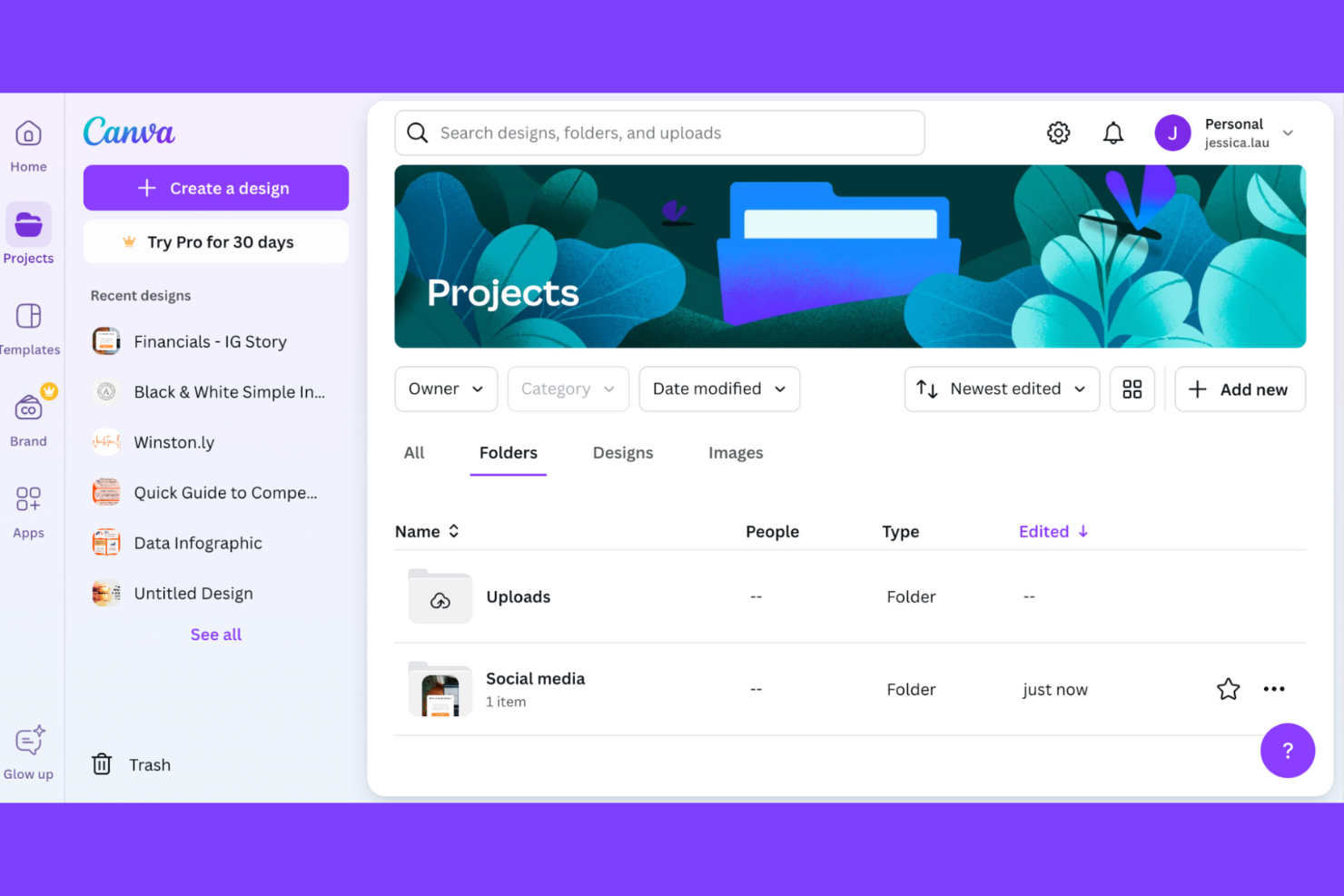
Si necesitas crear diseños pulidos rápidamente, Canva ofrece un enfoque basado en plantillas que es difícil de igualar. Aunque no es un editor de fotos tradicional, esta herramienta es especialmente útil para profesionales de marketing, propietarios de pequeñas empresas y equipos que desean producir gráficos para redes sociales, presentaciones o materiales impresos sin habilidades avanzadas en diseño. Canva se destaca frente a Adobe Photoshop por hacer accesibles maquetaciones profesionales y recursos de marca con solo unos clics.
Por qué Canva es una buena alternativa a Adobe Photoshop
Para cualquiera que necesite producir diseños de aspecto profesional en minutos, el sistema basado en plantillas de Canva es una gran ventaja. Elegí Canva porque ofrece miles de plantillas listas para usar para todo, desde publicaciones en redes sociales hasta tarjetas de presentación, lo que te permite comenzar a trabajar en el diseño sin partir de cero. El editor de arrastrar y soltar facilita la personalización de maquetaciones, imágenes y texto para adaptarlos a tu marca o proyecto. Si deseas crear imágenes pulidas rápidamente sin formación avanzada en diseño, Canva ofrece una solución enfocada que es diferente al enfoque de edición manual de Photoshop.
Funciones clave de Canva
Algunas otras funciones de Canva que pueden resultar valiosas para los equipos de diseño incluyen:
- Gestión del Kit de Marca: Guarda y aplica los colores, fuentes y logotipos de tu marca en todos los diseños.
- Herramientas de colaboración: Invita a los miembros del equipo a comentar, editar y trabajar juntos en proyectos en tiempo real.
- Cambio mágico de tamaño: Ajusta al instante tu diseño para diferentes formatos y plataformas con un solo clic.
- Biblioteca de contenido de stock: Accede a una amplia colección de fotos, ilustraciones, iconos y videos gratuitos y premium directamente en el editor.
Integraciones de Canva
Las integraciones incluyen Pinterest, Twitter, LinkedIn, Slack, Microsoft PowerPoint, Mailchimp, Issuu, Brandfetch, Frontify y SharePoint.
Pros and Cons
Pros:
- Gran biblioteca de plantillas para creación rápida de diseños
- Colaboración en tiempo real entre miembros del equipo en proyectos compartidos
- El Kit de Marca almacena y aplica recursos de marca
Cons:
- No tiene controles avanzados de capas o enmascaramiento
- No permite editar imágenes RAW o de alta profundidad de bits

Gimp
Mejor para opciones de personalización de código abierto

Los diseñadores que buscan una alternativa de código abierto y totalmente personalizable a Adobe Photoshop suelen recurrir a GIMP. Esta herramienta atrae a profesionales creativos, educadores y desarrolladores que desean adaptar su entorno de edición o ampliar la funcionalidad mediante complementos y secuencias de comandos. GIMP destaca por ofrecer amplias opciones de personalización y mejoras impulsadas por la comunidad que no están disponibles en la mayoría de las herramientas de diseño propietarias.
Por qué GIMP es una buena alternativa a Adobe Photoshop
A diferencia de la mayoría de las herramientas de diseño propietarias, GIMP te da acceso completo a su código fuente, lo que lo convierte en una opción sólida para quienes quieren personalizar su entorno de edición. Elegí GIMP porque puedes instalar complementos desarrollados por la comunidad, escribir tus propios scripts e incluso modificar la interfaz para adaptarla a tu flujo de trabajo. La herramienta admite secuencias de comandos avanzadas en lenguajes como Python y Scheme, lo que te permite automatizar tareas o agregar nuevas funciones. Para equipos de diseño o desarrolladores que desean adaptar el software a necesidades específicas, GIMP ofrece un nivel de flexibilidad difícil de encontrar en otro lugar.
Características clave de GIMP
Otras funciones que los profesionales del diseño pueden encontrar útiles en GIMP incluyen:
- Edición de capas no destructiva: Realiza cambios en capas individuales sin alterar los datos originales de la imagen.
- Pinceles y patrones personalizables: Crea, importa y modifica pinceles y patrones para obras de arte detalladas y retoques.
- Herramientas de gestión de color: Utiliza corrección avanzada de color, mezcla de canales y admite varios espacios de color.
- Amplia compatibilidad con formatos de archivo: Abre, edita y exporta una gran variedad de tipos de archivos de imagen, incluidos PSD, TIFF, PNG y JPEG.
Integraciones de GIMP
Las integraciones incluyen Scribus e Inkscape.
Pros and Cons
Pros:
- Completamente de código abierto con gran potencial de personalización
- Admite secuencias de comandos para automatizar tareas
- Amplia gama de complementos de una comunidad activa
Cons:
- La interfaz puede resultar menos intuitiva para usuarios nuevos
- Las funciones de edición no destructiva son limitadas

Affinity
Ideal para flujos de trabajo profesionales de edición vectorial
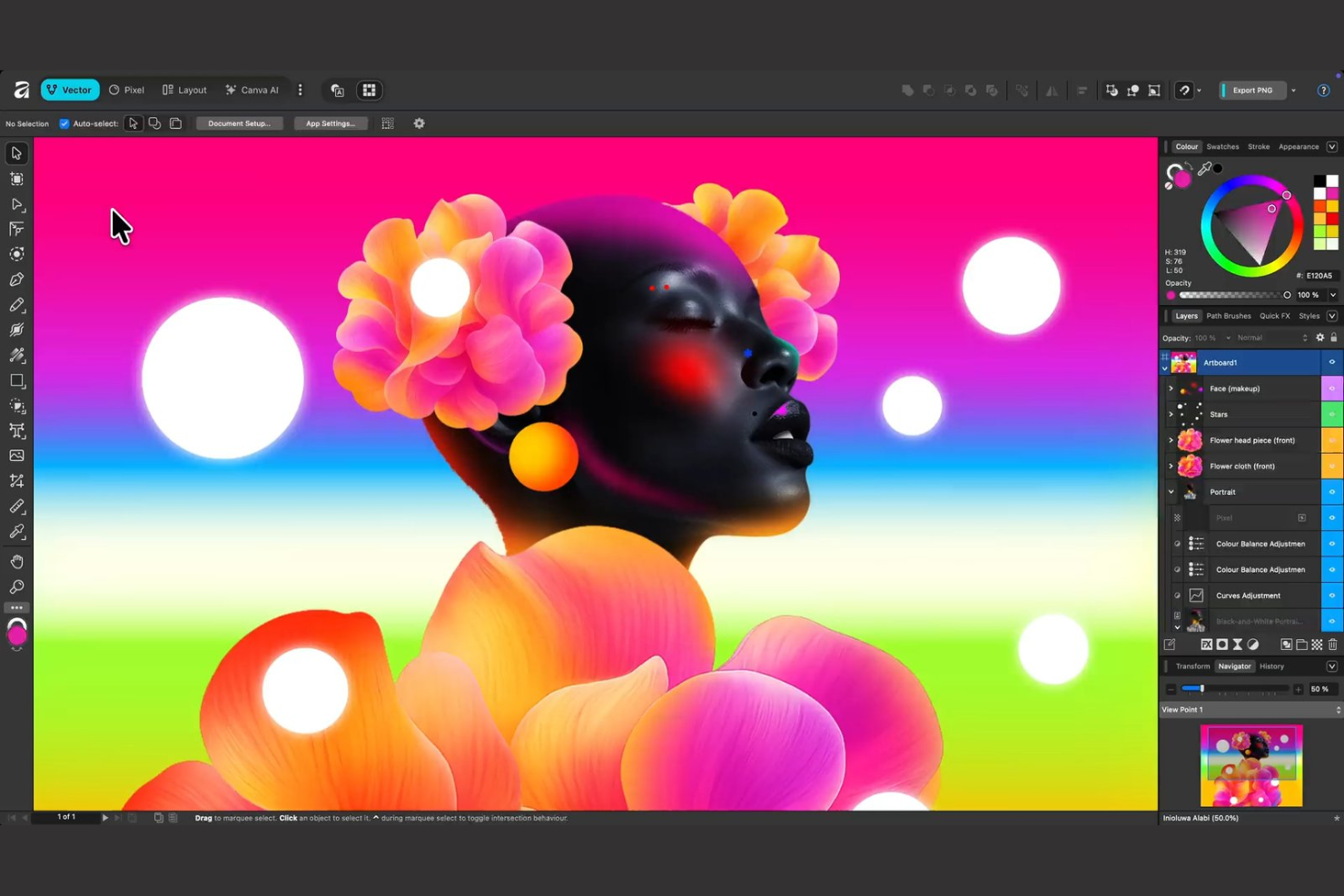
Affinity ofrece una suite de herramientas de diseño creadas para profesionales que necesitan edición vectorial avanzada y control preciso sobre sus proyectos creativos. Los diseñadores gráficos e ilustradores que buscan una alternativa a Photoshop con sólidas capacidades vectoriales suelen recurrir a Affinity por su flujo de trabajo fluido y su modelo de pago único. Su enfoque en la edición de alto rendimiento y la compatibilidad con tipos de archivo estándar en la industria lo convierten en una opción práctica tanto para agencias como para profesionales independientes.
Por qué Affinity es una buena alternativa a Adobe Photoshop
Para los profesionales que necesitan flujos de trabajo avanzados de edición vectorial, Affinity se destaca como una sólida alternativa a Adobe Photoshop. Elegí Affinity porque ofrece herramientas de manipulación vectorial de gran precisión y soporta edición no destructiva, lo cual es esencial para trabajos de diseño detallados. Su gestión de mesas de trabajo permite manejar múltiples diseños dentro de un solo proyecto, lo que resulta ideal para identidades visuales o campañas en varios formatos. Estas características otorgan a los diseñadores más flexibilidad y control que muchas herramientas enfocadas en mapas de bits.
Funciones clave de Affinity
Otras funciones que los profesionales del diseño pueden encontrar útiles en Affinity incluyen:
- Filtros en vivo: Aplica y ajusta filtros de manera no destructiva, lo que te permite ver los cambios en tiempo real sin alterar permanentemente la imagen.
- Herramientas tipográficas avanzadas: Accede a una amplia gama de controles de texto, incluyendo ligaduras, interletraje y ajustes de línea base para un diseño tipográfico preciso.
- Compatibilidad con archivos PSD: Abre, edita y exporta archivos PSD de Photoshop preservando las capas y efectos.
- Procesamiento por lotes: Automatiza tareas repetitivas aplicando acciones a varios archivos a la vez, lo que ahorra tiempo en proyectos grandes.
Integraciones de Affinity
Se integra con Canva.
Pros and Cons
Pros:
- Pago único sin suscripción
- Edición vectorial y rasterizada avanzada en una sola aplicación
- Alto rendimiento con archivos grandes y complejos
Cons:
- Sin almacenamiento en la nube o colaboración integrada
- Menos complementos externos que Photoshop

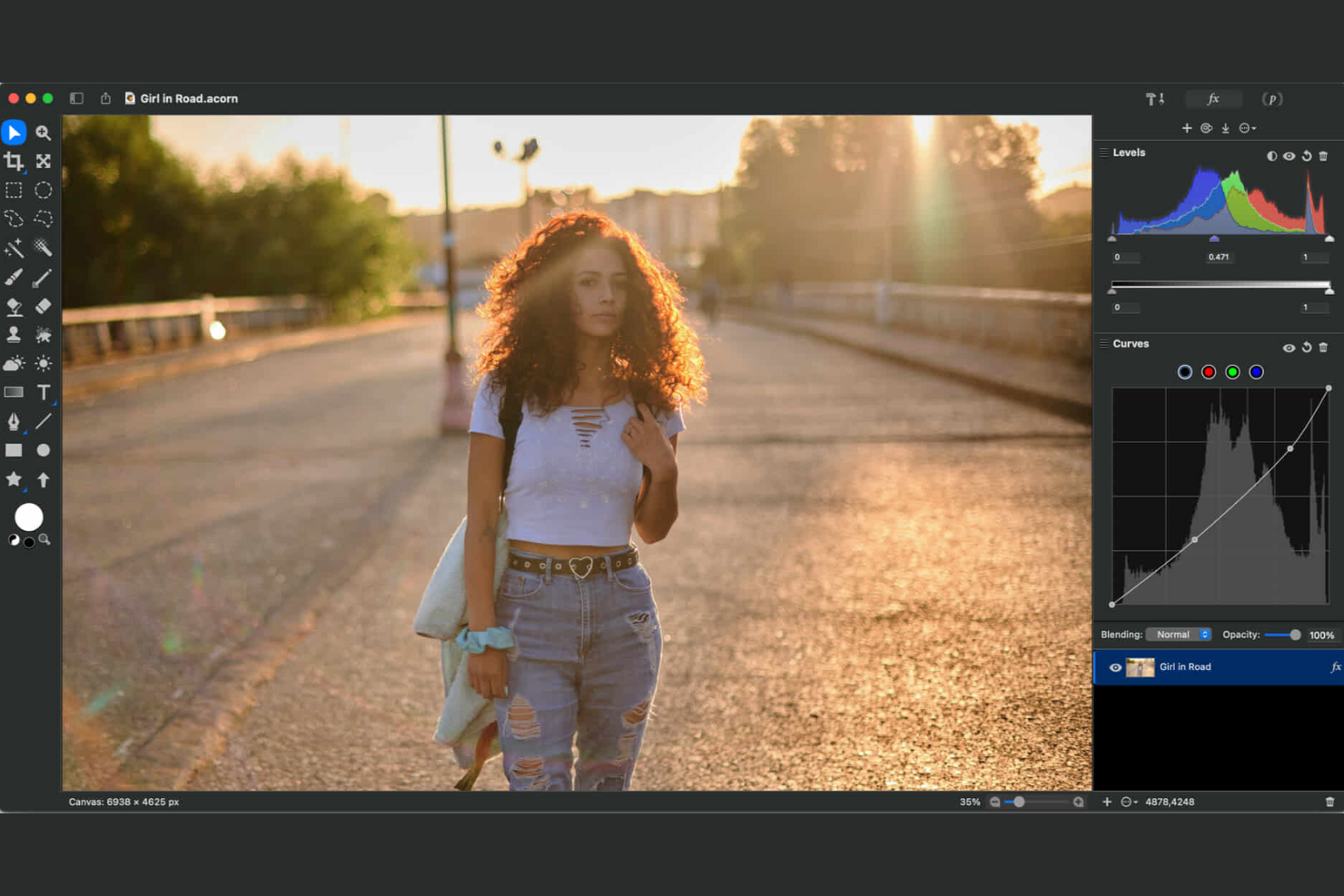
Si buscas un editor de imágenes rápido y ligero diseñado específicamente para Mac, vale la pena echar un vistazo a Acorn. Es una excelente opción para diseñadores, especialistas en marketing y equipos de pequeñas empresas que desean herramientas de edición esenciales sin la complejidad ni las exigencias de recursos de Adobe Photoshop. Acorn destaca por su interfaz simple, tiempos de inicio rápidos e integración nativa con macOS que hace que la edición sea sencilla y accesible.
Por qué Acorn es una buena alternativa a Adobe Photoshop
Para los usuarios de Mac que buscan un editor de imágenes ligero, Acorn ofrece un conjunto de herramientas enfocado sin la carga de suites de diseño más grandes. Elegí Acorn porque ofrece filtros no destructivos, herramientas vectoriales y edición basada en capas en un paquete compacto. El soporte nativo para funciones de macOS como Quick Look y pantallas Retina hace que se sienta como en casa en los dispositivos Apple. Si necesitas una forma rápida y confiable de manejar tareas cotidianas de edición de imágenes, Acorn es una alternativa práctica al enfoque de Photoshop que consume más recursos.
Funciones clave de Acorn
Otras características que hacen atractivo a Acorn incluyen:
- Explorador de efectos fotográficos: Previsualiza y aplica una amplia gama de efectos de imagen en tiempo real.
- Exportación inteligente de capas: Exporta capas individuales o grupos como archivos independientes con un solo clic.
- Pinceles personalizados: Crea y modifica tus propios pinceles para pintar y retocar de forma única.
- Importación y exportación de PDF: Abre, edita y guarda archivos PDF directamente en la aplicación.
Integraciones de Acorn
Actualmente no se enumeran integraciones nativas.
Pros and Cons
Pros:
- Rendimiento ligero y tiempos de carga rápidos
- Soporte nativo de macOS con optimización para Retina
- Interfaz simple para tareas de edición rápida
Cons:
- Funciones avanzadas de edición y automatización limitadas
- No es adecuado para flujos de trabajo de diseño complejos


Pixelmator Pro está diseñado específicamente para usuarios de Mac que desean una integración profunda con las funciones y el hardware de macOS. Los profesionales creativos y pequeños negocios que dependen de dispositivos Apple apreciarán su compatibilidad con Apple Silicon, iCloud y tecnologías nativas de macOS. La herramienta se destaca frente a Adobe Photoshop al ofrecer una interfaz simplificada y un rendimiento rápido diseñado para el ecosistema de Apple.
Por qué Pixelmator Pro es una buena alternativa a Adobe Photoshop
Si buscas una herramienta de diseño que realmente encaje en un Mac, Pixelmator Pro es una excelente opción. Elijo Pixelmator Pro porque está desarrollado exclusivamente para macOS y ofrece compatibilidad nativa con Apple Silicon, Touch Bar y iCloud Drive. Su integración con funcionalidades de macOS como Quick Look y Fotos facilita su incorporación a los flujos de trabajo existentes de Apple. Estas capacidades proporcionan a los usuarios de Mac una experiencia de edición fluida y de alto rendimiento que resulta difícil igualar con herramientas multiplataforma.
Características clave de Pixelmator Pro
Otras funciones de Pixelmator Pro que pueden interesar a los profesionales del diseño incluyen:
- Herramientas de edición impulsadas por aprendizaje automático: Utiliza funciones basadas en inteligencia artificial para tareas como eliminación automática de fondos y mejora inteligente de imágenes.
- Edición no destructiva: Realiza ajustes y aplica efectos sin alterar permanentemente la imagen original.
- Compatibilidad con imágenes RAW: Abre y edita archivos RAW de una amplia variedad de cámaras directamente en la aplicación.
- Herramientas vectoriales: Crea y edita formas vectoriales e ilustraciones junto con gráficos rasterizados en el mismo proyecto.
Integraciones de Pixelmator Pro
Las integraciones incluyen Fotos de Apple, iCloud Drive, Portapapeles universal, Apple Pencil, Final Cut Pro, Logic Pro, Motion, Compressor, MainStage y Freeform.
Pros and Cons
Pros:
- Integración profunda con macOS y funciones nativas del sistema
- Herramientas de aprendizaje automático para mejoras rápidas de imágenes
- Rendimiento rápido optimizado para hardware de Apple
Cons:
- Solo disponible dentro del ecosistema de Apple
- Soporte limitado para plugins y extensibilidad

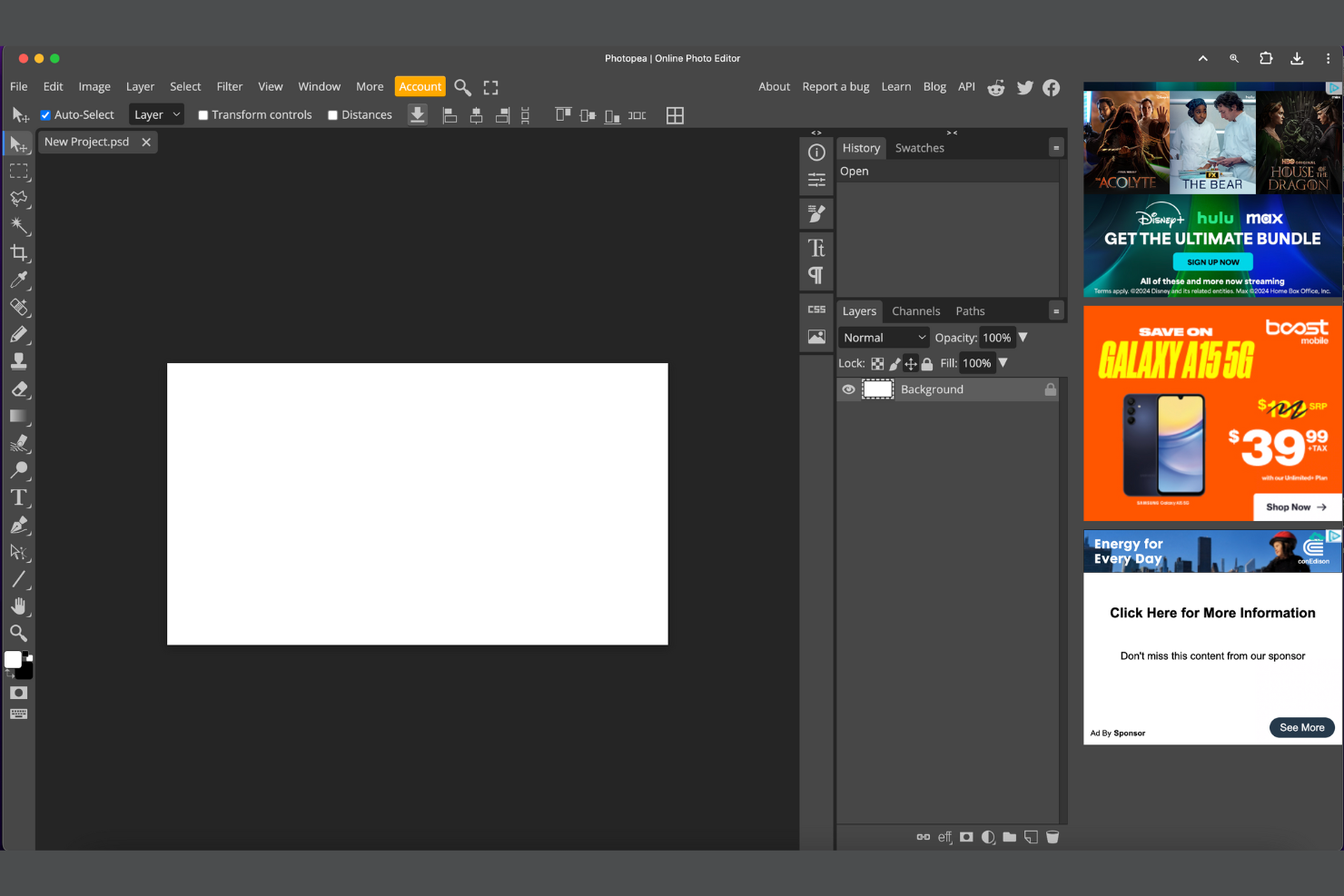
Photopea ofrece una solución basada en navegador para quienes necesitan abrir y editar archivos PSD sin instalar software. Diseñadores gráficos, freelancers y equipos de marketing que trabajan en diferentes dispositivos o sistemas operativos pueden acceder a edición con todas las funciones directamente en su navegador web. A diferencia de Adobe Photoshop, Photopea destaca por admitir archivos PSD con capas y otros formatos completamente en línea, lo que facilita la colaboración o el trabajo desde cualquier lugar.
Por qué Photopea es una buena alternativa a Adobe Photoshop
Para los equipos que necesitan editar archivos PSD sin instalar software de escritorio, Photopea ofrece una experiencia única en el navegador. Elegí Photopea porque permite abrir, editar y exportar archivos PSD con capas directamente desde cualquier navegador web, sin importar el sistema operativo. La herramienta también admite una amplia variedad de formatos de archivo, incluyendo Sketch, XD y CDR, lo cual resulta útil para profesionales que trabajan con múltiples plataformas de diseño. Esta flexibilidad convierte a Photopea en una opción práctica para equipos remotos, freelancers o cualquier persona que necesite funciones de edición similares a Photoshop estés donde estés.
Características clave de Photopea
Otras funciones en Photopea que pueden ser útiles para profesionales del diseño incluyen:
- Soporte para objetos inteligentes: Trabaja con objetos inteligentes para preservar la calidad de la imagen durante las transformaciones y ediciones.
- Estilos de capa y modos de fusión: Aplica una variedad de efectos y opciones de fusión a capas individuales para composición avanzada.
- Acciones programables: Automatiza tareas repetitivas utilizando secuencias de comandos basadas en JavaScript dentro del editor.
- Herramientas de edición vectorial: Crea y manipula formas y trazados vectoriales junto con gráficos rasterizados en el mismo proyecto.
Integraciones de Photopea
No se mencionan integraciones nativas, aunque hay una API disponible para integraciones personalizadas.
Pros and Cons
Pros:
- Funciona completamente en el navegador sin necesidad de instalación
- Abre y edita PSD y múltiples formatos de diseño
- Accesible en diferentes dispositivos y sistemas operativos
Cons:
- El rendimiento puede disminuir con archivos de alta resolución
- Funciones avanzadas de edición basadas en IA limitadas

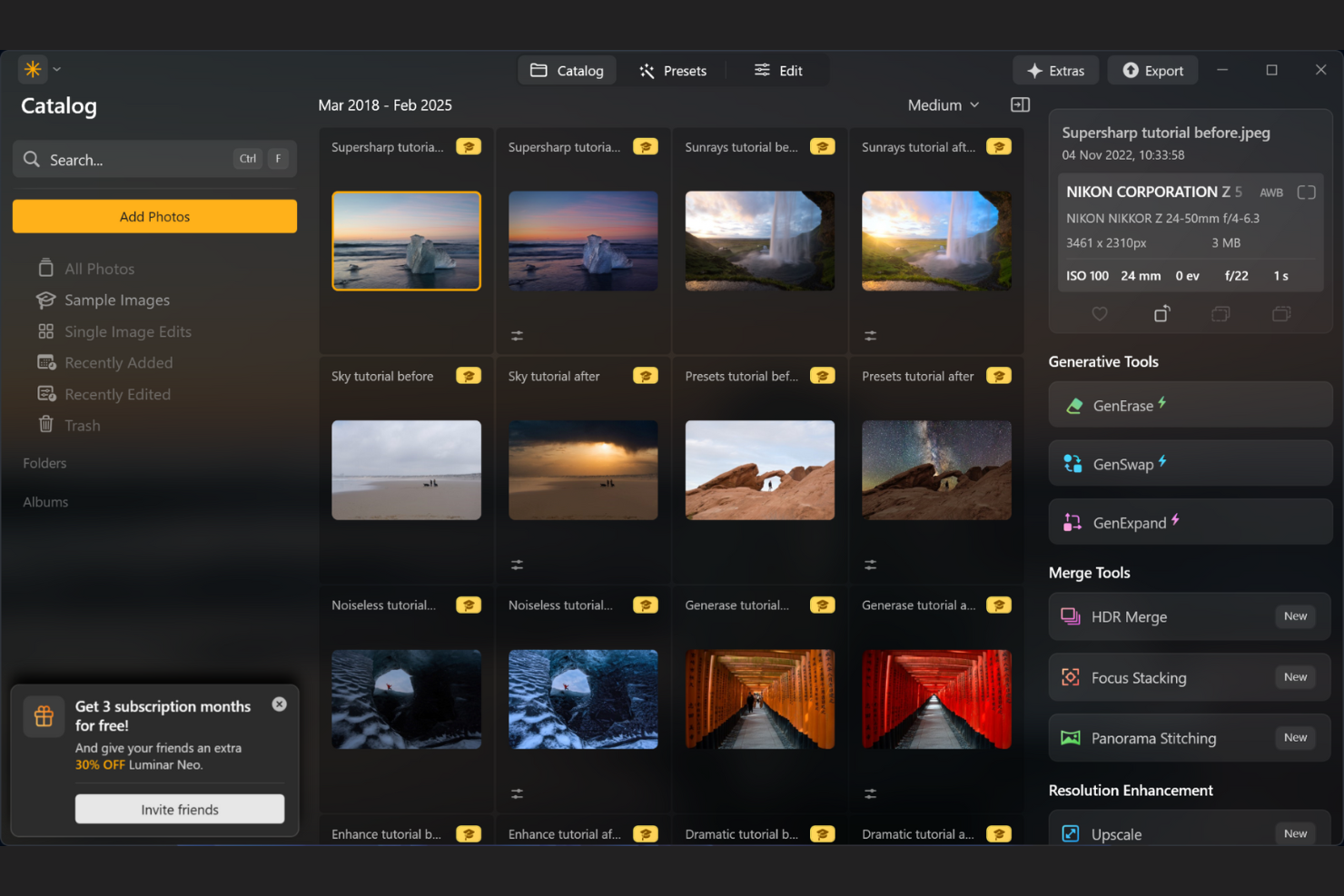
Los fotógrafos y equipos creativos que buscan una edición de fotos rápida impulsada por IA encontrarán en Skylum una opción única. A diferencia de Adobe Photoshop, las herramientas de Skylum automatizan mejoras complejas como el reemplazo de cielo y el retoque de retratos con solo unos clics. Esto lo hace especialmente útil para profesionales que desean resultados de alta calidad sin pasar horas realizando ajustes manuales.
Por qué Skylum es una buena alternativa a Adobe Photoshop
Lo que distingue a Skylum es su enfoque en mejoras fotográficas impulsadas por IA que automatizan tareas de edición que consumen mucho tiempo. Elegí Skylum porque sus herramientas de IA gestionan ajustes complejos como el reemplazo de cielo, el suavizado de la piel y la eliminación de fondos con solo unos pocos clics. Estas características permiten lograr ediciones de calidad profesional sin las máscaras ni las capas manuales que requiere Photoshop. Para equipos o individuos que desean acelerar su flujo de trabajo mientras siguen produciendo imágenes pulidas, Skylum ofrece una ventaja clara.
Funciones clave de Skylum
Otras funciones de Skylum que los profesionales del diseño pueden encontrar útiles incluyen:
- Procesamiento por lotes: Aplica ediciones a varias fotos a la vez para ahorrar tiempo en tareas repetitivas.
- Compatibilidad con archivos RAW: Importa y edita imágenes RAW de alta resolución de una amplia gama de cámaras.
- Ajustes preestablecidos personalizados: Crea y guarda tus propios preajustes de edición para resultados consistentes en todos tus proyectos.
- Compatibilidad con plugins: Utiliza Skylum como complemento dentro de Adobe Photoshop o Lightroom para mayor flexibilidad.
Integraciones de Skylum
Las integraciones incluyen Adobe Photoshop, Adobe Lightroom y Apple Photos.
Pros and Cons
Pros:
- Las herramientas impulsadas por IA aceleran ediciones fotográficas complejas
- Gran compatibilidad con edición RAW para fotógrafos
- Los preajustes personalizados mejoran la coherencia del flujo de trabajo
Cons:
- Carece de capacidades de vectorización e ilustración
- El control de edición manual es más limitado

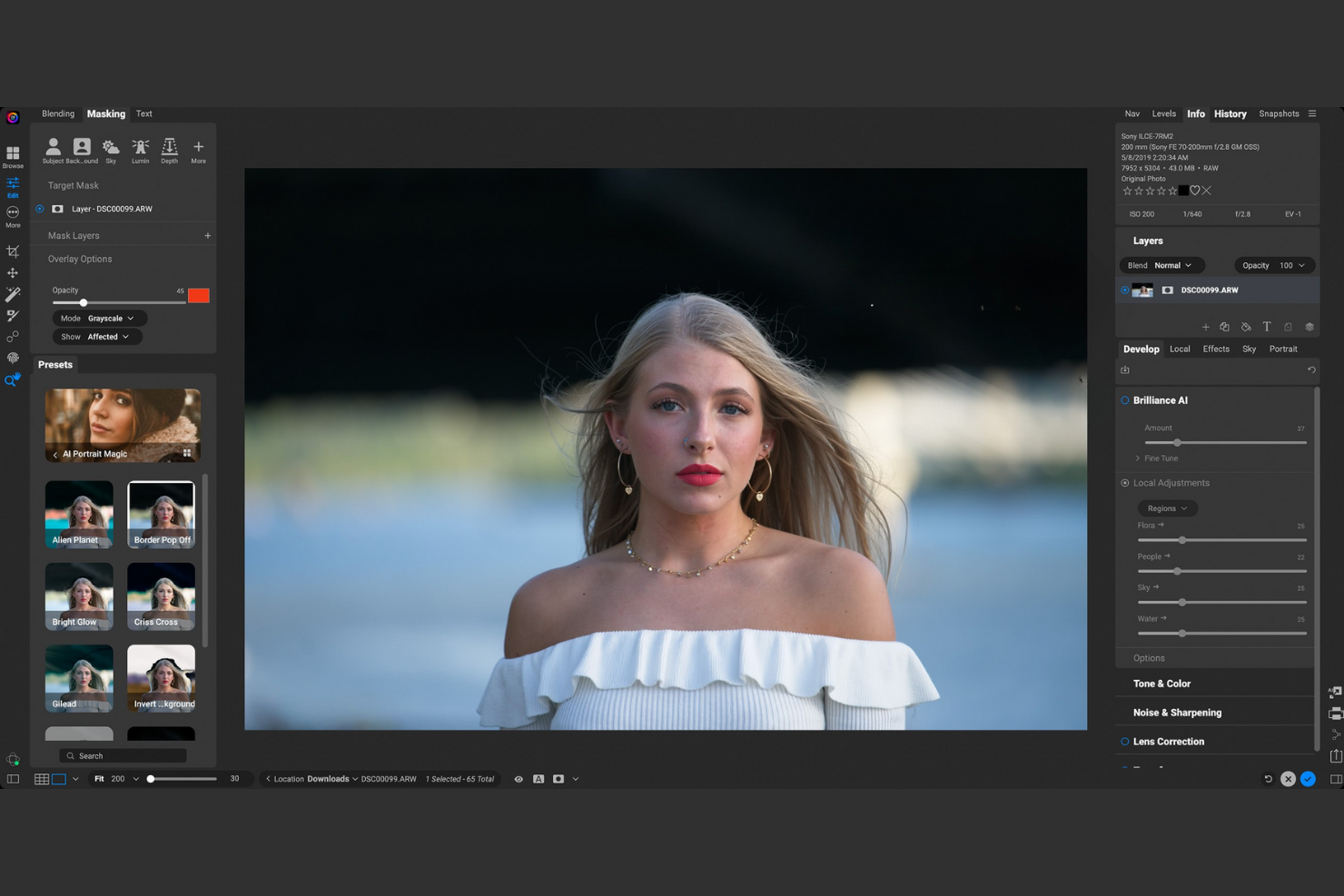
Si necesitas una herramienta de diseño enfocada en la edición de fotos RAW sin realizar cambios destructivos, vale la pena considerar ON1 Photo Raw. Este software atrae a fotógrafos y equipos creativos que desean preservar los datos originales de las imágenes mientras realizan ediciones avanzadas. A diferencia de Adobe Photoshop, ON1 Photo Raw combina el procesamiento RAW, la edición basada en capas y ajustes potenciados por IA en un único flujo de trabajo.
Por qué ON1 Photo Raw es una buena alternativa a Adobe Photoshop
ON1 Photo Raw destaca por su edición RAW no destructiva, lo cual es esencial para profesionales que quieren mantener la calidad original de la imagen durante todo el proceso. Elegí ON1 Photo Raw porque te permite hacer ediciones en capas, aplicar filtros y utilizar herramientas con IA sin alterar permanentemente tus archivos originales. Las funciones de versionado e historial del software facilitan experimentar y revertir cambios en cualquier etapa. Para quienes valoran la flexibilidad y la integridad de la imagen, ON1 Photo Raw ofrece una alternativa sólida frente al enfoque más destructivo de Photoshop.
Características clave de ON1 Photo Raw
Otras funciones de ON1 Photo Raw que los profesionales del diseño pueden encontrar útiles incluyen:
- Organizador de fotos integrado: Gestiona, ordena y etiqueta tu biblioteca de fotos directamente en el software.
- Portrait AI: Detecta y mejora automáticamente los rostros para un retoque rápido.
- Ajustes locales: Realiza ediciones selectivas en áreas específicas de una imagen usando herramientas de enmascarado.
- Biblioteca de preajustes: Accede a una amplia variedad de preajustes de un solo clic para diferentes estilos fotográficos.
Integraciones de ON1 Photo Raw
No se enumeran integraciones.
Pros and Cons
Pros:
- La edición no destructiva preserva los archivos RAW originales
- El organizador de fotos integrado gestiona bibliotecas grandes
- Portrait AI automatiza el retoque facial
Cons:
- No dispone de herramientas avanzadas de vectores o ilustración
- Menos plugins de terceros que Photoshop

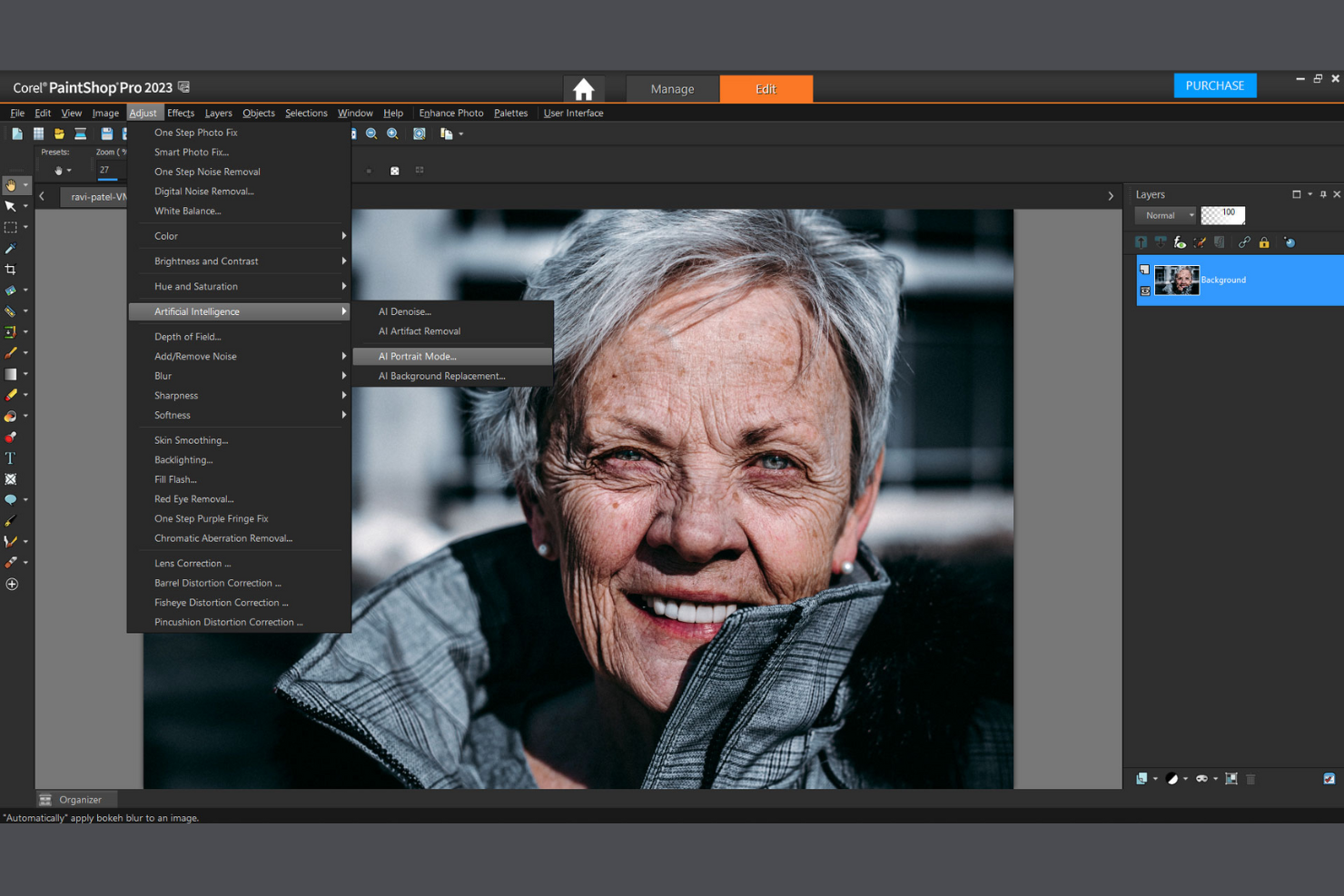
Para equipos que trabajan en Windows y necesitan procesar grandes lotes de imágenes, PaintShop Pro ofrece una solución enfocada. Esta herramienta es especialmente útil para fotógrafos, especialistas en marketing y creadores de contenido que desean automatizar tareas de edición repetitivas sin depender de software basado en la nube. A diferencia de Adobe Photoshop, PaintShop Pro destaca por sus avanzadas funciones de procesamiento por lotes y su modelo de compra única.
Por qué PaintShop Pro es una buena alternativa a Adobe Photoshop
PaintShop Pro es una opción sólida para quienes necesitan procesamiento avanzado por lotes en Windows. Elegí esta herramienta porque permite automatizar ediciones repetitivas en cientos de imágenes usando su motor de procesamiento por lotes y capacidades de secuencias de comandos. El software admite una amplia gama de formatos de archivo y ofrece scripts personalizables, lo que facilita aplicar ajustes o efectos consistentes a gran escala. Para equipos o profesionales que gestionan grandes bibliotecas de imágenes, PaintShop Pro ofrece un flujo de trabajo difícil de igualar frente al enfoque más manual de Photoshop.
Características clave de PaintShop Pro
Además de sus fortalezas en el procesamiento por lotes, también encontré que estas características son dignas de destacar:
- Herramientas impulsadas por IA: Mejora imágenes con la ampliación por IA, eliminación de artefactos por IA y eliminación de ruido por IA para una mejor calidad fotográfica.
- Edición basada en capas: Crea composiciones complejas usando múltiples capas y modos de fusión.
- Relleno según el contenido: Elimina objetos no deseados de las fotos y rellena automáticamente el fondo.
- Edición de fotos 360°: Edita, endereza y ajusta fotos de 360 grados directamente en el software.
Integraciones de PaintShop Pro
Actualmente no se enumeran integraciones nativas.
Pros and Cons
Pros:
- Procesamiento por lotes para edición de imágenes de alto volumen
- Herramientas de IA para ampliación y reducción de ruido
- Admite una amplia gama de formatos de archivo
Cons:
- Carece de funciones avanzadas de edición como las de Photoshop
- Solo disponible para Windows
- No tiene integraciones nativas

Ideal para la edición guiada y herramientas de aprendizaje
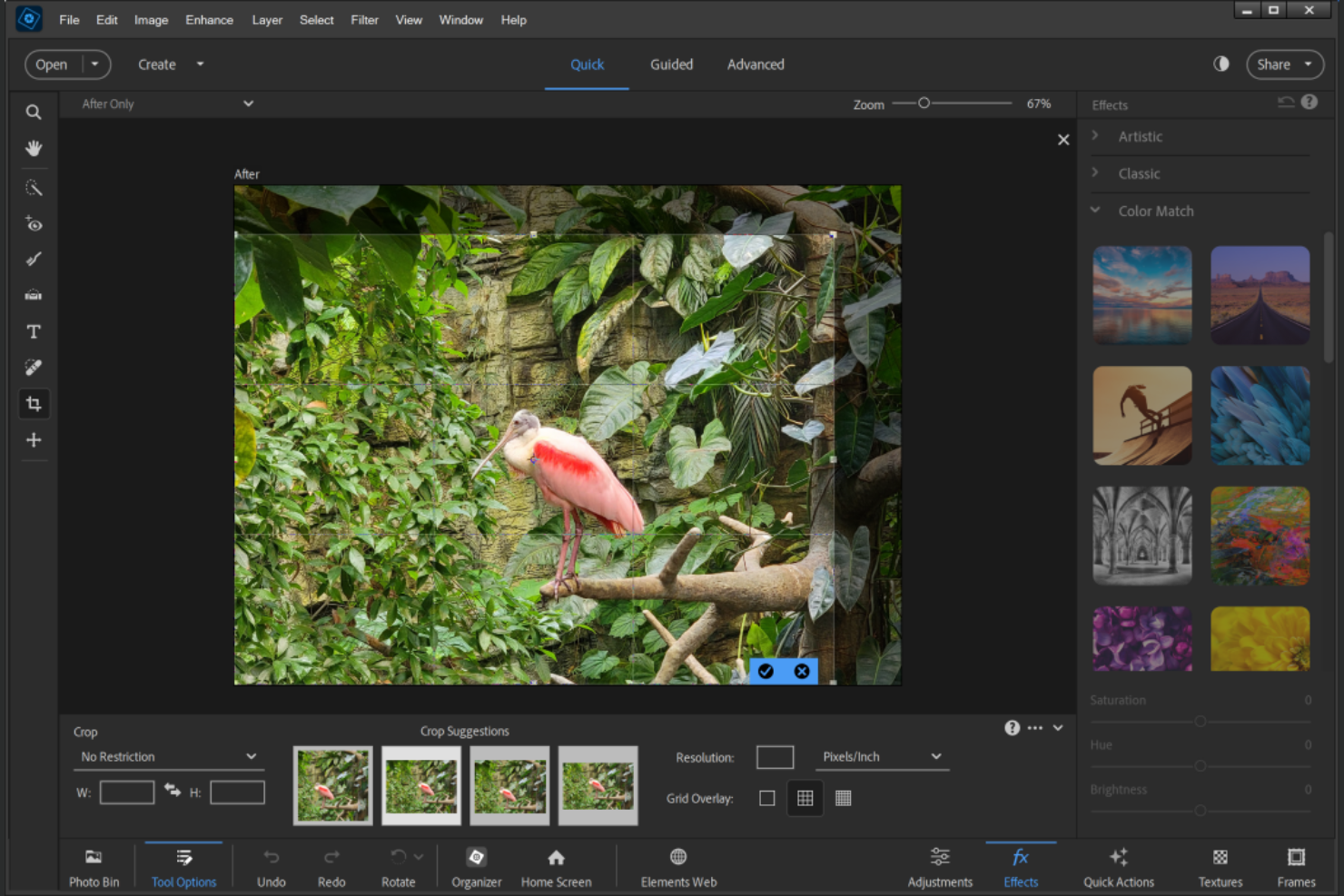
Si quieres aprender edición de imágenes sin sentirte abrumado, Adobe Photoshop Elements está diseñado pensando en ti. Esta herramienta es ideal para profesionales creativos, educadores y pequeños empresarios que buscan una guía paso a paso y funciones automatizadas para mejorar sus fotos. Lo que lo diferencia es su biblioteca de ediciones guiadas y herramientas de aprendizaje que ayudan a los usuarios a dominar nuevas técnicas mientras trabajan.
Por qué Adobe Photoshop Elements es una buena alternativa a Adobe Photoshop
A diferencia de muchas herramientas de diseño avanzadas, Adobe Photoshop Elements se centra en la edición guiada y los recursos de aprendizaje integrados que ayudan a los usuarios a desarrollar habilidades mientras editan. Elegí Photoshop Elements porque sus Ediciones Guiadas paso a paso te guían en tareas complejas como eliminar fondos, aplicar efectos artísticos y restaurar fotos. El software también incluye un Organizador que te ayuda a gestionar y etiquetar tus imágenes para acceder a ellas rápidamente durante los proyectos. Para cualquier persona que quiera aprender nuevas técnicas de edición mientras trabaja con imágenes reales, Photoshop Elements ofrece un entorno de apoyo y educativo que lo diferencia del enfoque más abierto de Photoshop.
Funciones clave de Adobe Photoshop Elements
Otras funciones que hacen que Photoshop Elements sea útil para proyectos creativos incluyen:
- Creaciones automáticas: El software genera automáticamente presentaciones de diapositivas, collages y efectos a partir de tus fotos.
- Relleno según el contenido: Elimina objetos no deseados de las imágenes y rellena el fondo con un solo clic.
- Reconocimiento de rostros y etiquetas: Organiza y busca rápidamente tu biblioteca de fotos mediante reconocimiento facial y etiquetas personalizadas.
- Modo de edición rápida: Accede a herramientas de edición simplificadas para ajustes rápidos sin tener que navegar por menús complejos.
Integraciones de Adobe Photoshop Elements
Las integraciones incluyen Adobe Creative Suite.
Pros and Cons
Pros:
- Las ediciones guiadas apoyan el aprendizaje y el desarrollo de habilidades
- Organizador incorporado para gestionar bibliotecas de fotos
- Creaciones automáticas para obtener resultados visuales rápidamente
Cons:
- Edición avanzada limitada en comparación con Photoshop completo
- No admite trabajo de diseño basado en vectores
Otras alternativas a Adobe Photoshop
Estas son algunas alternativas adicionales a Adobe Photoshop que no llegaron a mi lista, pero que aún merece la pena probar:


Cómo Evalúo las Alternativas a Adobe Photoshop
Divido mi evaluación en dos niveles: la edición ráster básica, el soporte de capas y la compatibilidad con PSD que toda herramienta debe tener, y los diferenciadores como funciones de IA y precios que importan a los equipos de producto.
Funcionalidad Básica (Condición Fundamental Para Esta Lista)
Cuando selecciono herramientas para mi lista, califico cada una en una escala de 0 (no ofrece la funcionalidad) a 5 (sobresale en esta área) por cada funcionalidad básica que se indica a continuación. Luego, calculo la puntuación total de la herramienta en porcentaje. Cada herramienta debe alcanzar una puntuación mínima total del 75 % para ser considerada como opción.
- Edición de Imágenes Ráster: Busco controles a nivel de píxel como corrección de color, recorte y ajuste de exposición que permitan a los responsables de producto perfeccionar capturas de pantalla para tiendas de apps o imágenes destacadas.
- Flujo de Trabajo Basado en Capas: Cada herramienta debe soportar capas, máscaras y modos de fusión para que puedas iterar sobre maquetas sin aplanar ediciones previas.
- Compatibilidad con Archivos PSD: Los equipos de producto suelen recibir recursos de los diseñadores en formato PSD, así que verifico si una herramienta importa y exporta esos archivos manteniendo las capas intactas.
- Exportación en Múltiples Formatos: Evalúo la variedad de opciones de exportación—PNG, JPG, SVG, WebP, PDF—ya que el trabajo de producto incluye desde recursos web hasta presentaciones comerciales.
- Herramientas de Retoque y Selección: Pinceles, clonar, retocar, selección inteligente y herramientas de texto son esenciales aquí. Estas herramientas son clave al limpiar capturas de pantalla de interfaces o al anotar visuales de producto.
- Colaboración o Acceso en la Nube: Los equipos multidisciplinarios deben compartir y revisar recursos, así que busco almacenamiento en la nube, enlaces compartibles, comentarios o capacidades de co-edición en tiempo real.
Una vez que tengo una lista de herramientas que cumplen con estos criterios, considero qué distingue a cada plataforma.
Factores Diferenciadores (Qué Distingue a los Proveedores)
Así es como comparo y contrasto a los diferentes proveedores:
Funciones Destacadas
La edición impulsada por IA es un diferenciador clave. Herramientas con relleno generativo, eliminación automática de fondos o selección inteligente de objetos ahorran mucho tiempo a los gestores de producto al preparar recursos visuales para lanzamientos. También busco bibliotecas de plantillas integradas: tener diseños listos para gráficos de tiendas de apps o anuncios sociales elimina por completo el problema de la página en blanco. El soporte para edición vectorial completa el paquete, permitiendo crear iconos escalables o elementos de UI junto con el trabajo ráster sin tener que alternar entre aplicaciones.
Más Allá de las Funciones
El precio y el modelo de licencias importan mucho a la hora de equipar todo un equipo de producto. Evalúo si las herramientas ofrecen planes gratuitos, compras únicas o modelos por usuario que escalen sin costes sorpresa. La disponibilidad multiplataforma es otro factor clave: los responsables de producto alternan entre portátiles, tabletas y navegadores durante el día, así que verifico la paridad de funciones entre dispositivos. También considero lo bien que conecta cada herramienta con el ecosistema de producto, como Jira, Slack, Confluence o Notion, ya que esto determina la fluidez con la que los recursos se integran a los flujos de trabajo existentes.
¿Por qué buscar una alternativa a Adobe Photoshop?
Aunque Adobe Photoshop es un software líder para la edición de fotografías, hay varias razones por las que los usuarios buscan herramientas alternativas. Según tu flujo de trabajo, nivel de experiencia o dispositivo, otro editor de fotografías puede adaptarse mejor a tus necesidades.
Puede que estés buscando una alternativa a Adobe Photoshop porque…
- Quieres realizar una compra única en lugar de pagar una suscripción, como ofrecen herramientas como Affinity Photo
- Necesitas una interfaz de usuario más sencilla y fácil de aprender para principiantes
- Prefieres opciones de software gratuitas o herramientas de código abierto que funcionen en Linux
- Quieres herramientas de edición de fotografías basadas en el navegador o ligeras que no requieran una CPU potente
- Necesitas una solución específica para una plataforma que funcione bien en dispositivos como un iPad o un dispositivo Android
- Creas contenido rápidamente y quieres flujos de trabajo más ágiles que los de las herramientas de diseño tradicionales
Si alguna de estas situaciones te resulta familiar, no eres la única persona. Muchos usuarios recurren a alternativas como editores basados en píxeles, aplicaciones móviles o plataformas de diseño simplificadas para adaptarse mejor a sus necesidades. Esta lista destaca herramientas de edición de fotografías que ofrecen distintos puntos fuertes y te ayuda a encontrar la opción adecuada según tu flujo de trabajo, nivel de experiencia y dispositivo preferido.
Características principales de Adobe Photoshop
- Gestión avanzada de capas y máscaras: Permite controlar con precisión las ediciones, lo que permite a los usuarios aislar y ajustar partes específicas de una imagen sin afectar a toda la composición
- Edición no destructiva con objetos inteligentes: Permite a los usuarios experimentar libremente mientras conservan los archivos originales y mantienen la flexibilidad durante todo el proceso de edición
- Relleno según el contenido y eliminación de objetos: Ayuda a identificar y reemplazar elementos no deseados en las imágenes basándose en los datos visuales circundantes
- Amplia biblioteca de pinceles y herramientas de dibujo: Admite trabajos creativos detallados, como pintura digital e ilustraciones de estilo vectorial
- Herramientas profesionales de gradación y corrección de color: Proporciona un control preciso sobre los tonos, el contraste y el equilibrio de color para obtener resultados de edición fotográfica de alta calidad
- Compatibilidad con flujos de trabajo CMYK y colores directos: Útil para diseños listos para impresión y proyectos que requieren una precisión cromática exacta
- Procesamiento por lotes y automatización con acciones: Acelera las tareas de edición repetitivas y mejora la eficiencia con grandes conjuntos de imágenes
- Integración con aplicaciones de Adobe Creative Cloud: Se conecta con otras herramientas de Adobe para flujos de trabajo que pueden incluir edición de vídeo o intercambio de recursos
- Capacidades de diseño y texturizado en 3D: Amplía las posibilidades creativas más allá de la edición fotográfica estándar hacia el diseño tridimensional
- Herramientas avanzadas de selección y retoque: Ayuda a los usuarios a perfeccionar los detalles y realizar ediciones precisas con mayor control