

Et godt alternativ til Adobe Illustrator tilbyr avansert vektorredigering, kompatibilitet med vanlige filformater og fleksible priser eller lisensieringsalternativer. Hvis du leter etter alternativer til Adobe Illustrator, ser du sannsynligvis etter verktøy som kan måle seg med den kreative kraften uten krav om abonnement, eller som har funksjoner som passer bedre til arbeidsflyten din. Denne listen hjelper deg med å sammenligne ledende alternativer, forstå hva som skiller dem fra hverandre og velge riktig vektordesignprogramvare for teamets behov i 2026.
Hva er Adobe Illustrator?
Adobe Illustrator er et vektorgrafikkredigeringsprogram som brukes til brukergrensesnittdesign, arbeid med brukergrensesnitt og skalerbar digital grafikk. Det støtter både arbeidsflyter i skrivebordsapper og integrasjon i bredere prosesser for webappdesign, noe som gjør det til et vanlig valg for webdesignere og kreative team. Med avanserte funksjoner som pennverktøyet, presis formredigering og hurtigtaster gjør det det mulig for brukere å lage detaljert grafikk til digitale prosjekter og trykksaker på Apple-plattformer og andre plattformer.
Sammenligningstabell: Alternativer til Adobe Illustrator
Denne sammenligningstabellen oppsummerer prisdetaljene for mine utvalgte toppalternativer til Adobe Illustrator.
| Tool | Best For | Trial Info | Price | ||
|---|---|---|---|---|---|
| 1 | Best for non-designers managing brand assets | Free trial + free plan available | From $144/user/year (billed annually) | Website | |
| 2 | Best for design-to-dev handoff in one workspace | Free plan available | From $3/user/month | Website | |
| 3 | Best for offline Windows editing | Free plan + free demo available | From $11.99/user/month (billed annually) | Website | |
| 4 | Best for free professional-grade vector work | Free plan available | Pricing upon request | Website | |
| 5 | Best for cross-platform browser access | Free plan + 14-day free trial available | From $7/user/month | Website | |
| 6 | Best for macOS native interface | Free plan available; 30-day free trial | From $12/user/month (billed annually) | Website | |
| 7 | Best for merch and POD design workflows | Free plan available | From $14/month (billed annually) | Website | |
| 8 | Best for Pantone and CMYK print production | 15-day free trial | Pricing upon request | Website | |
| 9 | Best for collaborative SVG diagramming | Free plan available | Pricing upon request | Website | |
| 10 | Best for vector brush versatility | 42-day free trial | From $95 one time payment (commercial license) | Website |


Hvorfor du kan stole på våre programvareanbefalinger
6,700+
Reviews
20
Industry experts
16+
Evaluation factors
14
Years
Teamet vårt har testet og anmeldt programvare siden 2012. Vi er selv produktledere, så vi vet hvor vanskelig og hvor viktig det er å velge riktig programvare.
I denne guiden har vi vurdert verktøyene gjennom praktisk testing og uavhengig research og gitt dem poeng ut fra våre utvelgelseskriterier.
Anmeldelsene våre bygger på vår egen redaksjonelle vurdering. De er ikke et salgsargument.
Ekspertanmeldere:
- Andrew LumbySenior TPM
- Cristiano ValimSenior UI/UX Lead


Anmeldelser av alternativer til Adobe Illustrator
Nedenfor finner du mine detaljerte sammendrag av de beste alternativene til Adobe Illustrator som kom med på kortlisten. Anmeldelsene mine gir en grundig gjennomgang av funksjonene, de beste bruksområdene og prisene for hver programvare, slik at du kan finne det beste alternativet for deg.
 Best for non-designers managing brand assets
- Free trial + free plan available
- From $144/user/year (billed annually)
Visit WebsiteCustomer Rating:4.7/5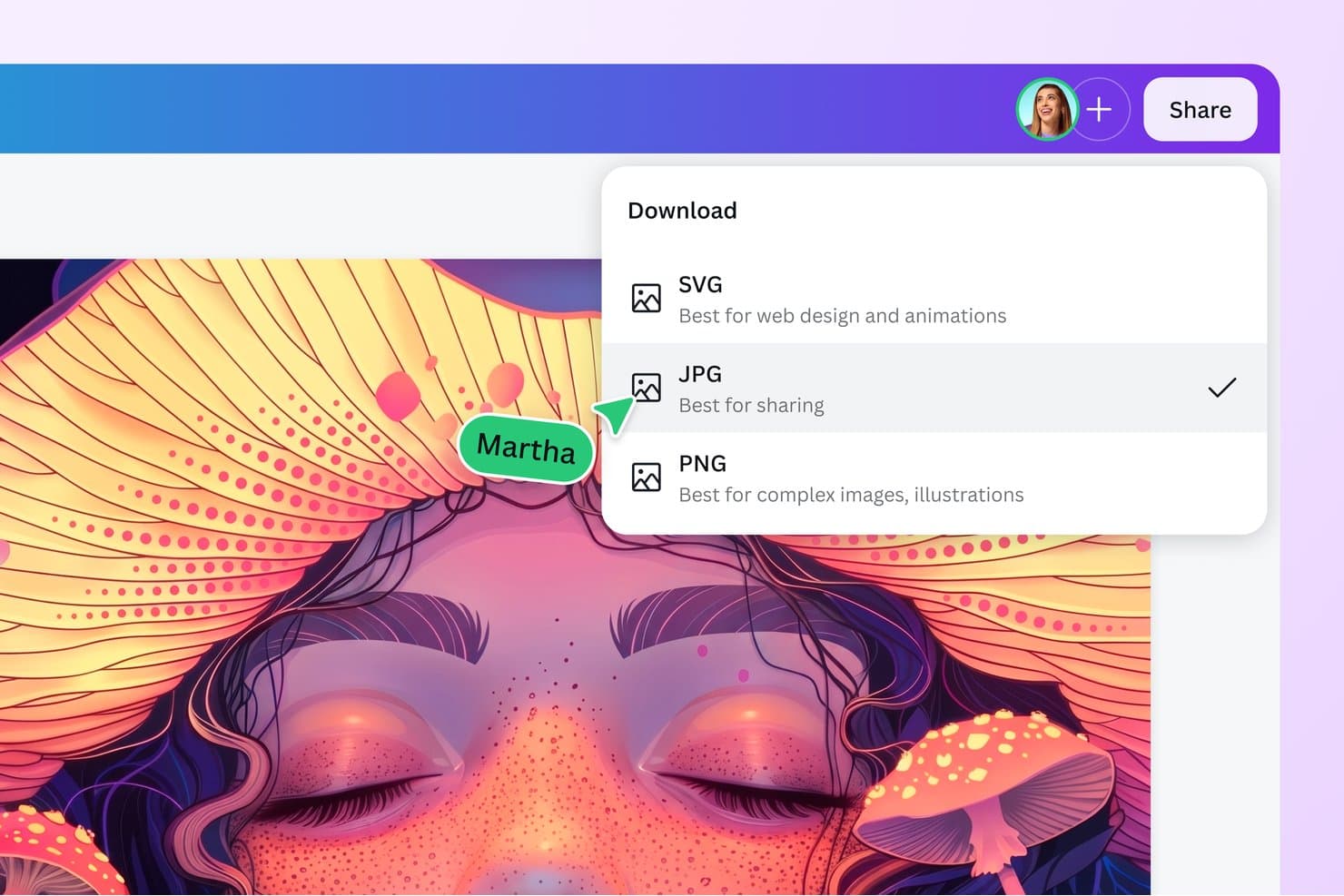
Canva lets users download designs as SVG, JPG, or PNG formats. Canva is a graphic design software alternative to Adobe Illustrator for non-designers managing brand assets, helping teams create consistent marketing visuals without specialist design skills.
Who Is Canva Best For?
Canva suits small marketing and product teams that need to create on-brand visuals without dedicated design support.
Why Canva Is a Good Adobe Illustrator Alternative
I picked Canva because its Brand Kit stores approved logos, colors, and fonts, while Brand Templates keep recurring campaign designs consistent. My team uses those controls for social posts and presentations, making Canva Best for non-designers managing brand assets.
Canva Key Features
- Drag-and-drop editor: Arrange text, images, shapes, and graphics on a visual canvas.
- Magic Resize: Adapt one design to multiple social and digital formats.
- Background Remover: Remove image backgrounds with a single editing action.
- Presentation mode: Present designs directly from Canva with presenter tools.
Canva Integrations
Canva offers native integrations with Slack, Asana, Microsoft Teams, Salesforce, and Google Workspace, plus 300+ apps through its Canva Apps Marketplace. It also provides Connect APIs and an Apps SDK for custom integrations.
Pros and Cons
Pros:
- Real-time collaboration speeds stakeholder feedback
- Templates preserve consistency across recurring campaigns
- Brand Kit centralizes approved visual assets
Cons:
- Complex artwork becomes difficult to manage
- Vector path editing lacks Illustrator’s precision
Learn more about Canva: Best for design-to-dev handoff in one workspace
- Free plan available
- From $3/user/month
Visit WebsiteCustomer Rating:4.7/5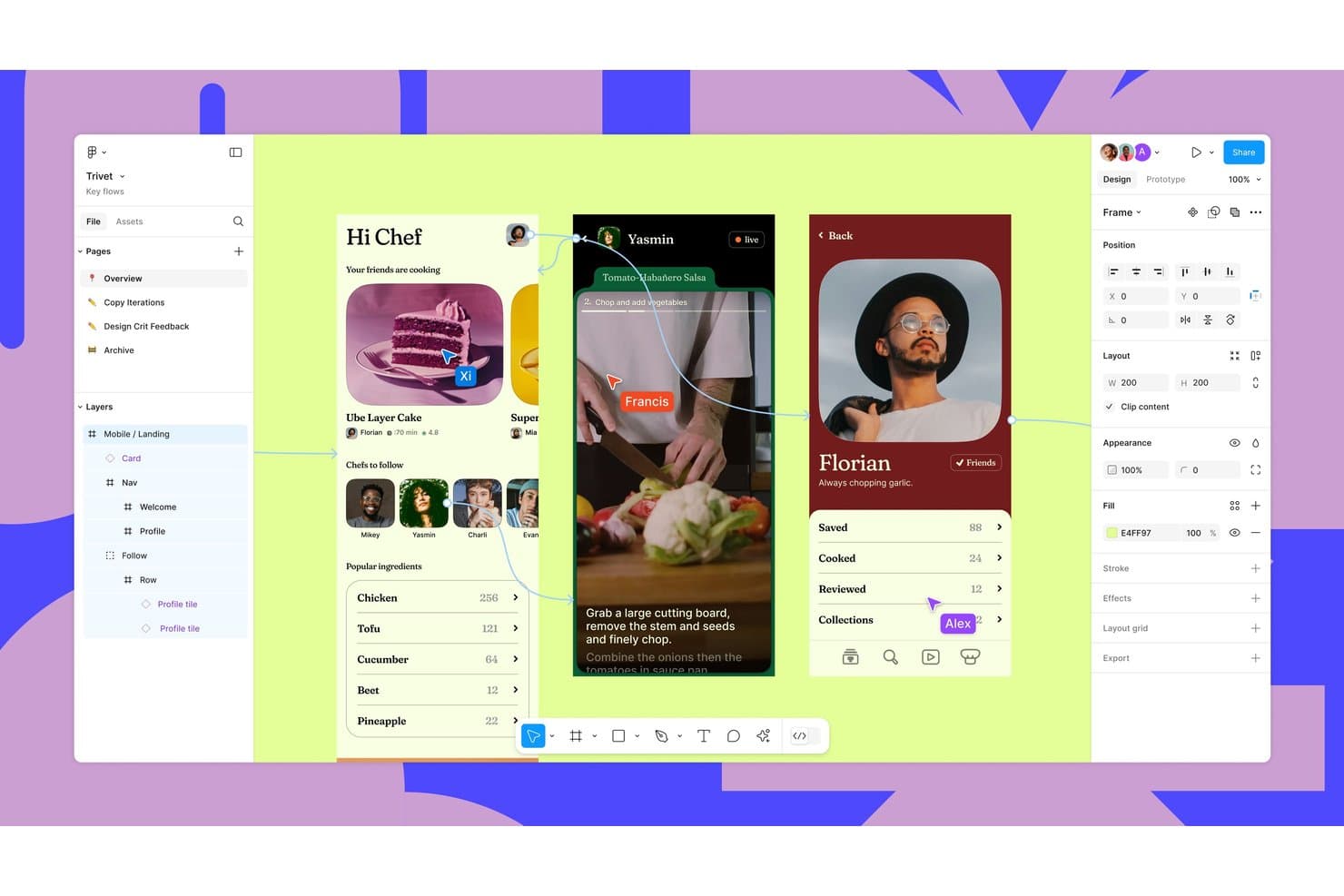
Figma supports collaborative design with real-time multiplayer cursors and prototyping. Figma is a browser-based vector design platform for product, UX, and marketing teams that need collaborative tools for creating interfaces, graphics, and prototypes as an Adobe Illustrator alternative.
Who Is Figma Best For?
Product, design, and engineering teams that need a shared workspace for interface design, prototyping, and design-to-development handoff.
Why Figma Is a Good Adobe Illustrator Alternative
I picked Figma because my team creates vector interfaces and hands designs to developers in one workspace. Dev Mode exposes measurements, assets, annotations, and code snippets, while shared components keep UI patterns consistent. We use multiplayer editing to resolve design and implementation questions before handoff.
Figma Key Features
- Vector networks: Draw and edit complex vector paths from multiple connected points.
- Boolean operations: Combine, subtract, intersect, and exclude overlapping vector shapes.
- Component properties: Configure reusable component variants, text, and visibility settings.
- Export settings: Export selected designs in PNG, JPG, SVG, or PDF formats.
Figma Integrations
Figma offers native integrations with Jira and Slack for linking designs to issues and receiving design notifications. It also connects with Zapier and provides REST API and webhook support for custom integrations.
Pros and Cons
Pros:
- Dev Mode clarifies handoff specifications
- Components preserve interface consistency
- Browser-based multiplayer vector editing
Cons:
- Offline workflows remain more limited
- Less illustration-focused than Illustrator
 Best for offline Windows editing
- Free plan + free demo available
- From $11.99/user/month (billed annually)
Visit WebsiteCustomer Rating:4.4/5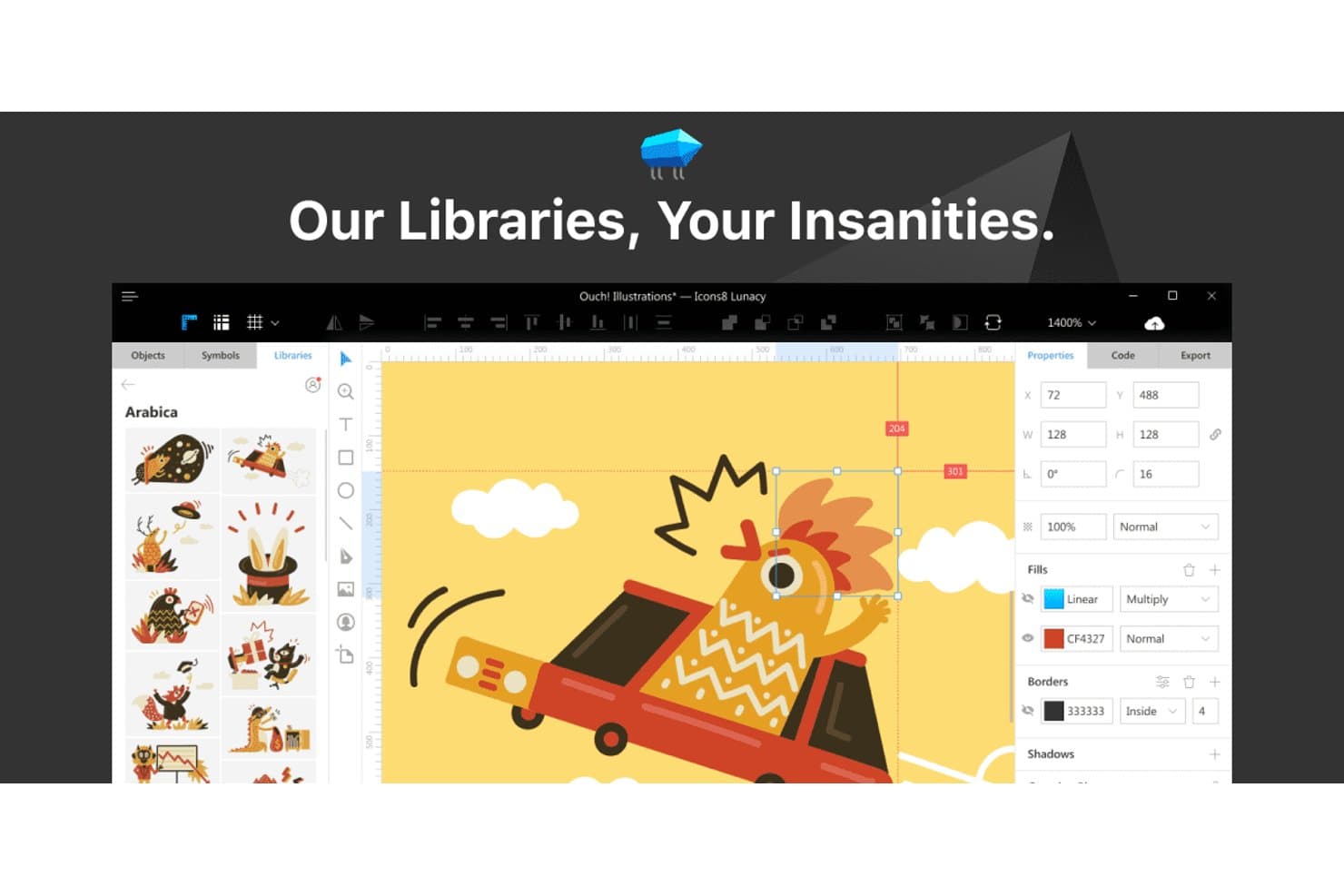
Lunacy lets users browse illustration libraries directly in the editor. Lunacy is a vector graphics editor for Windows-based product teams, UX designers, and marketers seeking an Adobe Illustrator alternative for creating interface designs, illustrations, and brand assets without complex workflows.
Who Is Lunacy Best For?
Lunacy suits Windows-based UX designers and product teams that need offline access to vector design tools.
Why Lunacy Is a Good Adobe Illustrator Alternative
I picked Lunacy because it’s built for offline Windows editing, with vector drawing tools and support for Sketch files. I use its built-in icons, photos, and illustrations to create interface mockups and brand assets without switching apps or relying on an internet connection.
Lunacy Key Features
- Artboards: Create multiple screen layouts within one design file.
- Boolean operations: Combine, subtract, intersect, and exclude vector shapes.
- Text styles: Save reusable typography settings for consistent designs.
- Interactive prototypes: Link screens and define transitions for clickable previews.
Lunacy Integrations
Native integrations are not currently listed. It supports plugins through an HTTP Automation API and offers MCP connectivity through a local server for custom workflows.
Pros and Cons
Pros:
- Built-in assets speed interface mockups
- Imports Sketch files for smoother handoffs
- Works offline without an internet connection
Cons:
- Mac version receives occasional crash complaints
- Advanced vector controls feel limited
Learn more about Lunacy: Best for free professional-grade vector work
- Free plan available
- Pricing upon request
Visit WebsiteCustomer Rating:4.6/5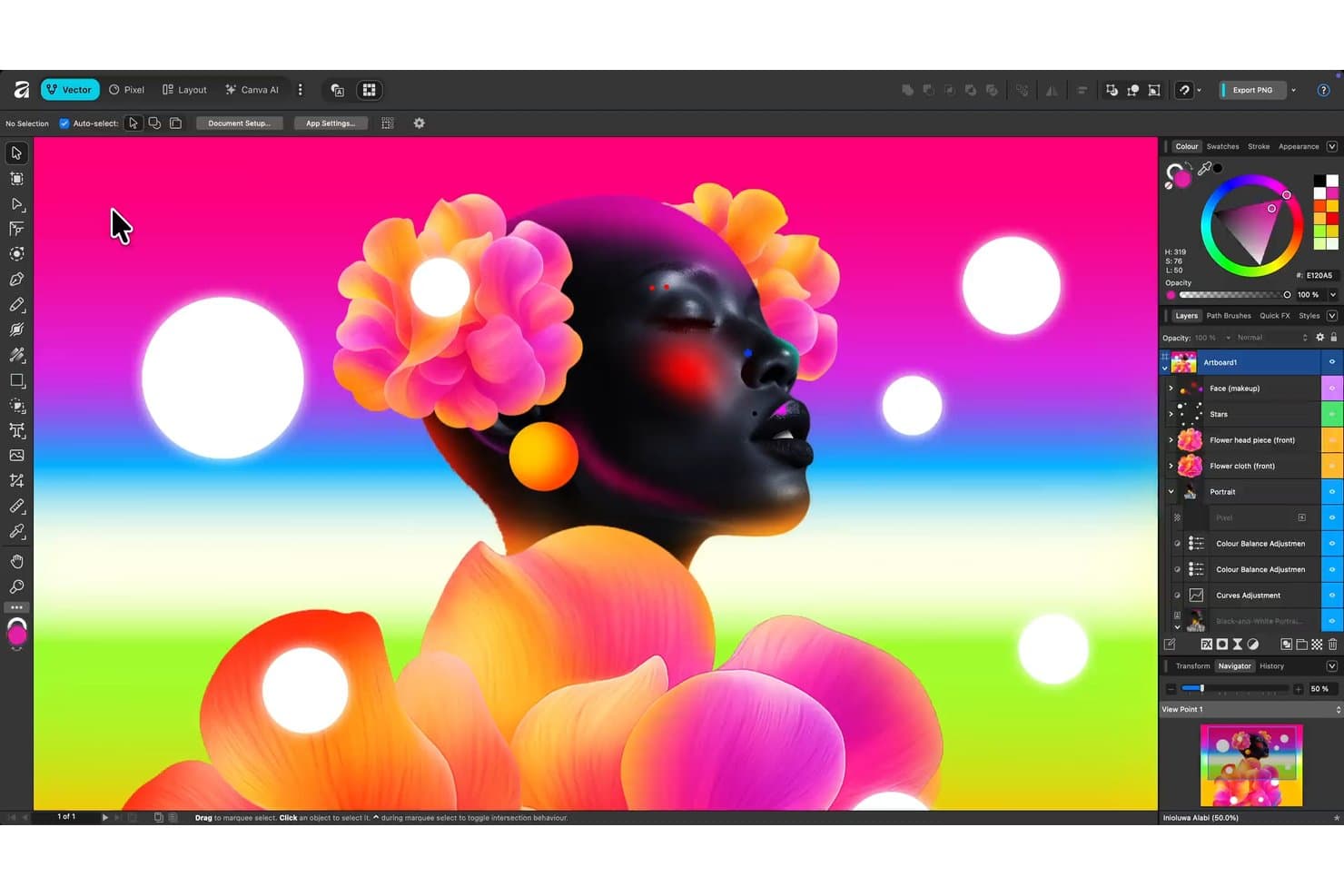
Affinity Designer supports layered vector artwork with advanced color tools. Affinity Designer is a vector design app for illustrators, brand teams, and product designers who need an Adobe Illustrator alternative for creating precise artwork without adding complexity to their creative workflow.
Who Is Affinity Designer Best For?
It suits product teams and marketing creatives who need precise vector assets for interfaces, diagrams, and brand collateral.
Why Affinity Designer Is a Good Adobe Illustrator Alternative
I picked Affinity Designer for free professional-grade vector work because its Vector and Pixel Personas support precise artwork and raster finishing in one file. I use boolean operations and node editing to build icons, logos, diagrams, and interface assets. Its Symbols feature also keeps repeated brand elements consistent across layouts.
Affinity Designer Key Features
- Artboards: Arrange multiple design variations in one document.
- Export Persona: Export selected layers and slices in multiple formats.
- Typography controls: Apply styles, OpenType features, and precise text spacing.
- Gradient tools: Build linear, radial, elliptical, and conical gradients.
Affinity Designer Integrations
Affinity Designer doesn’t have clearly documented native integrations. It primarily connects with other tools through supported file formats, including PSD, PDF, SVG, and AI files.
Pros and Cons
Pros:
- Supports multiple artboards within one document
- Handles precise boolean operations and node editing
- Combines vector and raster editing personas
Cons:
- Complex files can occasionally affect performance
- Advanced typography controls trail Illustrator
Learn more about Affinity Designer : Best for cross-platform browser access
- Free plan + 14-day free trial available
- From $7/user/month
Visit WebsiteCustomer Rating:4.5/5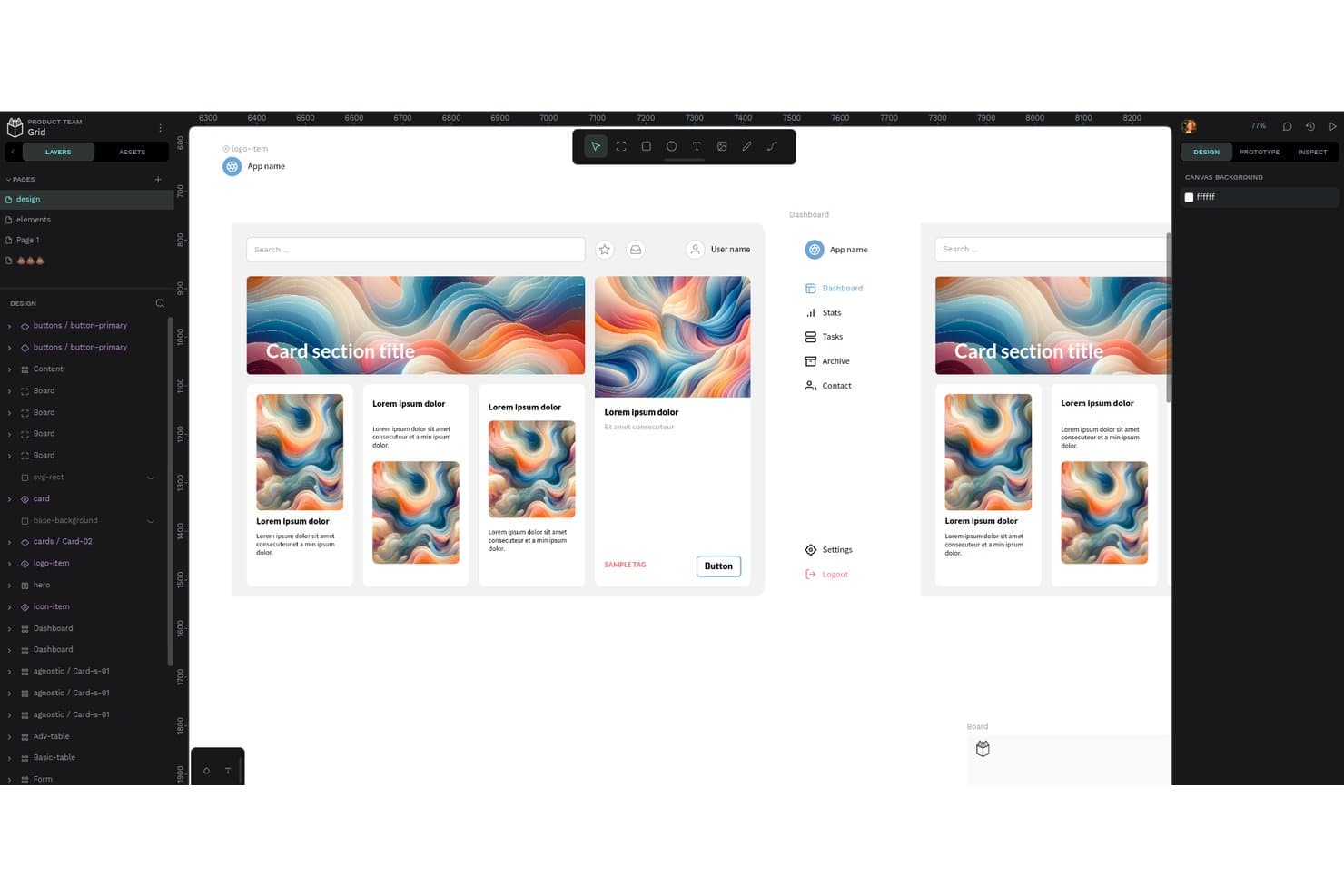
Penpot's workspace lets users design dashboards with reusable components. Penpot is an open-source vector design and prototyping platform for product designers and teams seeking collaborative workflows without Adobe Illustrator’s licensing constraints.
Who Is Penpot Best For?
Distributed product teams that need browser-based design collaboration across operating systems and devices.
Why Penpot Is a Good Adobe Illustrator Alternative
I picked Penpot because it’s best for cross-platform browser access. My team uses its browser-based vector editor to create SVG artwork on Windows, macOS, or Linux without installing desktop software. Shared files, real-time collaboration, and SVG import and export help us move designs from product discovery into development.
Penpot Key Features
- Reusable components: Create and manage repeatable design elements.
- Design tokens: Define shared colors, typography, and spacing values.
- Flex layouts: Build responsive vector layouts with flexible containers.
- Interactive prototyping: Link screens and add transitions to test user flows.
Penpot Integrations
Penpot doesn’t clearly document native integrations with external tools, but it supports custom integrations through its Plugins API and custom extensions. Its official plugin directory includes connections such as Locofy Lightning for GitHub and VS Code workflows.
Pros and Cons
Pros:
- Shared libraries connect designers and engineers
- Open-source platform supports self-hosted design workflows
- Browser-based vector editing across operating systems
Cons:
- Browser interface can feel visually crowded
- Lacks Illustrator’s advanced print-production controls
Learn more about Penpot: Best for macOS native interface
- Free plan available; 30-day free trial
- From $12/user/month (billed annually)
Visit WebsiteCustomer Rating:4.5/5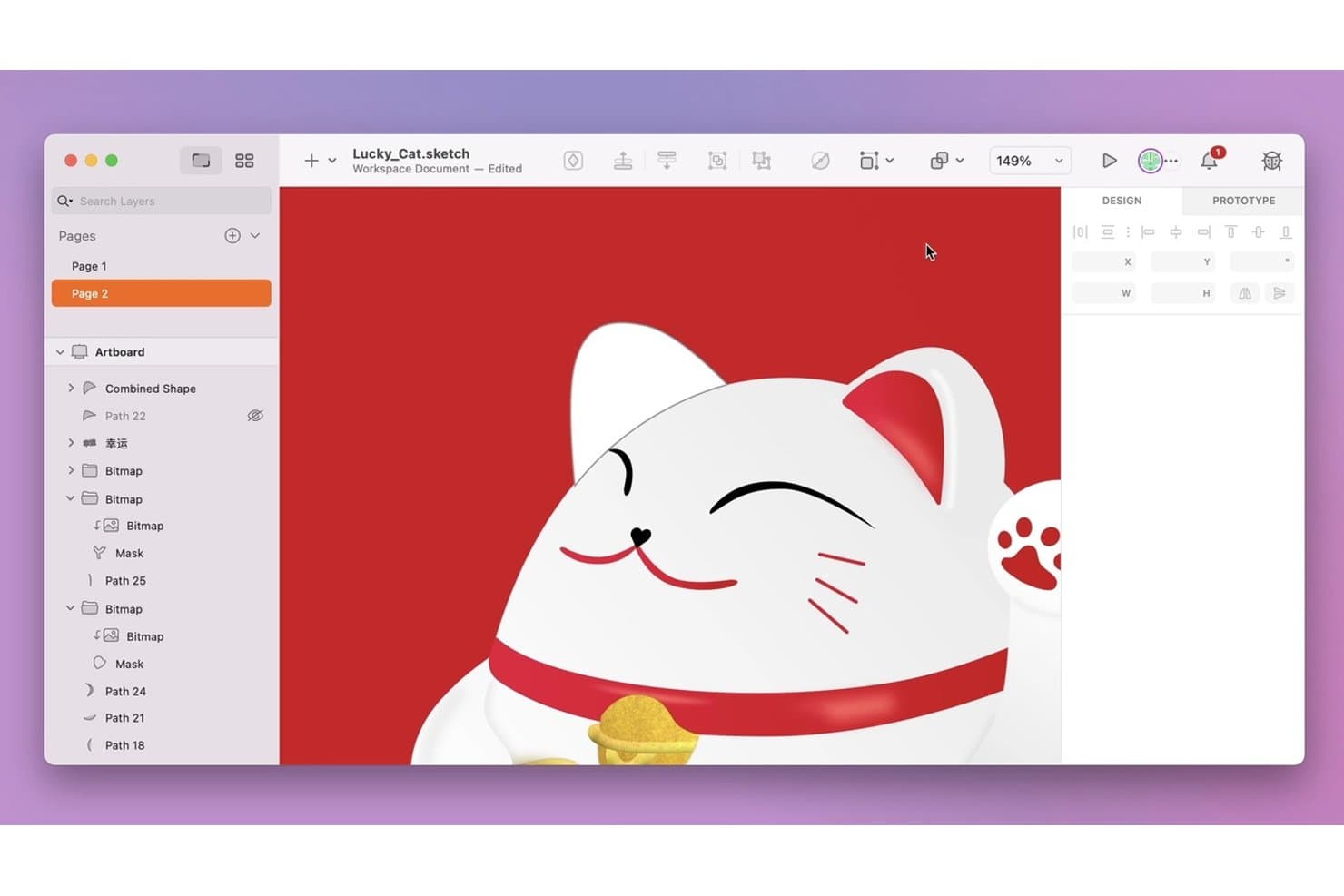
Sketch organizes vector artwork layers for detailed illustration editing. Sketch is a graphic design and prototyping platform for product designers and creative teams that need to create polished interfaces, manage reusable design systems, and collaborate on digital products without Illustrator’s complexity.
Who Is Sketch Best For?
Sketch suits product designers and macOS-focused teams creating native interfaces, reusable design systems, and interactive prototypes.
Why Sketch Is a Good Adobe Illustrator Alternative
I picked Sketch because its macOS native interface supports precise vector editing for product screens and interface assets. I use Symbols, Components, and shared Libraries to keep icons and design-system elements consistent across projects. Its built-in prototyping also lets my team connect polished screens before handoff.
Sketch Key Features
- Real-time collaboration: Invite teammates to edit documents together.
- Browser-based Workspace: View, comment on, and inspect shared documents.
- Version history: Browse earlier document versions and restore revisions.
- Developer handoff: Let engineers inspect layers and download assets.
Sketch Integrations
Sketch offers plugin-based integrations with Slack, Notion, Jira, Zeplin, ProtoPie, Frontify, and Overflow. Its officially supported JavaScript API and Sketch file format specification support custom integrations.
Pros and Cons
Pros:
- Built-in prototyping connects screens before handoff
- Reusable Symbols keep interface assets consistent
- Native macOS editor feels fast and focused
Cons:
- Less suited to print and complex illustration
- Mac required for full document editing
 Best for merch and POD design workflows
- Free plan available
- From $14/month (billed annually)

Kittl lets users generate AI product mockups from a label design. Kittl is a browser-based design platform for creators, small businesses, and ecommerce teams seeking an accessible Adobe Illustrator alternative for branded graphics, apparel artwork, and marketing assets.
Who Is Kittl Best For?
Kittl suits creators, small ecommerce brands, and print-on-demand sellers who need browser-based apparel graphics, product designs, and branded marketing assets.
Why Kittl Is a Good Adobe Illustrator Alternative
I picked Kittl because its text effects, apparel templates, and product mockups fit merch and POD design workflows. I use its editable vector designs to build shirt graphics, then preview them on products before exporting finished artwork. Its lettering tools also help me create distinctive typography without rebuilding complex effects from scratch.
Kittl Key Features
- AI image generator : Create original graphics from text prompts.
- Background remover : Remove image backgrounds directly in the editor.
- SVG export : Download scalable artwork for further vector editing.
- Stock content library : Add ready-made graphics, photos, and illustrations.
Kittl Integrations
Kittl offers native app integrations with Printful, Pinterest, Dropbox, and Pexels through its in-editor Apps panel.
Pros and Cons
Pros:
- Product mockups preview designs before production
- Text effects create distinctive lettering quickly
- Apparel templates speed up merch concepts
Cons:
- Some exports require cleanup afterward
- Advanced vector controls trail Illustrator
Learn more about Kittl: Best for Pantone and CMYK print production
- 15-day free trial
- Pricing upon request
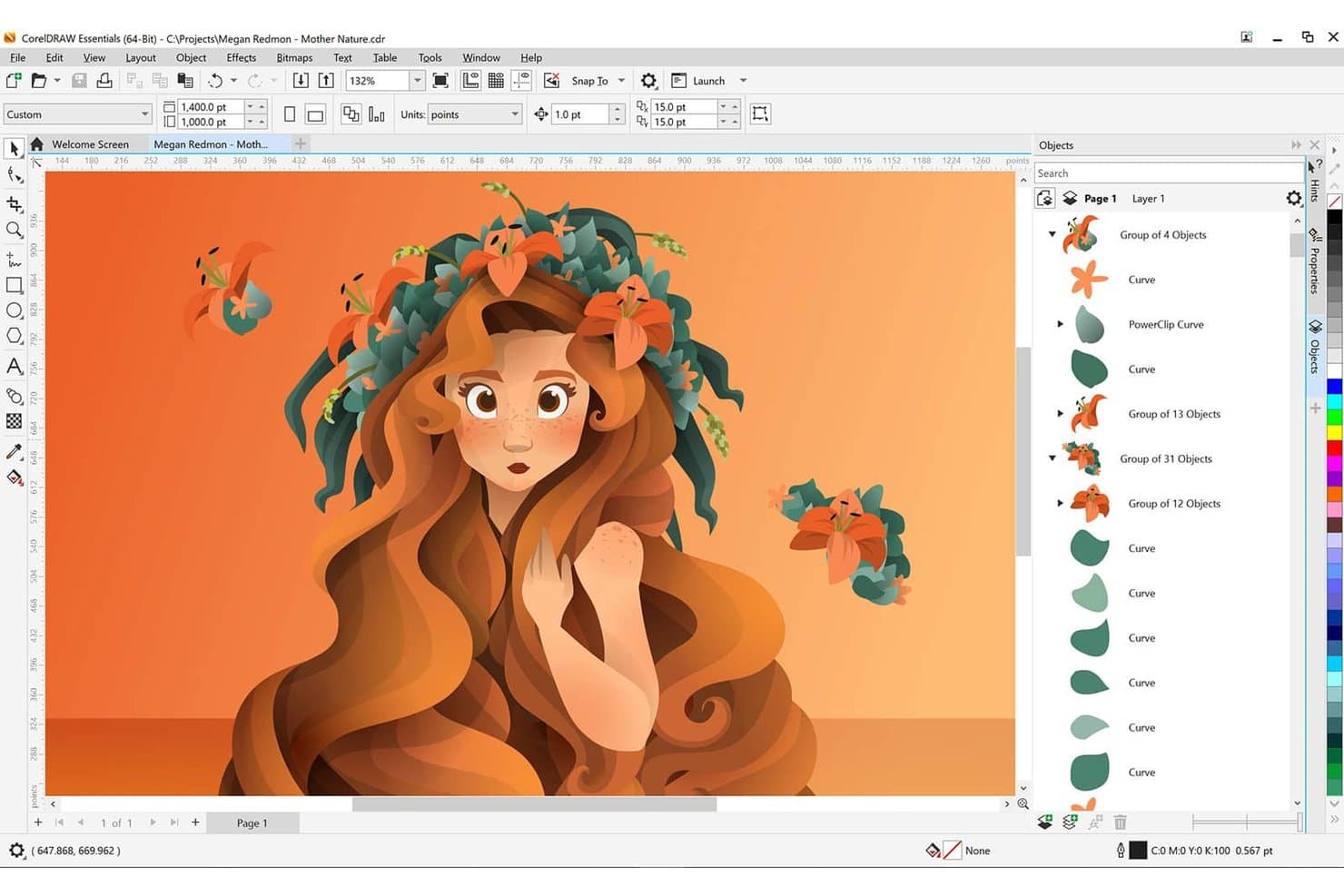
CorelDRAW lets users create vector illustrations with layered objects. CorelDRAW is a vector design suite for illustrators, marketing teams, and print-focused businesses that need one workspace for creating graphics, layouts, illustrations, and production-ready artwork.
Who Is CorelDRAW Best For?
Print designers and production teams can use CorelDRAW to prepare Pantone-matched, CMYK-ready artwork for packaging, signage, and commercial print projects.
Why CorelDRAW Is a Good Adobe Illustrator Alternative
I picked CorelDRAW because it is best for Pantone and CMYK print production. I use its Pantone color libraries, spot-color controls, and color management tools to prepare packaging artwork and signage for consistent commercial printing. Its prepress features also help me check separations before sending files to production.
CorelDRAW Key Features
- Bezier tool: Draw precise curves and custom vector shapes.
- PowerTRACE: Convert bitmap images into editable vector graphics.
- Multi-page layouts: Create and manage multiple pages in one document.
- LiveSketch tool: Turn freehand strokes into smooth vector curves.
CorelDRAW Integrations
CorelDRAW publishes a dedicated SDK and full Object Model API Reference for VBA, VSTA, C++, and C# integrations
Pros and Cons
Pros:
- PowerTRACE converts bitmap artwork into vectors
- Multi-page documents suit packaging layouts
- Pantone palettes support spot-color matching
Cons:
- Dense controls can slow first-time users
- Imported Illustrator files may need adjustments
Learn more about CorelDRAW:
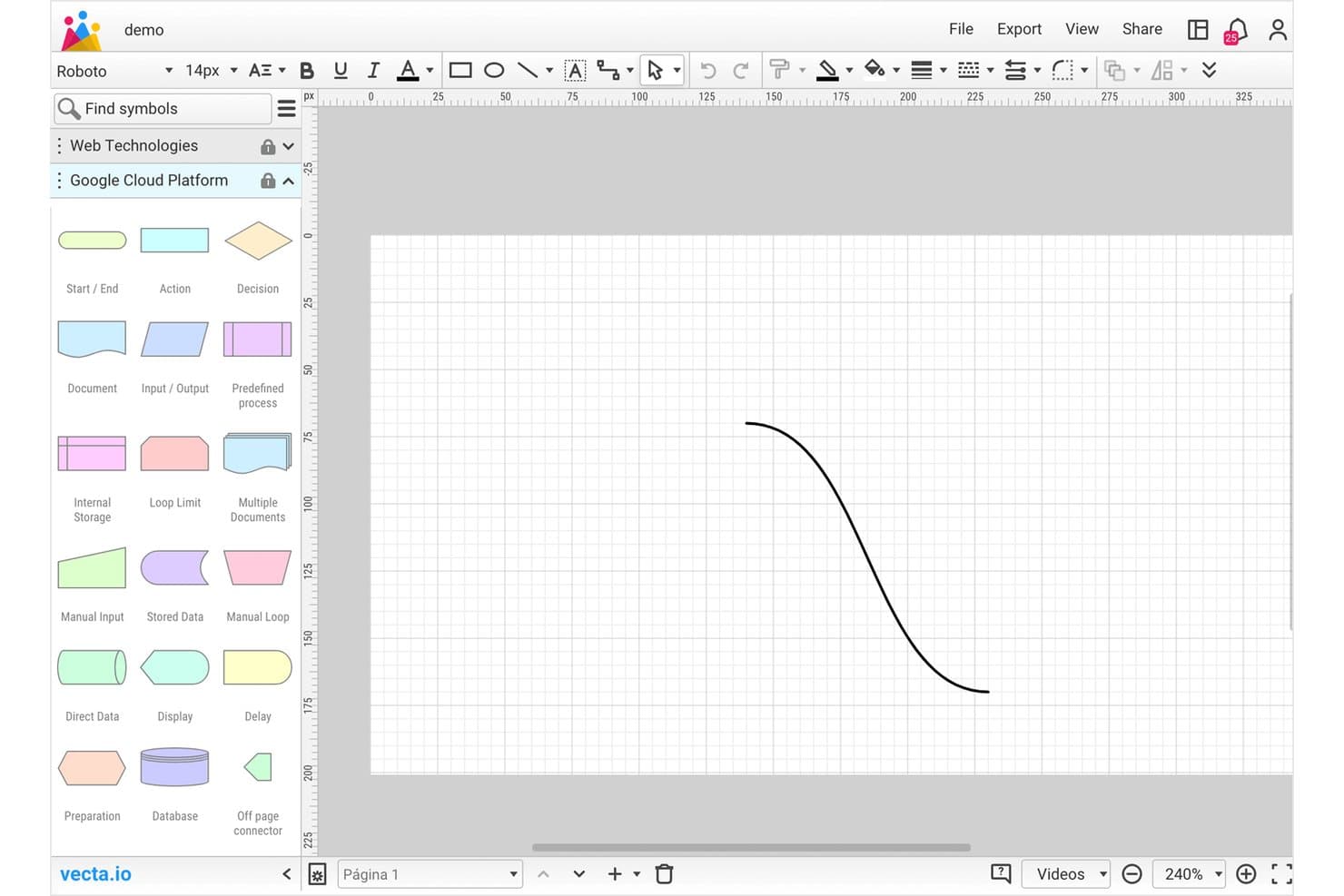
Vecta lets users draw and edit vector curves on a grid canvas. Vecta is a browser-based vector graphics and SVG design tool for product, UX, and engineering teams that need to create, edit, and share diagrams without Adobe Illustrator’s desktop workflow.
Who Is Vecta Best For?
Product, UX, and engineering teams can use Vecta to create, edit, and share SVG diagrams together in a browser-based workspace.
Why Vecta Is a Good Adobe Illustrator Alternative
I picked Vecta because it’s best for collaborative SVG diagramming in a browser-based workspace. I use it to create, edit, and share SVG diagrams with product, UX, and engineering teammates. That shared workflow fits teams that need diagram updates without passing Illustrator files between contributors.
Vecta Key Features
- WYSIWYG SVG editor: Edit vector artwork with real-time visual feedback.
- Shape-to-path conversion: Convert shapes into editable vector paths.
- Custom font support: Add custom fonts to your SVG designs.
- JavaScript plugins: Extend the editor with custom plugins and automation.
Vecta Integrations
Vecta offers native integrations with Google Drive and Slack. Google Drive supports creating and managing Google Docs, Sheets, and Slides from Vecta, while Slack supports sharing drawings and creating Vecta teams from Slack channels.
Pros and Cons
Pros:
- JavaScript plugins support custom workflow automation
- Illustrator files import directly into projects
- Real-time editing keeps diagram changes synchronized
Cons:
- Advanced illustration controls trail desktop suites
- Primarily targets SVG rather than print layouts
Learn more about Vecta: Best for vector brush versatility
- 42-day free trial
- From $95 one time payment (commercial license)
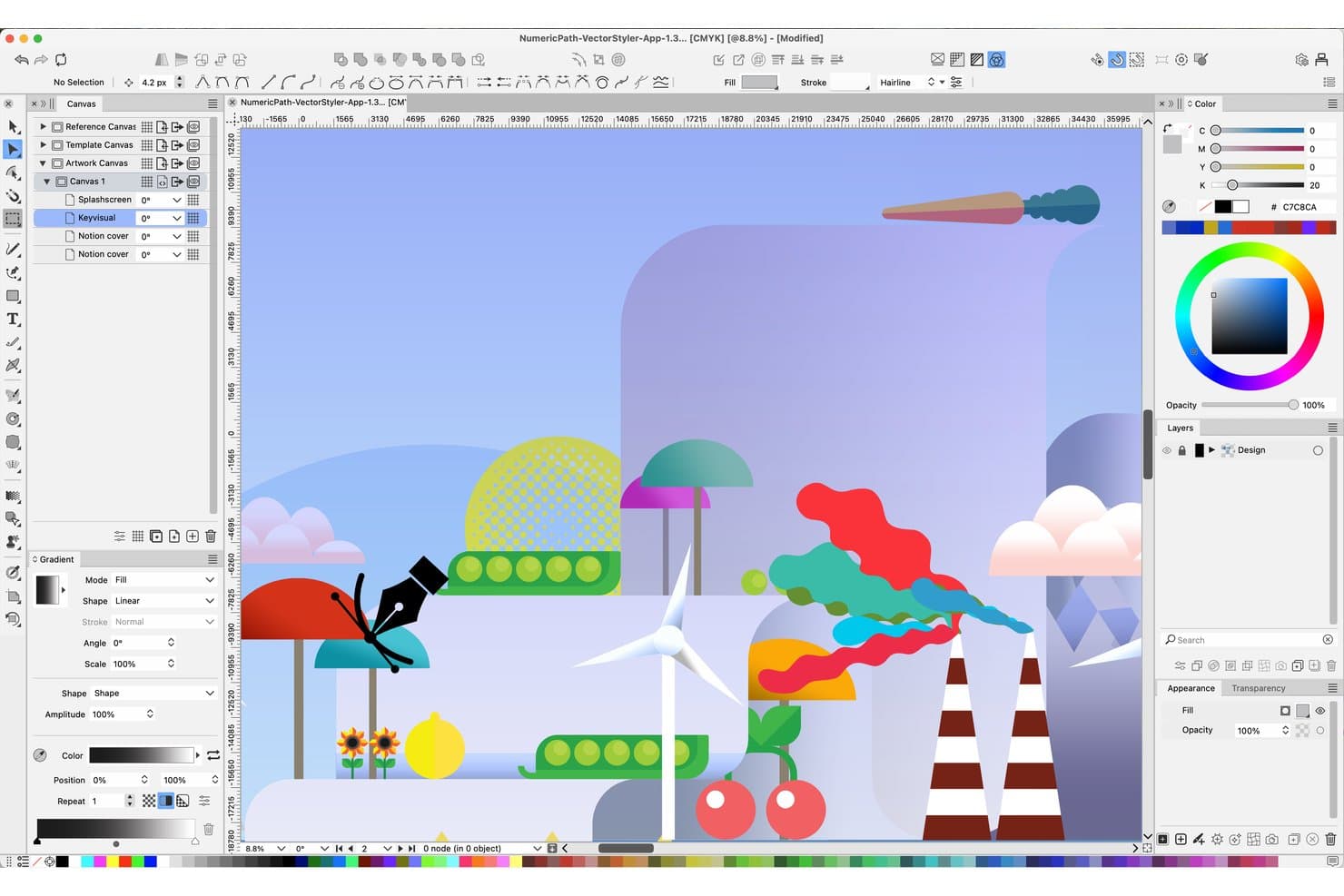
VectorStyler supports vector illustration with layered canvas and color tools. VectorStyler is vector graphic design software for illustrators, brand designers, and creative teams seeking an Adobe Illustrator alternative for custom artwork, branding assets, and precise layout work.
Who Is VectorStyler Best For?
Illustrators and brand designers who need expressive vector brushes, textured strokes, and precise control over custom artwork will find VectorStyler a capable fit.
Why VectorStyler Is a Good Adobe Illustrator Alternative
I picked VectorStyler because its vector brush versatility suits detailed illustration and branding work. I use its textured, scatter, pattern, and art brushes to build expressive strokes, foliage, lettering, and repeat motifs while keeping artwork editable. Its brush controls also let me refine pressure, spacing, size, and rotation for more natural results.
VectorStyler Key Features
- Shape tools: Create and edit geometric and freeform vector shapes.
- Boolean operations: Combine, subtract, intersect, and divide overlapping objects.
- Live effects: Apply editable distortions, shadows, and transformations to artwork.
- Typography controls: Adjust text spacing, alignment, columns, and path placement.
VectorStyler Integrations
VectorStyler’s native integrations are not clearly documented. It supports file exchange with Adobe Illustrator, PDF, SVG, DWG, DXF, PSD, PNG, and TIFF.
Pros and Cons
Pros:
- Extensive typography and text-on-path controls
- Non-destructive effects preserve editable artwork
- Genuine vector brushes for expressive artwork
Cons:
- Extensive controls overwhelm new users
- Interface can feel laggy during use
Learn more about VectorStyler:
Andre alternativer til Adobe Illustrator
Her er noen flere alternativer til Adobe Illustrator som ikke kom med på kortlisten, men som likevel er verdt å sjekke ut:
- 11Xara Designer Pro+Best for all-in-one creative suite
- 12MasterGoBest for design teams migrating from Figma
- 13OmniGraffleBest for technical diagram creation
- 14SVGatorBest for animated SVG export to web and mobile
- 15InkscapeBest for open-source customization
- 16PixsoBest for UI teams avoiding subscription lock-in
- 17Pixelmator ProBest for photo-vector work on Mac and iPad
- 18Linearity CurveBest for motion graphics integration
- 19EazyDrawBest for one-time Mac license, no subscription
How I Evaluate Adobe Illustrator Alternatives
I split my evaluation into three parts: core functionality carries the most weight, meaning vector path editing and SVG, EPS, and PDF export. Next, I look for browser-based access or developer handoff as key differentiators. Then I consider pricing flexibility and onboarding support.
Core Functionality (Table Stakes For This List)
When I'm selecting tools for my list, I score each one on a scale from 0 (does not offer the functionality) to 5 (excels in this area) for each core functionality listed below. I then convert the total into a percentage to help assess each tool's overall fit, with extra weight on any functionalities I’ve deemed essential.
- Vector Editing (Essential): I look for pen and anchor controls, curve refinement, and boolean operations for adapting a logo or building editable icons.
- File Import & Export (Essential): I check how reliably it handles SVG, EPS, PDF, AI, and raster formats for print and product handoff.
- Typography Tools: I assess font controls, spacing, alignment, and text-on-path options for polishing a wordmark or fitting labels into a graphic.
- Layers & Groups: For a campaign graphic with many elements, I look for named, reorderable layers and groups that keep edits manageable.
- Assets & Colors: I consider whether teams can save and reuse palettes, symbols, and graphic assets to keep campaign or product visuals consistent.
- Collaboration: I look for shared access, live co-editing or comments, and version history when designers and product partners review the same file.
Once I have a list of tools that meet the criteria, I consider what sets each platform apart.
Differentiating Factors (What Sets Vendors Apart)
Here's how I compare and contrast different vendors:
Standout Features
I look for browser-based access first because it removes install barriers when PMs or engineers need to open a design file mid-sprint. Developer handoff mode matters just as much—I check whether inspect panels expose CSS values, dimensions, and export specs so engineers aren't guessing at spacing. I also evaluate plugin ecosystems, specifically connections to tools like Jira or Notion that keep design work linked to roadmap and backlog items.
Beyond Features
I check whether a tool connects to roadmap and documentation platforms like Jira or Confluence, since embedding live design links in a sprint ticket saves back-and-forth. Pricing structure matters too—per-seat costs add up fast when PMs, engineers, and stakeholders all need at least viewing access. I also evaluate onboarding resources, especially templates and migration guides, because a team switching from Illustrator needs a clear path for importing .AI files without losing editability.
Hvorfor se etter et alternativ til Adobe Illustrator?
Selv om Adobe Illustrator er et godt valg blant alternativer til Adobe Illustrator, finnes det flere grunner til at noen brukere ser etter alternative løsninger. Det kan hende du ser etter et alternativ til Adobe Illustrator fordi …
- Du trenger en rimeligere eller gratis løsning
- Du ønsker et verktøy med et enklere grensesnitt
- Du trenger innebygd støtte for andre plattformer enn Windows eller Mac
- Du trenger bedre samarbeidsfunksjoner for team
- Du ønsker mer fleksible lisensierings- eller abonnementsalternativer
- Du trenger et verktøy som fungerer godt på eldre maskinvare
Hvis noe av dette høres kjent ut, har du kommet til rett sted. Listen min inneholder flere alternativer til Adobe Illustrator som passer bedre for team som møter disse utfordringene med Adobe Illustrator og ser etter alternative løsninger.
Viktige funksjoner i Adobe Illustrator
Her er noen av de viktigste funksjonene i Adobe Illustrator, slik at du kan sammenligne hva alternative løsninger tilbyr:
- Avanserte verktøy for vektortegning og -redigering
- Presis kontroll over typografi og skriftbehandling
- Tegnebordbehandling for prosjekter med flere sider
- Integrasjon med Adobe Creative Cloud-apper
- Omfattende biblioteker med pensler og effekter
- Støtte for bransjestandardiserte filformater
- Tilpassbart arbeidsområde og verktøypaneler
- Penn- og formbyggerverktøy for komplekse baner
- Alternativer for variable data og eksport av ressurser
- Forhåndsvisning og redigering av grafikk i sanntid