

Office Timeline Review: Pros, Cons, Features, and Pricing Explained
Office Timeline stands out for its seamless PowerPoint integration, making it ideal for visually-driven product roadmaps, but may lack advanced features found in dedicated roadmap tools.

We review tools independently, and commissions help fund our testing. See our transparency policy, our methodology, or suggest a tool.
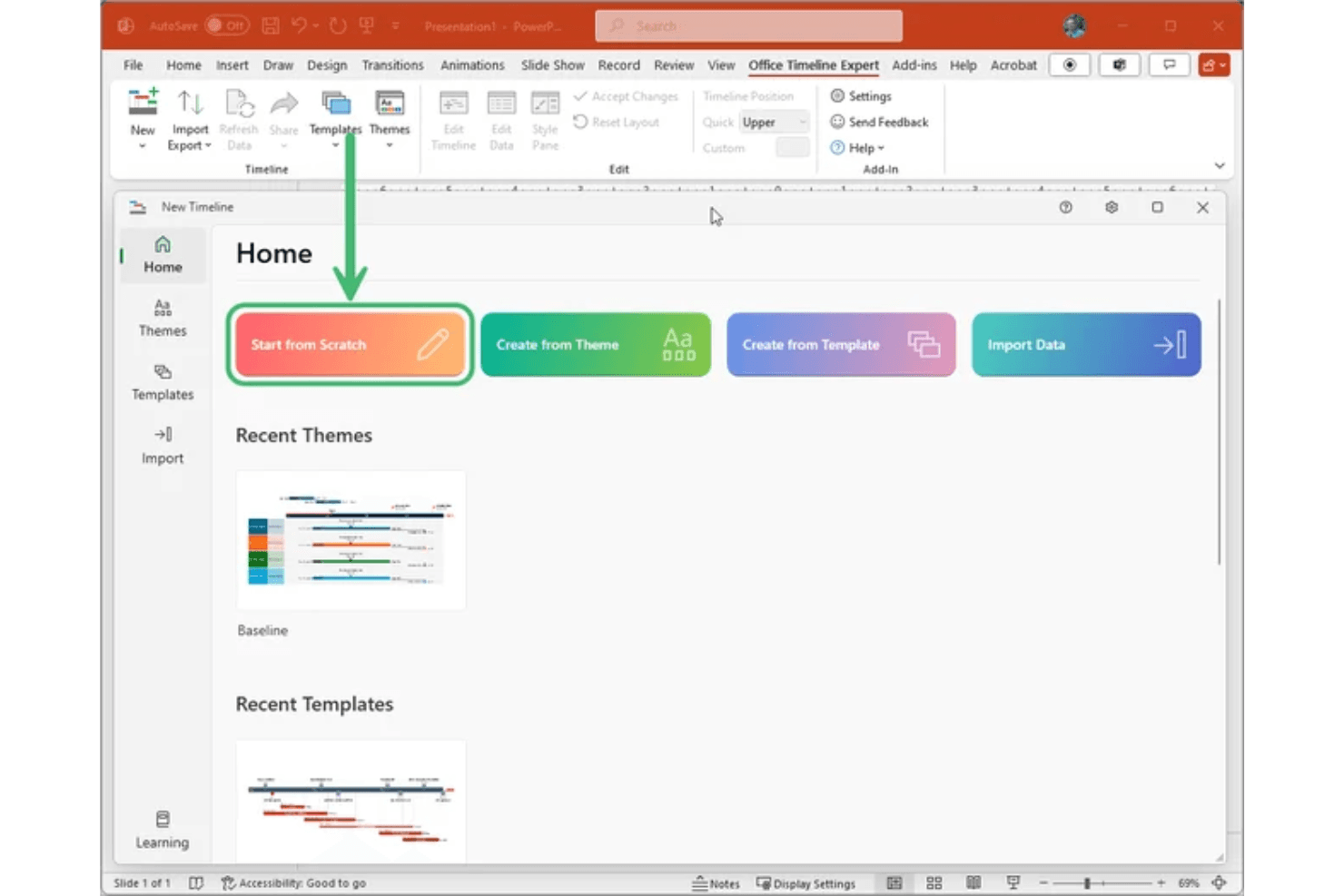
Office Timeline is a product management roadmap tool built for teams that create timelines and Gantt charts directly inside PowerPoint and Excel. It's worth considering when your primary deliverable is a polished executive presentation rather than a collaborative planning workspace. If you're weighing it against something like Roadmunk, Office Timeline is the stronger choice when stakeholder roadmaps need to live in a PowerPoint deck—not in a browser-based board that requires everyone to have an account.
Lucen Evaluation Summary
4.5/5
- Pricing upon request
- Free plan available
Why Trust Our Software Recommendations
6,700+
Reviews
20
Industry experts
16+
Evaluation factors
14
Years
Our team has been testing and reviewing software since 2012. As product managers ourselves, we know how difficult—and important—it is to choose the right software.
For this guide, we evaluated tools using hands-on testing and independent research, scoring tools using our selection criteria.
Our reviews reflect our human editorial judgment, not a sales pitch.
Expert reviewers:
- Andrew LumbySenior TPM
- Cristiano ValimSenior UI/UX Lead


Lucen Overview
When judging Office Timeline as a product management roadmap tool, its standout feature is the direct PowerPoint integration, which simplifies creating executive-ready visuals. Compared to others, it’s easier to onboard and use for teams already working in Microsoft environments. While it lacks some advanced integrations and automation, its intuitive interface and responsive support make it a strong choice for users prioritizing presentation quality over deep workflow automation. If you’re selecting a tool for client-facing updates or leadership presentations, Office Timeline’s polished output and familiar interface set it apart.
Pros
- Direct PowerPoint integration for polished executive presentations
- Fast timeline and Gantt chart creation from imported data
- Wide range of templates for different roadmap formats
Cons
- Lacks real-time collaboration for distributed teams
- Limited workflow automation compared to specialized tools
- Not suited for managing complex, multi-project portfolios
Is Lucen Right For Your Needs?
Who Would be a Good Fit for Lucen?
Office Timeline is best suited for teams and professionals who need to create visually compelling, presentation-ready roadmaps and timelines, especially when communicating with executives or clients. Its PowerPoint integration and template variety make it ideal for roles and industries where clear, polished visuals are valued over deep project tracking or automation. If your workflow centers on sharing updates in meetings or reports, Office Timeline’s strengths will align with your needs.
- Executive LeadershipFrequent need to present high-level project overviews to stakeholders.
- Consulting FirmsClient-facing teams require polished, branded timeline visuals for deliverables.
- Marketing DepartmentsCampaign planning benefits from clear, visual timelines for presentations.
- Healthcare Project TeamsRegulatory and compliance projects need clear, board-ready timelines.
- Education AdministrationAcademic program planning requires easy-to-understand, shareable roadmaps.
- Small BusinessesLimited resources benefit from simple, template-driven roadmap creation.
Who Would be a Bad Fit for Lucen?
Office Timeline is less suitable for organizations that require advanced collaboration, real-time updates, or complex portfolio management. Teams needing deep integrations, workflow automation, or agile-specific features may find its capabilities limiting. If your environment relies on multi-user editing, live dashboards, or managing many interconnected projects, Office Timeline may not meet your requirements.
- Large EnterprisesComplex portfolios and cross-team collaboration exceed its feature set.
- Agile Product TeamsLacks sprint planning, backlog management, and agile board features.
- Software DevelopmentNo real-time sync with dev tools or ticketing systems.
- Manufacturing OperationsDoes not support resource allocation or production scheduling.
- Remote-First TeamsNo real-time multi-user editing or cloud-based collaboration.
- PMOs (Project Management Offices)Portfolio-level reporting and advanced analytics are not available.
How We Test & Score Tools
We’ve spent years building, refining, and improving our software testing and scoring system. The rubric is designed to capture the nuances of software selection and what makes a tool effective, focusing on critical aspects of the decision-making process.
Below, you can see exactly how our testing and scoring works across seven criteria. It allows us to provide an unbiased evaluation of the software based on core functionality, standout features, ease of use, onboarding, customer support, integrations, customer reviews, and value for money.
Core Functionality (25% of final scoring)
The starting point of our evaluation is always the core functionality of the tool. Does it have the basic features and functions that a user would expect to see? Are any of those core features locked to higher-tiered pricing plans? At its core, we expect a tool to stand up against the baseline capabilities of its competitors.
Standout Features (25% of final scoring)
Next, we evaluate uncommon standout features that go above and beyond the core functionality typically found in tools of its kind. A high score reflects specialized or unique features that make the product faster, more efficient, or offer additional value to the user.
We also evaluate how easy it is to integrate with other tools typically found in the tech stack to expand the functionality and utility of the software. Tools offering plentiful native integrations, 3rd party connections, and API access to build custom integrations score best.
Ease of Use (10% of final scoring)
We consider how quick and easy it is to execute the tasks defined in the core functionality using the tool. High scoring software is well designed, intuitive to use, offers mobile apps, provides templates, and makes relatively complex tasks seem simple.
Onboarding (10% of final scoring)
We know how important rapid team adoption is for a new platform, so we evaluate how easy it is to learn and use a tool with minimal training. We evaluate how quickly a team member can get set up and start using the tool with no experience. High scoring solutions indicate little or no support is required.
Customer Support (10% of final scoring)
We review how quick and easy it is to get unstuck and find help by phone, live chat, or knowledge base. Tools and companies that provide real-time support score best, while chatbots score worst.
Customer Reviews (10% of final scoring)
Beyond our own testing and evaluation, we consider the net promoter score from current and past customers. We review their likelihood, given the option, to choose the tool again for the core functionality. A high scoring software reflects a high net promoter score from current or past customers.
Value for Money (10% of final scoring)
Lastly, in consideration of all the other criteria, we review the average price of entry level plans against the core features and consider the value of the other evaluation criteria. Software that delivers more, for less, will score higher.
Core Features
PowerPoint Timeline Maker
Create timelines directly in PowerPoint with a familiar interface and export options. This feature stands out for producing presentation-ready visuals in minutes.
Gantt Chart Creator
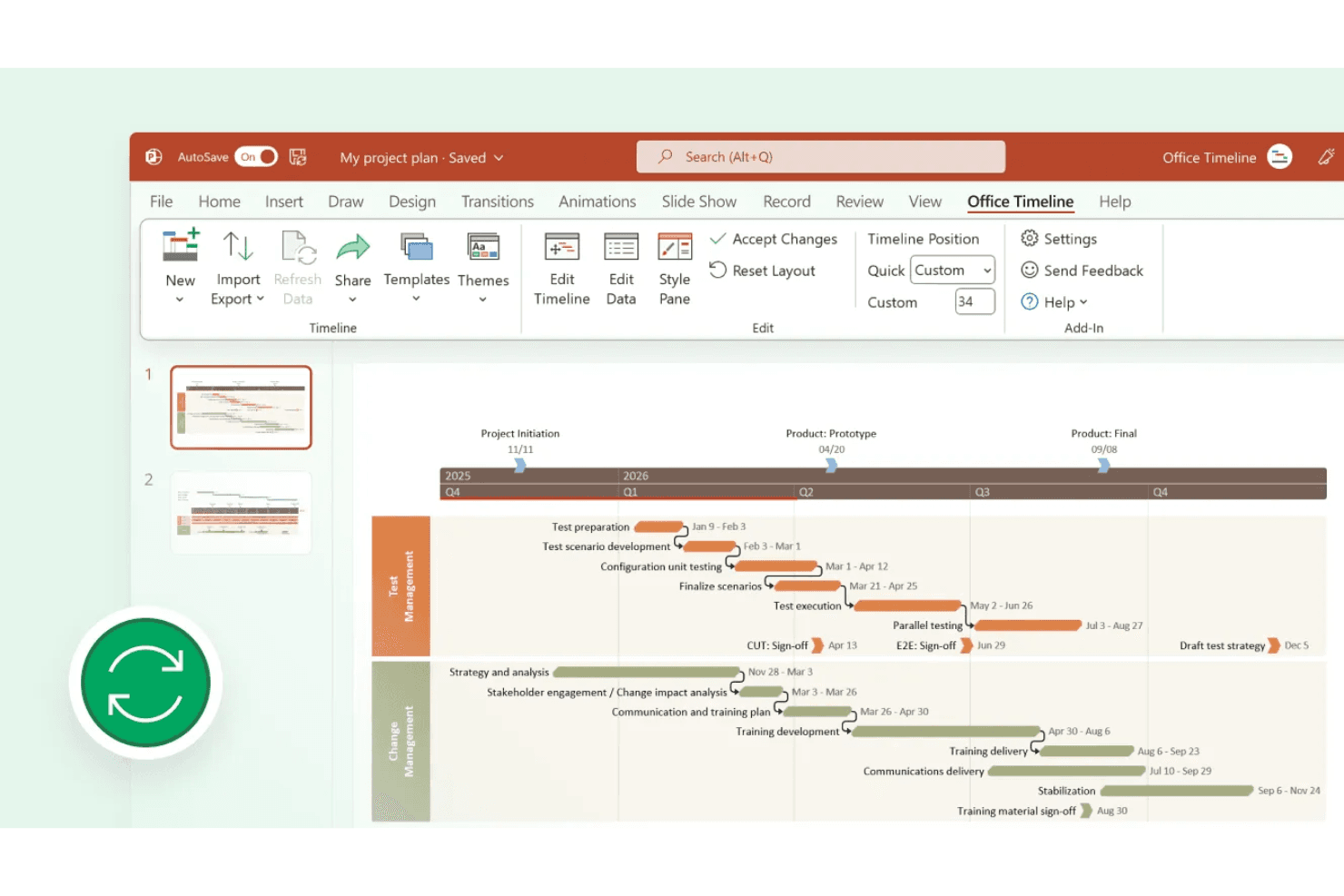
Build detailed Gantt charts that display tasks, durations, and milestones on a single slide. Easily adjust bars and dates to reflect project changes.
Ready-Made Templates
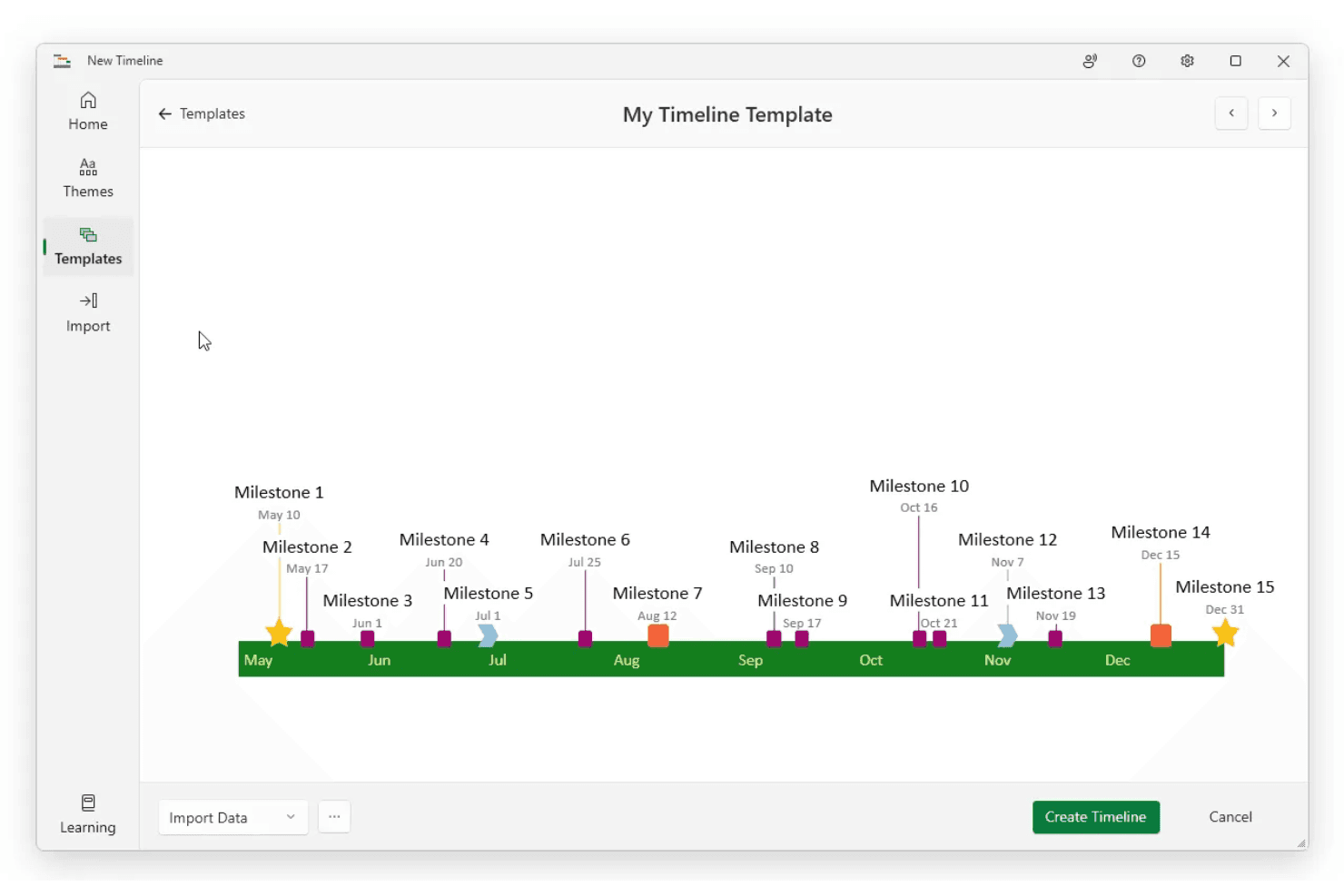
Access a wide variety of professional templates for roadmaps, Gantt charts, and project timelines. Templates help users quickly start new projects without designing from scratch.
Tasks and Milestones Management
Add, edit, and organize tasks and milestones to map out project phases and key deliverables. Visual cues like color-coding and symbols make tracking progress simple.
Swimlanes and Sub-Swimlanes
Group tasks and milestones into swimlanes for different teams, workstreams, or categories. This structure clarifies responsibilities and dependencies across complex projects.
Import Data from Excel or Project
Import project data from Excel or Microsoft Project to auto-generate timelines and Gantt charts. This saves time and reduces manual entry errors.
Ease of Use
Office Timeline is widely recognized for its intuitive, PowerPoint-based interface, making it accessible even for users with limited technical skills. Most users highlight how quickly they can create and edit timelines without extensive onboarding or training. The drag-and-drop functionality, clear templates, and familiar controls reduce friction, especially for teams already comfortable with Microsoft Office. However, users seeking advanced project management features may find its simplicity limiting for complex workflows.
Integrations
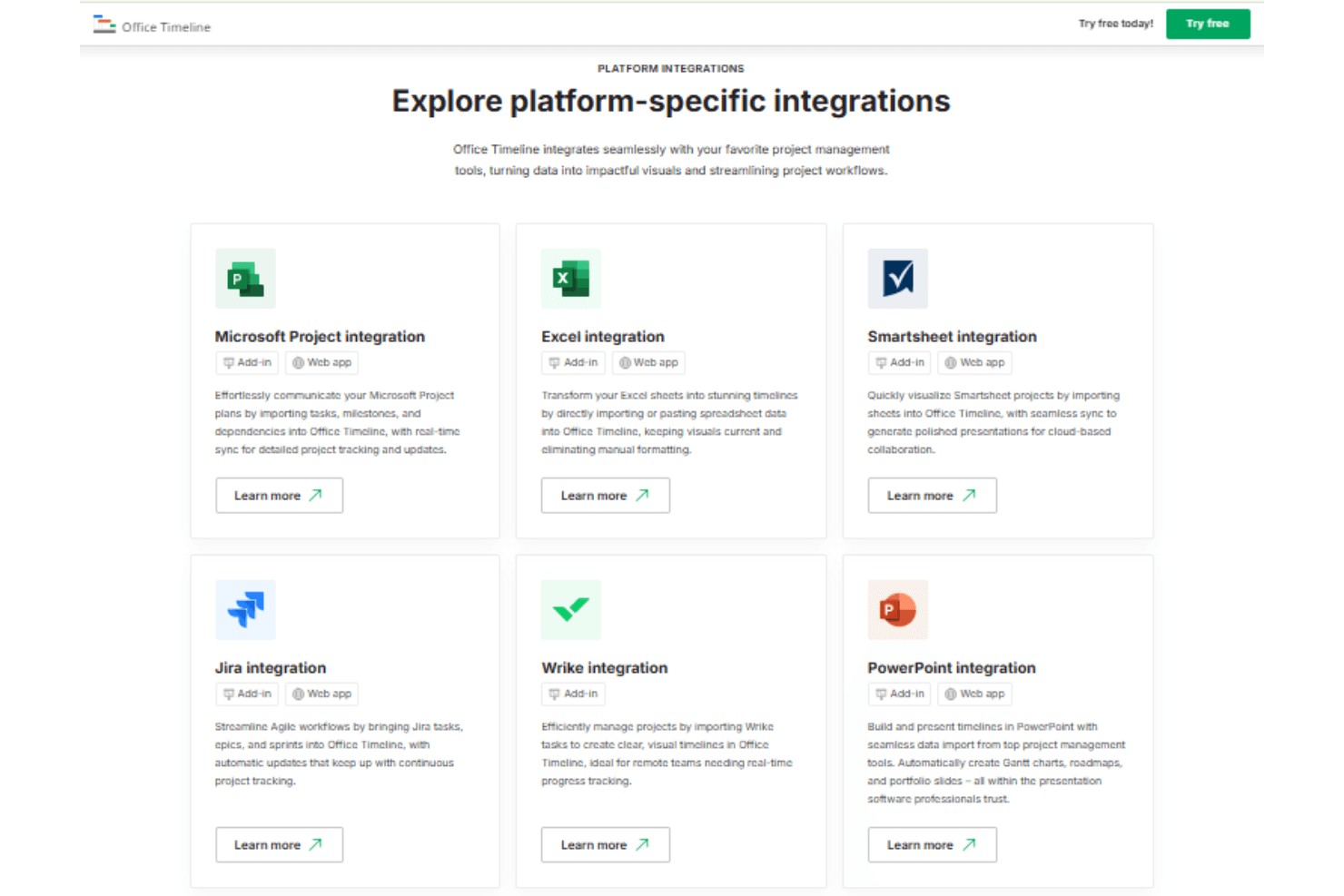
Office Timeline integrates with Microsoft Project, Excel, Smartsheet, Jira, Wrike, PowerPoint, Google Docs, Google Sheets, and Google Slides.
Office Timeline does not currently offer a public API or direct connections with third-party integration tools.
Lucen Specs
- API: Yes
- Calendar Management: Yes
- Chat: Yes
- Data Export: Yes
- Data Import: Yes
- Data Visualization: Yes
- Document Comparison: Yes
- External Integrations: Yes
- History/Version Control: Yes
- Multi-User: Yes
- Notifications: Yes
- Scheduling: Yes


